Choose the right starting point
Choose the entry point that fits your request: review or order an existing package solution, discuss an individual configurator, or ask a general question.
- Trial access: your company wants to evaluate Terrace3D for 28 days before making a purchase decision.
- Online order: you have selected a suitable available package and want to complete the order with company details and payment.
- Individual project or Enterprise: first agree the scope, product logic, implementation, and separate services with Terrace3D.
- Contact: ask a general question or reach the right contact person.
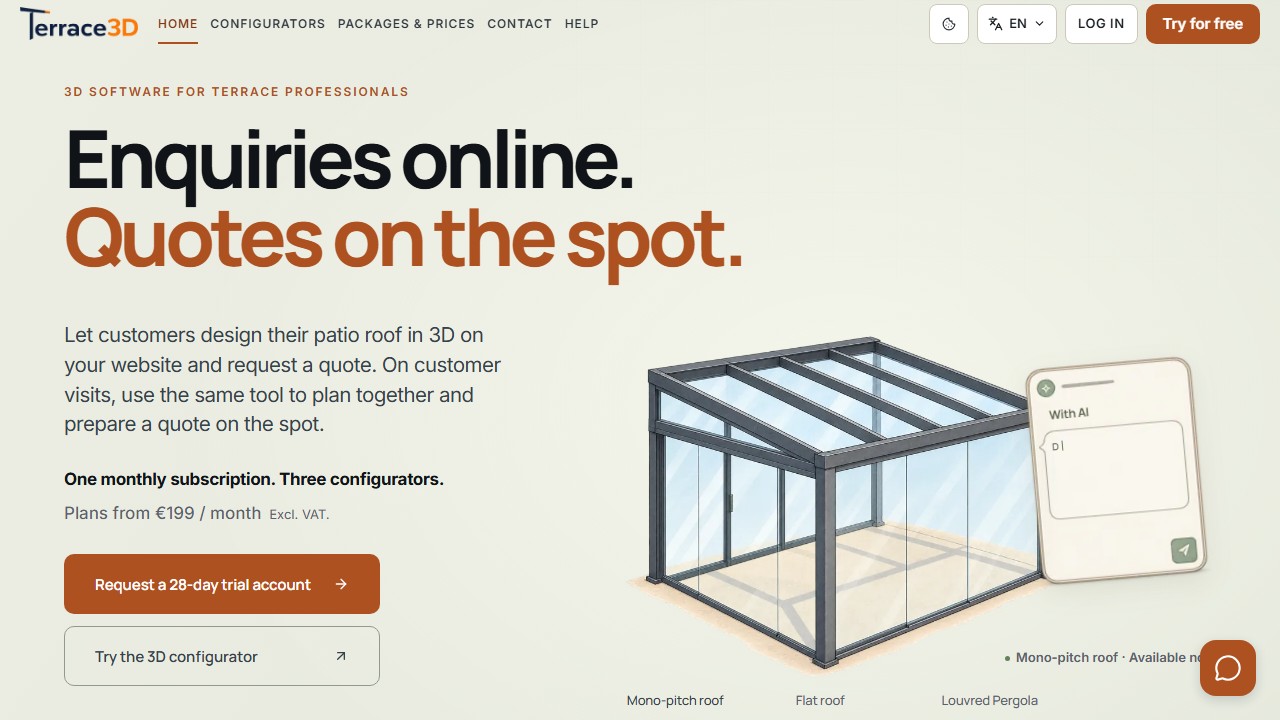
Starting point on the Terrace3D website
The start section leads to trial access and further product information. View with sample data.
Apply for 28-day trial access
After submission, the website shows the processing status. If automatic invitations are enabled, demo access is prepared and the invitation link is sent by email. If a review is required or the application is processed manually, you receive the corresponding response.
New trial accounts receive 28 days from the first login. Existing trial accounts keep their current duration and end date. Also check your spam folder. You do not need to resubmit an application that has already been saved.
- Open the application via Try for 28 days.
- Enter your first name, last name, email address, company, and country.
- If needed, add your website and intended purpose of the trial under the optional details.
- Confirm the displayed privacy notices and submit the application.
- Check the response on the website, your email inbox, and spam folder.
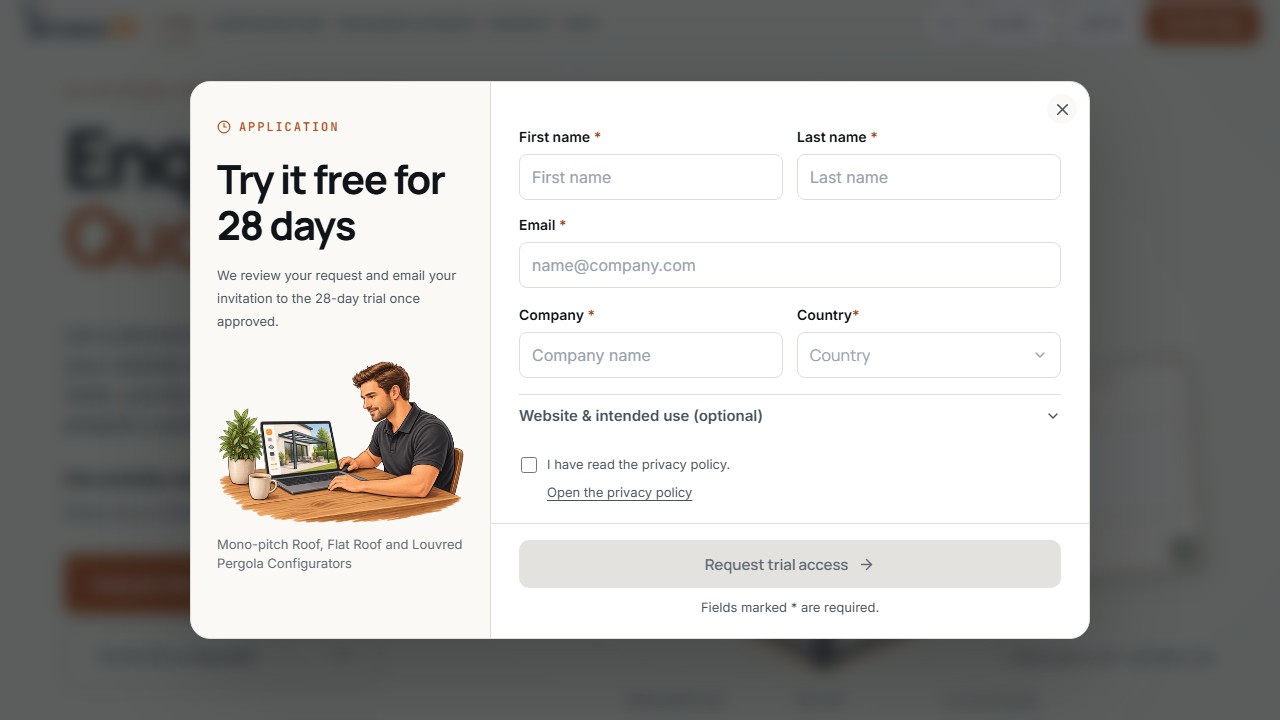
Application for trial access
The trial request collects personal and business details and acknowledgment of the privacy policy. View with sample data.
The displayed confirmation distinguishes between a saved application, a prepared or sent demo link, and a required review. The response on the website and the associated email are authoritative.
Order a package solution online
New online orders are assembled in the ordering process and completed through the payment page provided. A non-binding contact inquiry does not replace this process.
- Compare Basic, Pro, and Enterprise on the website.
- Select the desired available package and required number of users.
- Check the three included base configurators and any additional configurators offered.
- Open the order and check the selection, recurring costs, and one-time line items.
- Continue with company details and payment.
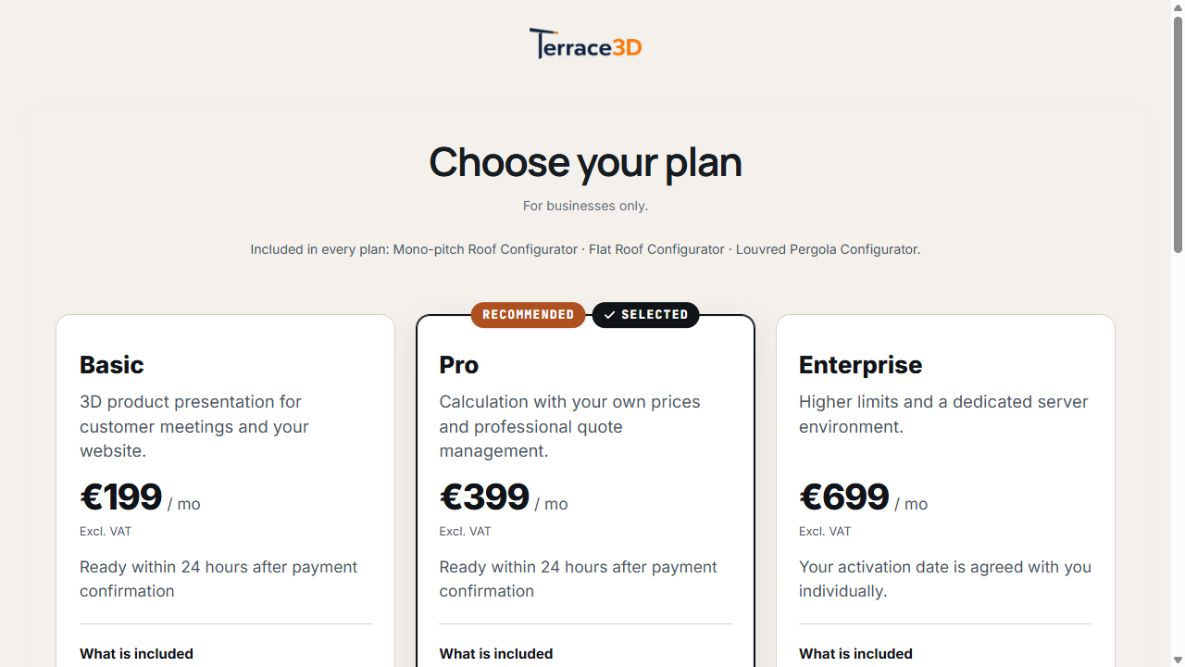
Plan comparison during checkout
The plan cards show monthly prices and activation information. Pro is selected in the example. View with example data.
Before ordering Enterprise, agree your project with Terrace3D. Individual development and additional setup are offered and billed separately.
Check company details and order summary
- Enter the company name, contact person, and an email address where you can be reached in full.
- Check the company address and country; enter a different billing address if needed.
- Add required tax and company details and address any validation messages shown.
- Check the package, number of users, and optional line items.
- Check the amount due now, future monthly amount, tax, and total amount.
- Apply any promotion code offered before completion and read the recalculated terms.
Choose a payment method and confirm the order
The payment methods offered depend on the order and their availability. They may include credit or debit cards, SEPA direct debit, and PayPal. Payment details are entered on Stripe's secure payment page.
- Select one of the payment methods actually offered.
- Read the contract preview and displayed order terms.
- Confirm the required notices and consents.
- Complete the order using the button that places a binding paid order.
- If necessary, follow your bank's confirmation process on the payment page and return to the order status page.
For SEPA, bank confirmation can take several working days. Authorizing a direct debit or returning to the website is not yet a confirmed payment.
Distinguish payment status from provisioning
The order status page shows whether your payment is pending, being processed, needs further confirmation, or has been paid. The contract, payment status, and provisioning are displayed separately.
After the first payment is confirmed, the company account is prepared with the ordered scope. Basic and Pro are provisioned within 24 hours; the Enterprise date is agreed individually. For a listed promotion, the conditions confirmed in your order apply.
- Processing: wait for bank confirmation and check the existing order; do not create a second order for the same transaction.
- Confirmation required or payment failed: use the existing payment route or the help shown.
- Paid: payment is confirmed. The account, users, and technical activation may still be in progress.
- Keep the order reference and confirmed documents for follow-up questions.
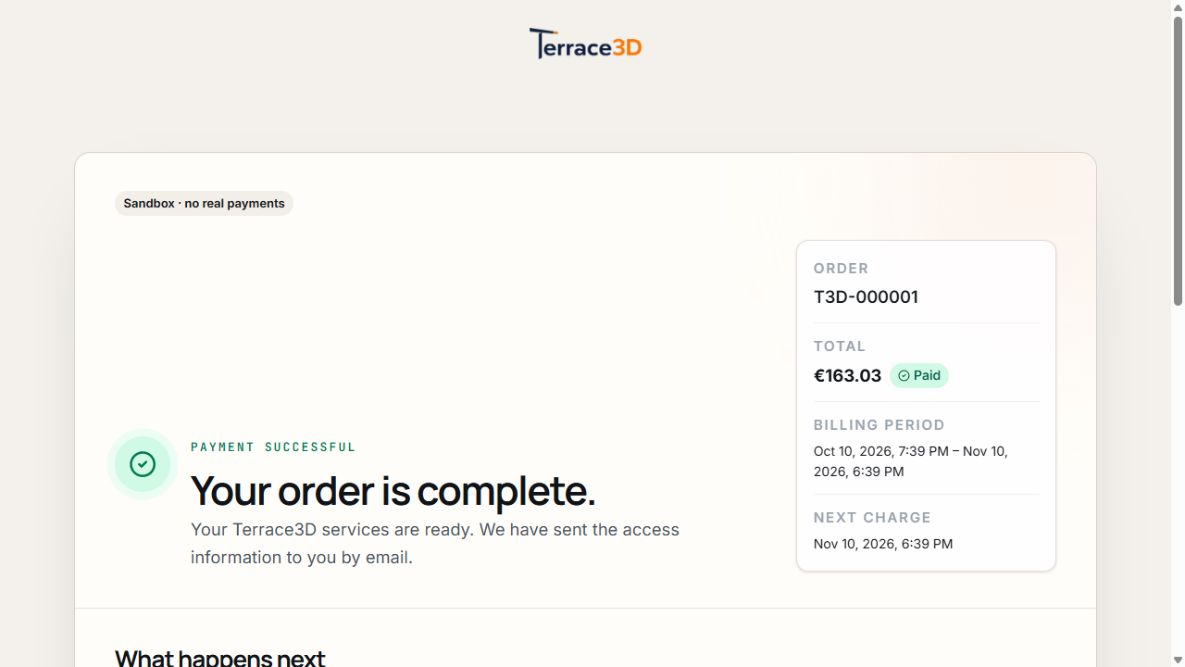
Order status after the payment page
The status page associates payment, provisioning, and billing period with the sandbox sample order. View with sample data.
Inquire about an individual configurator
For different products, your own configuration logic, or integrations, discuss the project before ordering. Terrace3D clarifies the scope, technical implementation, and services to be offered separately.
- Describe the product type, variants, dimensions, materials, and accessories.
- Specify whether sales staff, website visitors, or both will use it.
- Identify existing 3D, CAD, product, and price data.
- Agree on price calculation, PDF quotes, technical views, and integrations.
- State languages, timeframe, budget, and the intended publication date.
Use the contact form for general questions
For general questions, use the contact page and select the appropriate topic. Describe your question and name a contact person who can be reached.
A contact or project inquiry is not yet a paid package order. For a separately agreed manual order, the specific quote and the payment terms confirmed in it apply.
Payment and invoices
For online orders, check payment and order documents on the status page. Once the company account is assigned, authorized users can access existing payment transactions and provided invoice documents under Invoices and payments.
Existing manual invoices or payment schedules retain their agreed terms. A bank transfer is the correct method only if agreed for the specific transaction or specified on the invoice.
Public inquiry or support ticket?
- Trial access: use the trial application.
- Buying a standard package: use the online ordering process.
- Individual project or question before purchase: select the appropriate contact topic.
- Existing account, project, quote, or payment: use Support in the dashboard.
- If login is not possible, use the contact page or the public support offered there.
For questions about an order, provide its existing reference. Do not create a new order to replace a payment that is still unresolved.
