Open Settings and choose the correct tab
Open Settings in the company portal. Authorized users manage company-wide defaults here. Which settings are available and editable depends on permissions, assigned configurators, and your access.
- Appearance: company logo, browser tab, color theme, and company font.
- Domain: company website and an enabled custom configurator address, where applicable.
- Configurator & inquiries: available language, market, start screen, inquiry, and AI settings.
- Email: your own SMTP connection, if Terrace3D has enabled this option for your company.
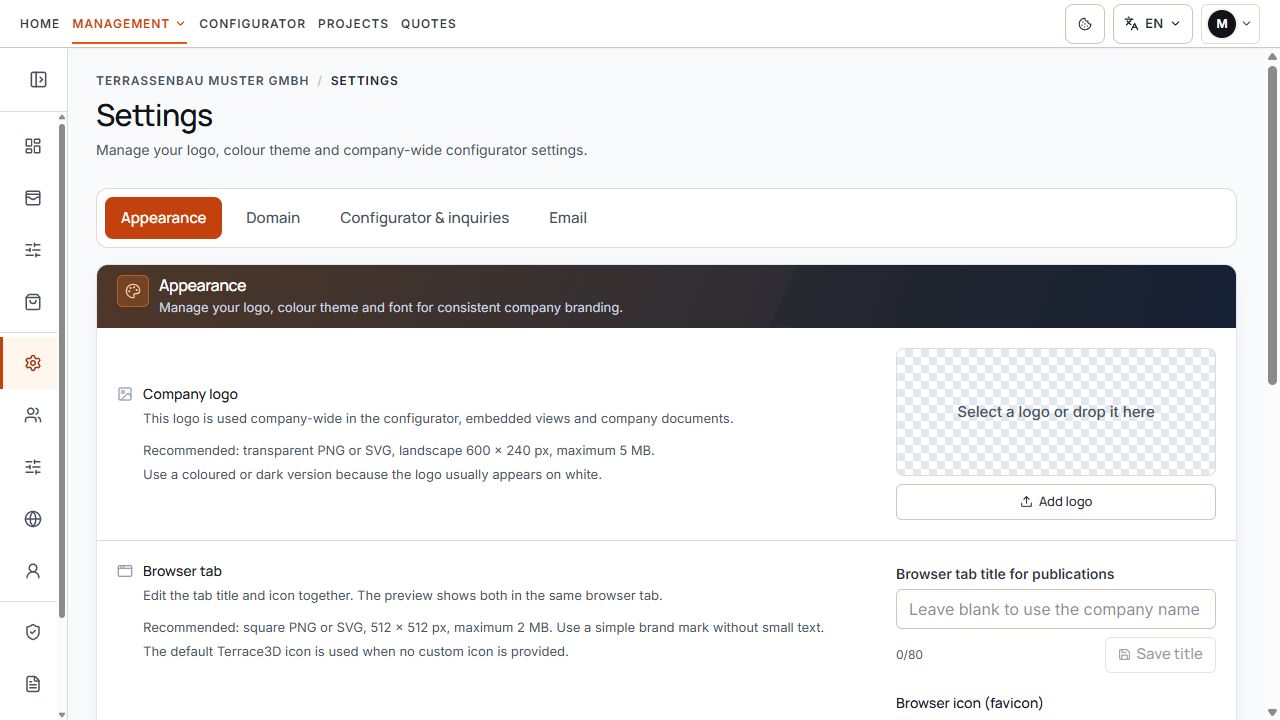
Appearance and logo area
Logo selection, browser title, and site icon shape the company branding. View with sample data.
The areas are saved separately. A preview or switching to another tab does not yet confirm saving. Observe the respective Save action or the feedback after a direct selection.
Logo and color theme
Under Appearance, manage the company logo and available configurator color theme. The preview helps check your branding before applying changes.
- In the logo area, select Upload or Change, or drag a supported file into the upload area.
- Use PNG, JPG, WebP, or SVG up to 5 MB; a transparent landscape logo of around 600 × 240 pixels is recommended.
- Position and scale the logo in the logo tool. Use Fit or Center if needed.
- Apply the logo and wait for saving confirmation.
- Select an available color theme, check its preview, and save the desired selection.
Appearance and logo area
Logo selection, browser title, and site icon shape the company branding. View with sample data.
The logo and color theme apply company-wide. Also check the saved appearance in a published view and the logo in a newly created quote document if your package supports quotes.
Browser tab: title and favicon
The Browser tab area previews the title and site icon together. The tab title for publications may contain no more than 80 characters. An empty title field uses the company name. Save the change with Save title.
- Favicon: PNG, JPG, WebP, and SVG up to 2 MB are supported. A simple square brand icon of 512 × 512 pixels is recommended.
- Check the crop and scale in the image tool and apply the change.
- Without your own favicon, the standard Terrace3D icon is used.
- After saving, compare the preview in Settings with the actual browser tab of a publication.
Custom color themes and company font
If custom color themes are enabled, you can use the offered create, edit, and remove actions. Observe the displayed limit and save the desired appearance.
Under Company font, choose from the fonts offered for your company. Check the preview and use Save font. If a fixed default font is specified, changes by the company are not enabled.
The company font applies in the company area, configurators, and quote PDFs. Already completed quotes retain their saved font.
Domain and configurator address
- Open the Domain tab and check Your website domain. Enter a domain such as firma.de without subpages or port numbers and select Save domain.
- If your own configurator address is enabled, choose the offered address prefix under the saved website domain.
- Save the address and open Show DNS records.
- Enter the specific CNAME and TXT records shown with your domain provider.
- Select Check DNS and note the result. After DNS is confirmed, SSL is set up.
- Assess availability using the displayed status; successful saving alone does not confirm a ready-to-use address.
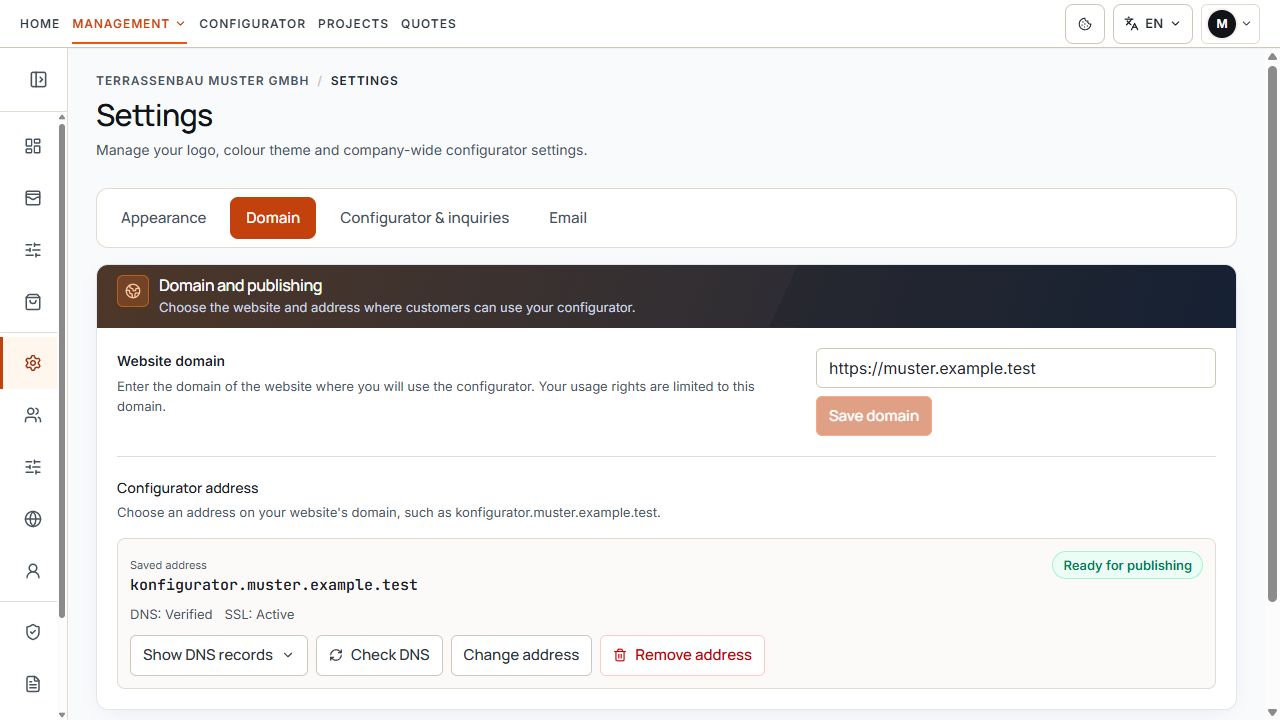
Domain, DNS check, and SSL status
Hostname, DNS check, and SSL state describe the technical readiness of your own address. View with sample data.
If a previous configurator address no longer belongs to the changed domain, it is no longer reachable there. Publications, drafts, and permanent Terrace3D links are retained. A pending DNS check concerns your own address; Website publication is managed separately.
Languages and default language
Find the publication languages offered under Configurator & inquiries, provided website publications are available for your company. The selection applies to published configurators and shared project views.
At least one language must remain active. Under Default language on opening, choose the default for addresses without a valid language setting. Before deselecting the current default language, set another selected language as the default.
After a selection, wait for feedback. Company languages are a default for publications; your own interface language is separate.
Sales countries and display currencies
In the same tab, define the sales countries offered. Only these countries appear when starting the published configurator. At least one country must remain; a country cannot be entered more than once.
- Check the displayed price list basis and countries already entered.
- Add an available sales country if needed.
- For each country, check the offered display currency and choose the appropriate currency.
- Remove countries you no longer serve without deleting the last country.
- Wait for feedback and check the selection on the start screen.
The price list basis and display currency are different details. The base currency is displayed here; selecting another display currency does not change it. Align markets with your price lists and quotes.
Start screen and inquiry texts
If the relevant publication settings are available, customize the start screen for individual models and the shared model selection under Configurator & inquiries. Check the desktop and mobile previews.
Background images support JPEG, PNG, and WebP up to 8 MB. Prepare the crop and apply it with Save background image. Additional display of the company name can be configured when a logo is present.
Use the offered text editing to adjust start headings and inquiry texts in active languages. For inquiry texts, the title and description are used in the configurator's overview or quote area. Empty fields use the respective default text.
- When entering text, check the active language.
- Apply inquiry texts with Save all languages.
- Before publication, check the saved texts and actual inquiry form.
AI assistant: request limits
Under AI assistant · Request limits, authorized users set the permitted number of requests per company user and website visitor within the respective period. Enter the number and days separately and save the values.
0 visitor requests hides the AI assistant for new website visitors. The monthly token quota is set by Terrace3D and is not increased by these request limits.
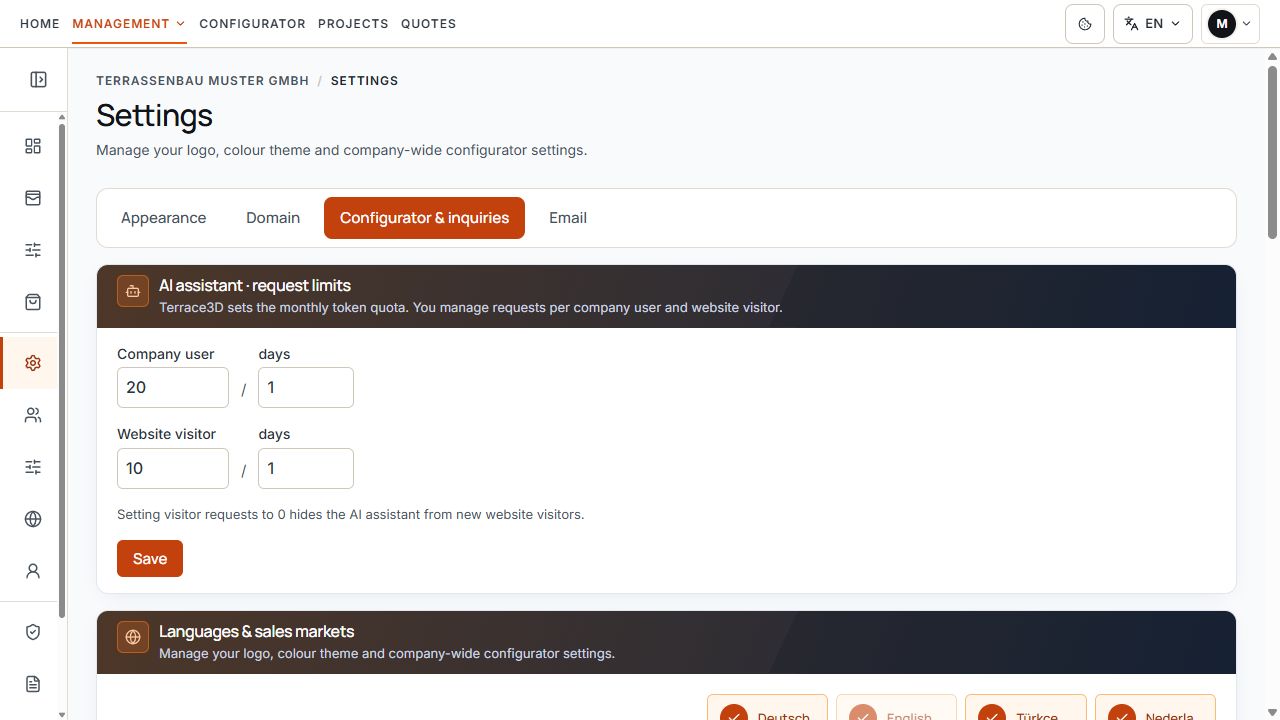
AI request limits and languages & sales markets
The upper area sets AI request limits for company users and website visitors. The languages & sales markets section starts below. View with sample data.
Email: set up company SMTP
The Email tab appears only if your own SMTP connection is enabled for your company. Setup requires company-wide access and your email provider's connection and sender details.
Company SMTP covers customer quotes, including copies, and inquiry confirmations. System emails continue to be sent through Terrace3D.
- Enter the SMTP server, username, and permitted sender address. Add a sender name and, if needed, a reply-to address.
- Choose the connection security supported by the provider and the appropriate offered port: STARTTLS or TLS / SSL, 587 or 465.
- Enter the password during initial setup. For an already saved connection, an empty password field leaves the saved password unchanged.
- Select Save. Unsaved changes must be applied first.
- Select Send test to me and check the feedback and inbox.
- Activate Use own SMTP only after successfully testing the saved connection. Then check the Sending via company SMTP status.
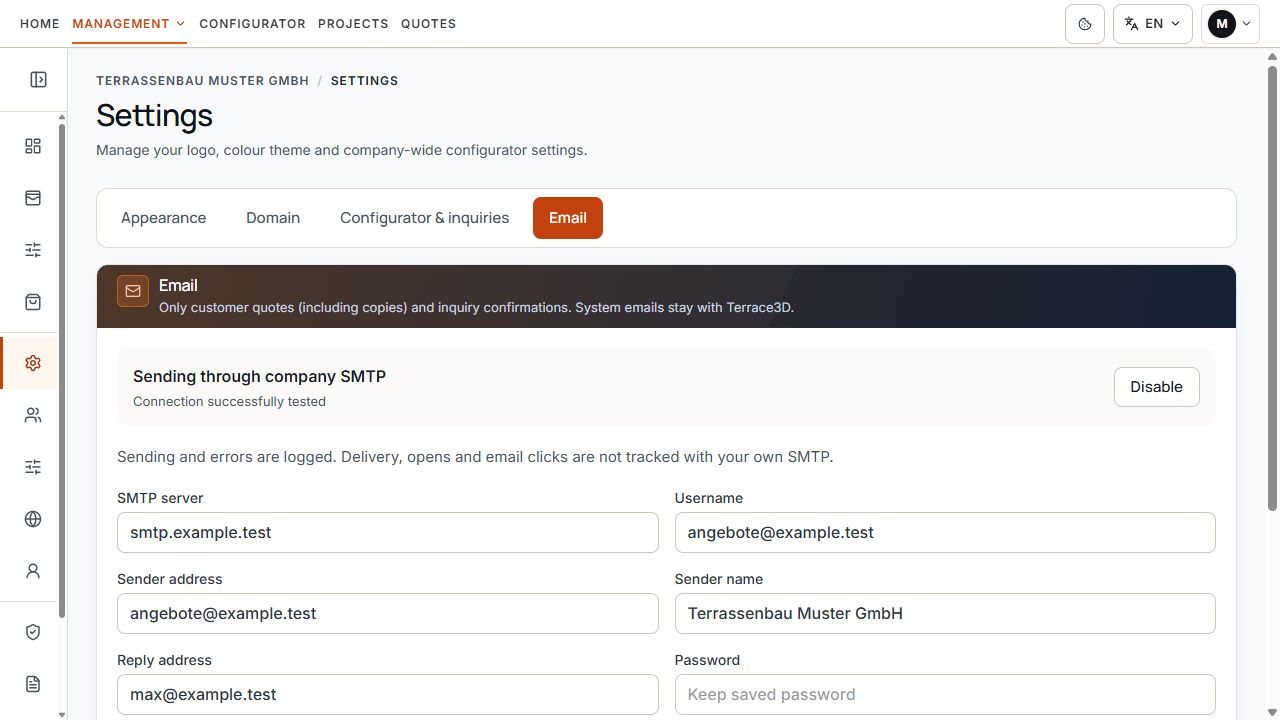
Company email status and sender details
The status shows the tested company connection. The SMTP server and sender details identify your company’s email setup. View with example data.
Changes to saved SMTP settings, including the sender name or reply-to address, as well as a new password disable sending through this company connection. Save, test and enable the connection again. A test accepted by the SMTP server does not guarantee delivery to the inbox.
Check sending status and missing settings
With your own SMTP, sending and errors are logged. Deliveries, opens, and email clicks are not recorded for this sending route. The sending status therefore does not provide complete proof that a recipient has read the message.
Deactivate switches back to sending through Terrace3D. Before reactivating, check the saved connection and its test status.
- If cards or actions are missing, first check company-wide access, product permissions, and Website publication.
- A missing Email tab means your own SMTP setup is not enabled for the company.
- For loading errors, use Try again; consider a change saved only after confirmation.
- For follow-up questions, name the area and error message. Do not copy passwords or complete SMTP credentials into a support ticket.
