Structure of project management
Under Projects, find saved configurations and, with company-wide access, incoming web inquiries. The normal list shows each project once with its latest active version. Earlier versions and their quotes remain accessible in the detailed view.
You can switch between card and list views. Open configurator starts a new project; Open in configurator loads the selected saved version. Refresh reloads the list, statistics, and Trash counter.
- Project overview: shows the total count, configurator projects, web inquiries where applicable, and the current month. These statistics cards describe visible projects and are not a quota display.
- Filters: narrow projects by search text, source, project status, and creation period.
- More actions: opens versions and quotes, existing draft quotes, viewer link, Duplicate, and Delete, among other things, where available.
- Trash: contains deleted project versions. Open deletion history within this dialog.
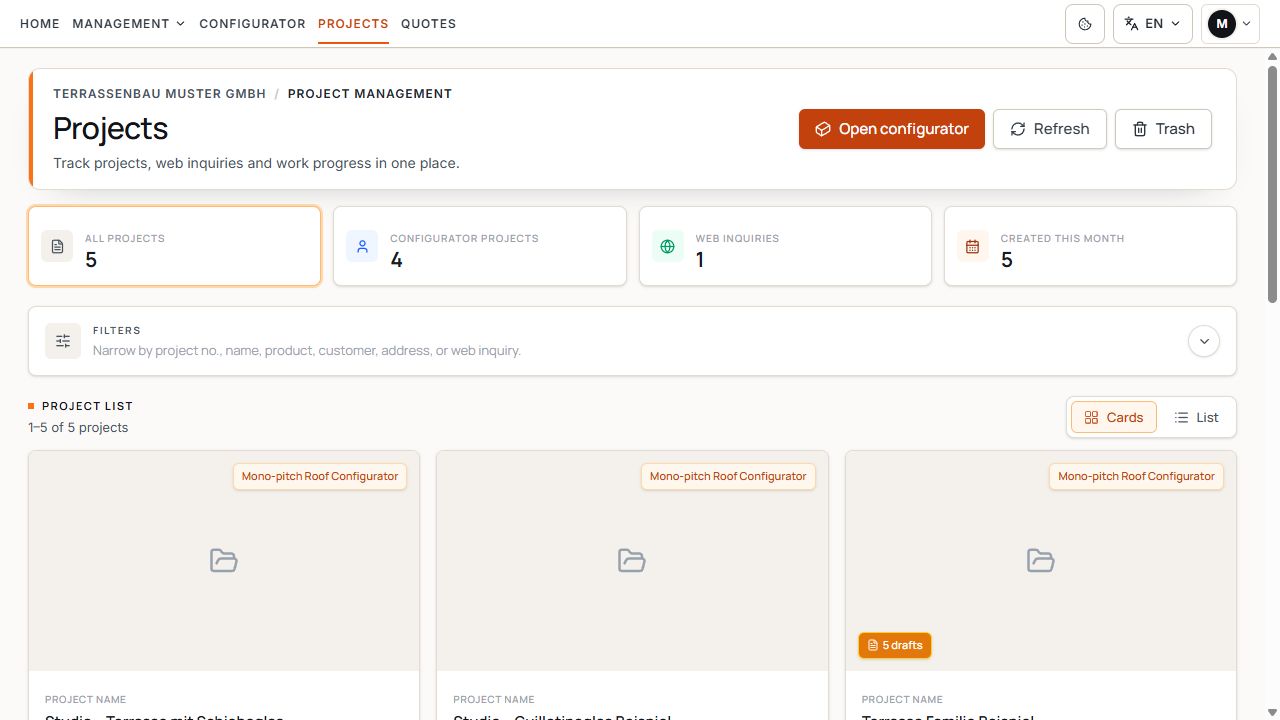
Find projects and open the correct version
The cards show available project states and lead to editing or project information. View with sample data.
Access and available actions
The visible scope depends on your user access and enabled company modules. An account with restricted access sees its own or explicitly accessible data. The company-wide overview of web inquiries is unavailable to this account.
Quotes and associated actions require the quotes module. Without this module, projects and versions remain available while quote areas are hidden. Viewer links and file uploads also require their respective permission.
If a project or feature is missing, first check user access, enabled configurator, and company modules. A hidden quote area does not remove protection from a project version already linked.
Use filters correctly
- Search: searches project number, name, product, customer, or address.
- Source: distinguishes configurator projects and web inquiries where your access permits these sources.
- Project status: filters by Outcome undecided, Planned, In progress, On hold, Completed, or Not carried out / Cancelled.
- New web inquiries: limits the list to inquiries still marked as new.
- Created from / to and quick periods: narrow the project's creation date. A new version does not turn an old project into a newly created customer project.
- Sorting and pagination: arrange matches and show further results. Active filters may initially prevent an existing project from appearing.
Read a project card
- Project name and project number: identify the customer project; the version number identifies the open saved version.
- Product and preview image: help identify the configuration.
- Customer details and attachment notice: show existing contact information and saved project attachments.
- Draft and quote counters: include accessible quotes for the project across multiple versions. A draft quote must be distinguished from a finalized quote.
- Project status and New inquiry: describe processing progress or initial inquiry handling; they are not sending or payment confirmation.
- Selected basis: shows the version or selected quote chosen for project workflow and, where applicable, the recorded amount.
Understand the detailed view
Open project details or Versions and quotes in the menu. The detailed view marks the version as editable or protected and groups associated data in areas.
- Details: preview, project information, saved pricing tariff, customer details, and internal notes; for a web inquiry, also contact preference, message, and existing privacy evidence.
- Versions and quotes or Versions: saved states and, with the quotes module enabled, drafts and finalized quotes assigned to each state.
- Project attachments: existing photos and PDF documents; the area appears when files exist or the upload module is active.
- Project status: processing progress and selected basis for the entire project.
- History: traceable changes to the project.
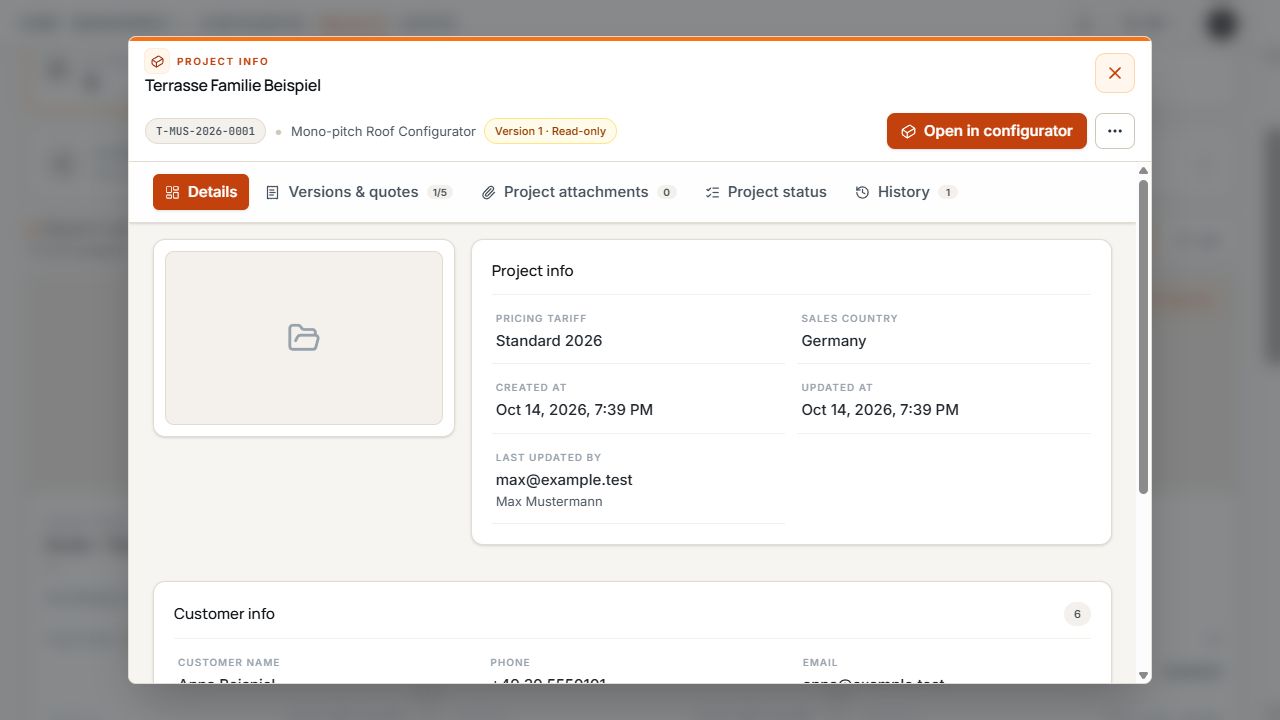
Project information and associated detailed areas
The tabs organize project information. The visible version is marked read-only. View with sample data.
Open and edit a project
Once a draft quote or quote has been linked to a version, Terrace3D protects that project state. Configuration and customer details are no longer overwritten in that state. Later moving a quote to Trash does not unlock the version.
When continuing, Terrace3D opens an existing editable version of the same project or creates the next version. The previous state and its quotes are retained.
- Select the project by name, project number, product, and customer.
- In the detailed view, check version number and editing status.
- Select Open in configurator and check the configuration in Studio.
- For an editable version, adjust dimensions, materials, and options and save the change.
- For customer details or notes in an editable version, use Edit project details and save changes.
- For a protected version, continue editing in a new version through More actions.
New version and Duplicate have different effects: a version continues the same customer project. Duplicate creates an independent project and uses project quota for it.
Associate versions and quotes correctly
In Versions and quotes, versions are listed by descending version number. The currently open version is marked. You can view other active states in the configurator using Open version.
Quotes are listed directly below their respective project version. Draft, Finalized, and, where applicable, Sent or Failed identify different steps: a finalized quote need not yet have been sent successfully.
- Continue draft opens an existing draft quote. For an older draft, the menu names its version number.
- Create new quote or Create new quote for version … starts the quote workflow for the relevant state if enabled and no draft to continue is shown for that state.
- An older draft remains accessible even when work on the latest version is already continuing separately.
- Before a change or sending, always check project number, version number, and quote reference together.
Check the pricing tariff in the project and change it in the configurator
Project information displays the assigned pricing tariff only for information. Project information no longer contains a selection for changing the pricing tariff.
Changing a pricing tariff belongs to editing an unprotected project version. Then check the new calculation before creating a quote from it.
- Available active and complete pricing tariffs are considered for the new selection.
- When changing only the pricing tariff, model, dimensions, and product options are retained; the price may change.
- A pricing tariff archived later may still appear as the assigned pricing tariff in a saved project.
- For a protected version, first continue in an editable version. Existing quotes and their associated version are not overwritten by this new editing.
- Check the currently assigned pricing tariff in project information and open an editable version in the configurator.
- Open Model and pricing tariff on the left. Leave the model unchanged if you want to change only the pricing tariff.
- Select the desired pricing tariff and click “Review changes”.
- Check the announced change and confirm in the confirmation dialog.
- Check the recalculated project price and price-relevant line items and save the project.
Web inquiry in the detailed view
Inquiries from a published configurator are saved with their configuration as web inquiries. Open the inquiry and check contact details, preferred contact method, any contact time, customer message, location, and attachments.
Newer inquiries also provide the privacy evidence saved for submission. A missing-evidence notice on an older entry must be distinguished from a failed inquiry.
- Use Web inquiries as the source or New web inquiries as a filter.
- Check project number, contact details, message, and existing attachments.
- Check the saved configuration in the configurator; then resolve questions or prepare a quote where enabled.
- In Project status, save initial handling with Mark as handled.
- Maintain the actual project status and selected basis separately. The inquiry can be marked as new again if needed.
Mark as handled logs initial inquiry handling. It does not send a reply to the customer, create a quote, or automatically set project status to Completed.
Check and manage project attachments
Existing project attachments can be opened or downloaded in the corresponding area. Existing files remain visible in details even when the upload module is not currently active.
Adding new files or removing existing ones requires the upload module and an editable project version. For a protected version, file management cannot simply be continued; check editing in a new version.
- File names and previews help identify photos and PDF documents.
- Observe occupied and remaining slots. A full file limit must be distinguished from missing upload rights.
- Before removing a file, ensure it is no longer needed for assessment.
Maintain project status and selected basis
Use the status on the project card or the Project status area to edit the progress of the entire customer project. Select Outcome undecided, Planned, In progress, On hold, Completed, or Not carried out / Cancelled and save the change.
Under Selected basis, decide which state should apply for tracking: no selection yet, Track without quote, or select an available finalized quote. Without a quote, you can record an agreed amount and currency and, if needed, specify the project version used.
- A new version or quote does not automatically replace the selected basis. Explicitly check the selection and change it if needed.
- A note explains the event; changes and selection remain traceable in history.
- Changing status or selecting an existing quote uses no additional project or quote quota.
- If a simultaneous change is reported, reload the data and select the intended change again.
- Recorded project values are not incoming payments. Project analysis counts a project once and uses its selected basis; different currencies are analyzed separately.
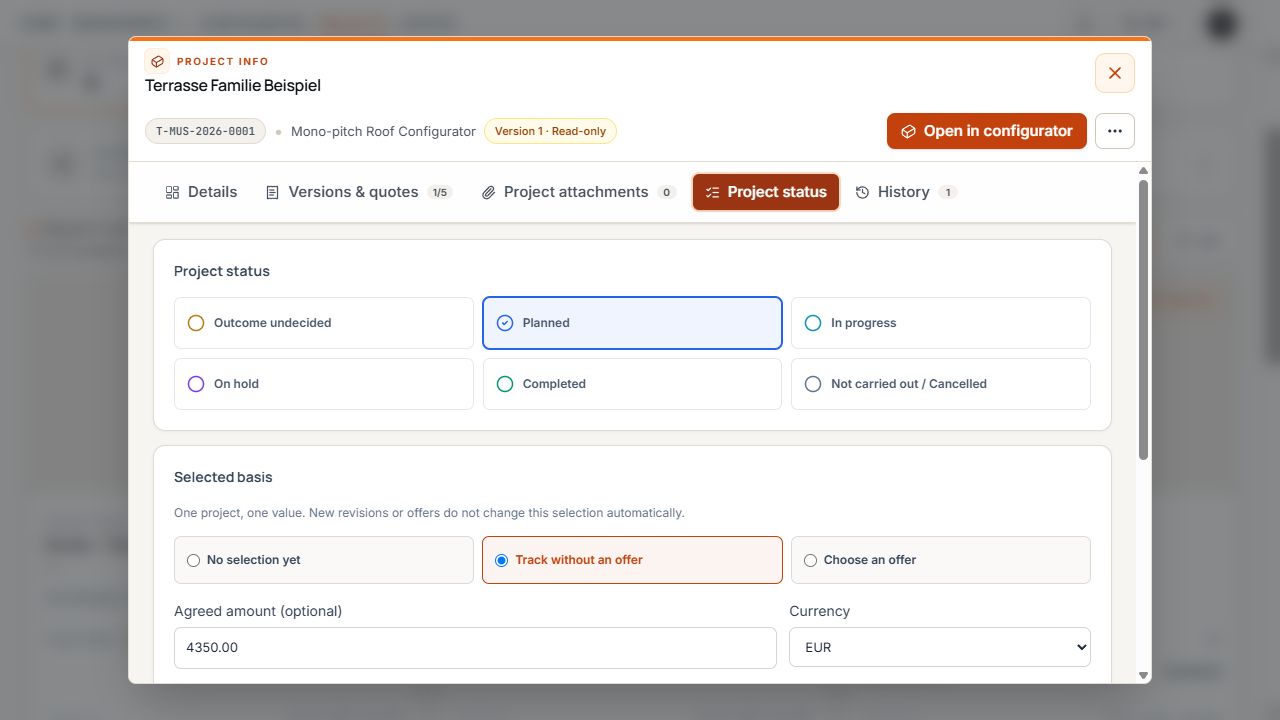
Record processing and the authoritative project version
Processing status and selected basis are separate. Amount and currency supplement the tracked project state. View with sample data.
Quota: new projects and stored records
Two limits apply to projects: the monthly creation quota and your company's total storage capacity. Check current limits and consumption in Contract & access; the project list's statistics cards are separate.
A new saved project, Duplicate, and a newly received web inquiry each use one slot in the monthly quota and one slot in stored projects. Further versions of the same project do not occupy an additional project slot.
- The monthly quota renews at the start of the next company calendar month. It does not automatically follow the subscription's individual payment date.
- Trash does not yet free storage because projects remain recoverable.
- A project slot becomes free only when the project's last saved version has been permanently removed.
- Permanent deletion does not refund an already used monthly creation quota.
- Quote documents have their own quota; a new quote may therefore reach a separate limit even though work can continue on the project.
If creation is blocked, check both quota limits. Deleting one old version does not create a new project slot while other versions of the same project remain stored.
Viewer link and independent copy
- Viewer link: creates an external viewing link for the saved project with the appropriate permission. It does not provide editing access to the company portal.
- AR: creating or opening the viewer link uses no AR quota. A new AR model creation triggered from it counts toward your company's daily quota.
- Duplicate: creates an independent project for a separate alternative. The confirmation dialog points out consumption of a monthly project slot and occupation of a storage slot.
- To continue an existing quote project, use the version feature instead and retain the previous association.
Delete a project and linked quotes
Delete in the normal project list moves the entire project with all active versions and their active linked quotes to Trash. Check the project number and displayed quote references before confirming Move to Trash.
Trash then works with individual project versions. Version number and associated quotes are therefore decisive for restoration and permanent removal. The Trash counter describes deleted versions and may differ from the number of logical customer projects.
- Restore version restores the selected project state and quotes deleted together with it. Separately deleted quotes are not generally reactivated by this.
- Permanent deletion affects the selected version and its quotes and files. Other project versions are retained.
- If a permanently removed version is used as the selected basis, that association is removed from project workflow. With the last version, the associated project workflow is also removed.
- Permanent deletion cannot be undone. A project slot becomes free only when the last version is removed.
- Open deletion history in Trash to trace earlier events.
- Open More actions on the project and select Delete.
- Check project name, project number, and versions or quotes affected together.
- Cancel if documents are still needed; otherwise confirm Move to Trash.
- In Trash, select and restore the correct version by its number if needed.
- Before permanent deletion, check the version number and all displayed quote references again.
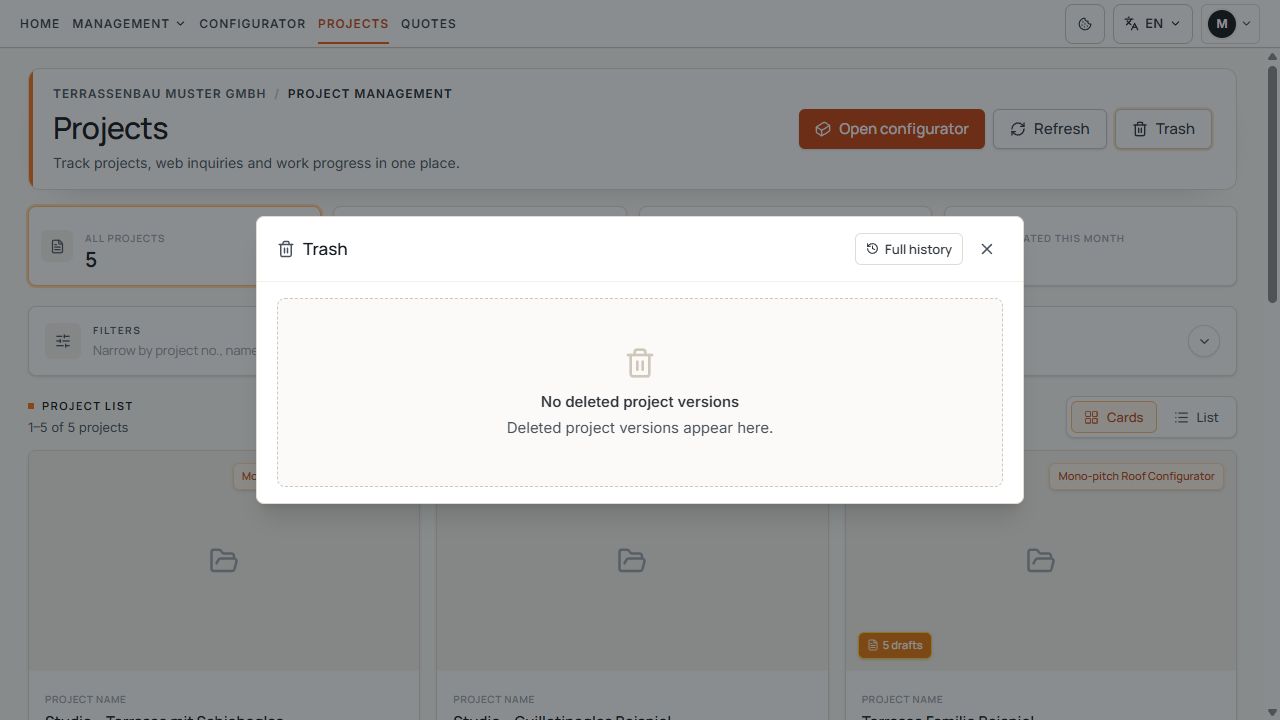
Project Trash
Project Trash collects deleted project versions. The example shows an empty collection. View with sample data.
Check the confirmation dialog in full. Permanent deletion irretrievably removes the versions, quotes, and associated files named there.
