Distinguish ordering, payment, and provisioning
A contract or order confirmation is not a payment confirmation. For an online order, track the actual payment status on its status page. While bank confirmation is pending, do not place another order simply because of the wait.
After payment is confirmed, the ordered software environment is prepared within the agreed timeframe. The activation deadline stated in your order is authoritative; a separate date may be agreed for Enterprise. The Terrace3D team sets up the company, users, and contract assignment; you receive access information separately.
Order processing, payment status, and ready-to-use account access are different steps. The status page shows progress and available documents. Also check your spam folder and provide the order reference for follow-up questions.
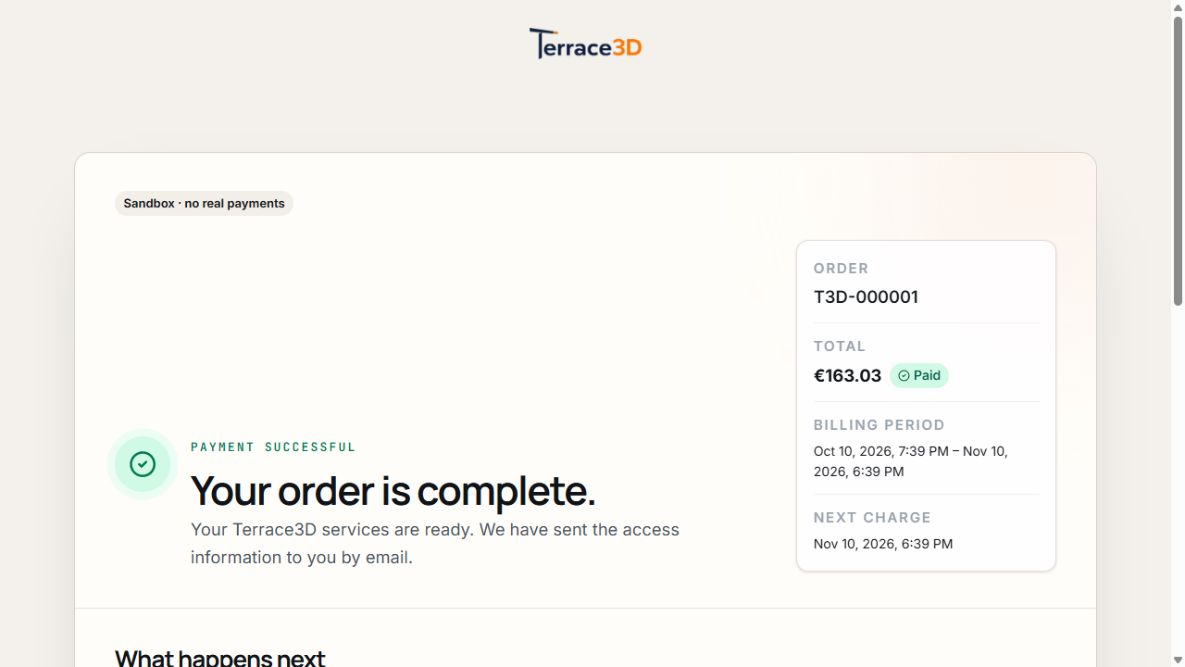
Confirmed order and account preparation
The status page associates payment, provisioning, and billing period with the sandbox sample order. View with sample data.
Included software and individual data maintenance
New online subscriptions include the three base configurators for mono-pitch roofs, flat roofs, and louvred pergolas without an additional license fee. Which pricing, quote, and publication features are usable depends on the package and assigned permissions.
Account and environment preparation does not automatically include customer-specific maintenance of profiles, products, prices, or the existing company website. You can perform this work yourself or explicitly commission it as an additional service. Existing contracts are subject to their respective confirmed terms.
Access and first login
- Use the separate access or invitation message for the correct company and email address.
- Complete the login or password setup provided by the link and log in with your own user account.
- Check the company assignment, your name, and access; review personal details under My account.
- If access is missing, first check the address and spam folder. For an existing account, use the intended Forgot password route; otherwise inquire with the order reference.
- Invite further employees only within the available user seats and management rights.
An existing payment receipt is not yet a company login of your own. The necessary access information is provided separately.
1. Prepare data and model variants
- Specify the systems actually offered, model variants, and responsible contact person.
- In Configurator management, open the configurator and model variant and check names, active status, and default selection.
- Compare profile dimensions, product permissions, colors, technical limits, and available options with your products.
- Check the model image and, where applicable, the starting environment and permitted customer environments.
- Save changes and test a new representative configuration in the intended model.
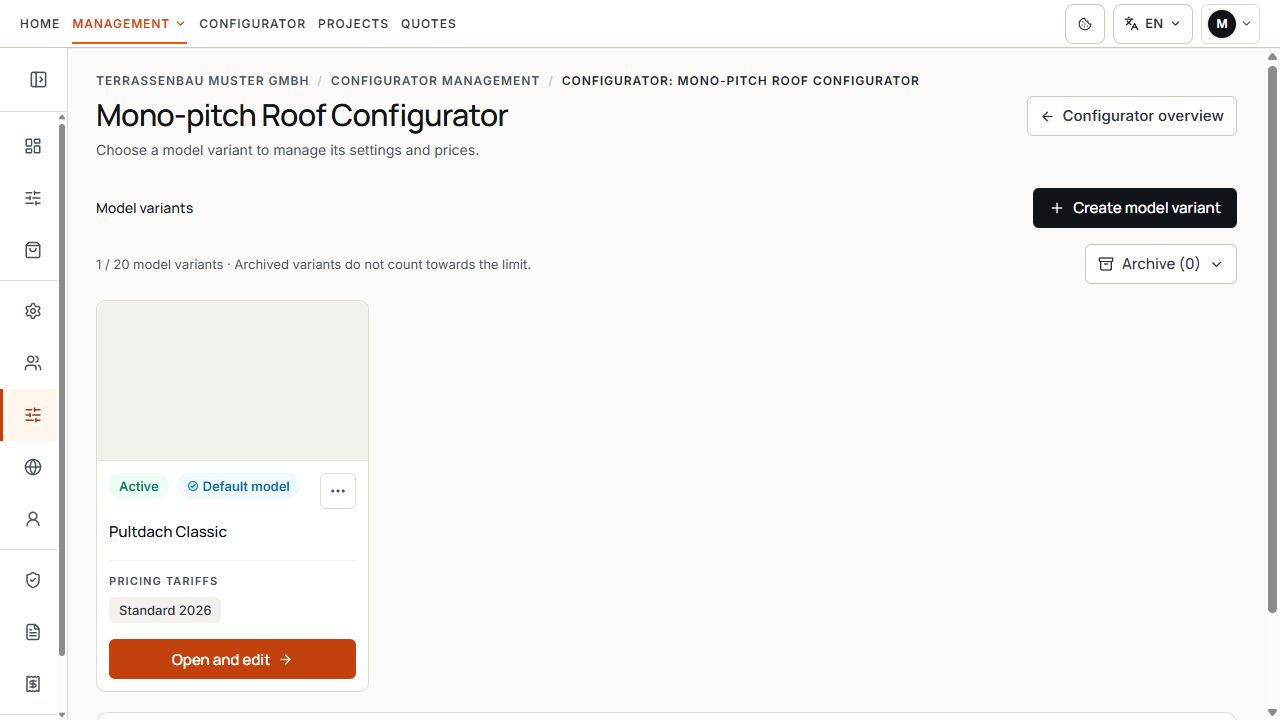
Model variants in Configurator management
The model card shows the variant, status, and associated pricing tariff. View with sample data.
2. Check pricing bases and Excel
If price calculation is enabled, define suitable pricing tariffs for the model variant. Maintain normal net prices in the displayed base currency and check the active required prices and intended discount.
For Excel work, download the current Terrace3D file for the correct model and pricing tariff. Edit the intended input fields, check the upload and change preview, and apply the version with a reason for the change using Import and save. Checking the file alone does not save prices.
- The price source, validity status, and base currency are known.
- Base prices, installation, accessories, and surcharges have been checked by a specialist.
- Missing required prices and unintended zero prices have been resolved.
- Representative dimensions and options have been checked in the configurator with the correct pricing tariff.
- The sales country, display currency, and any preset quote discount have been checked.
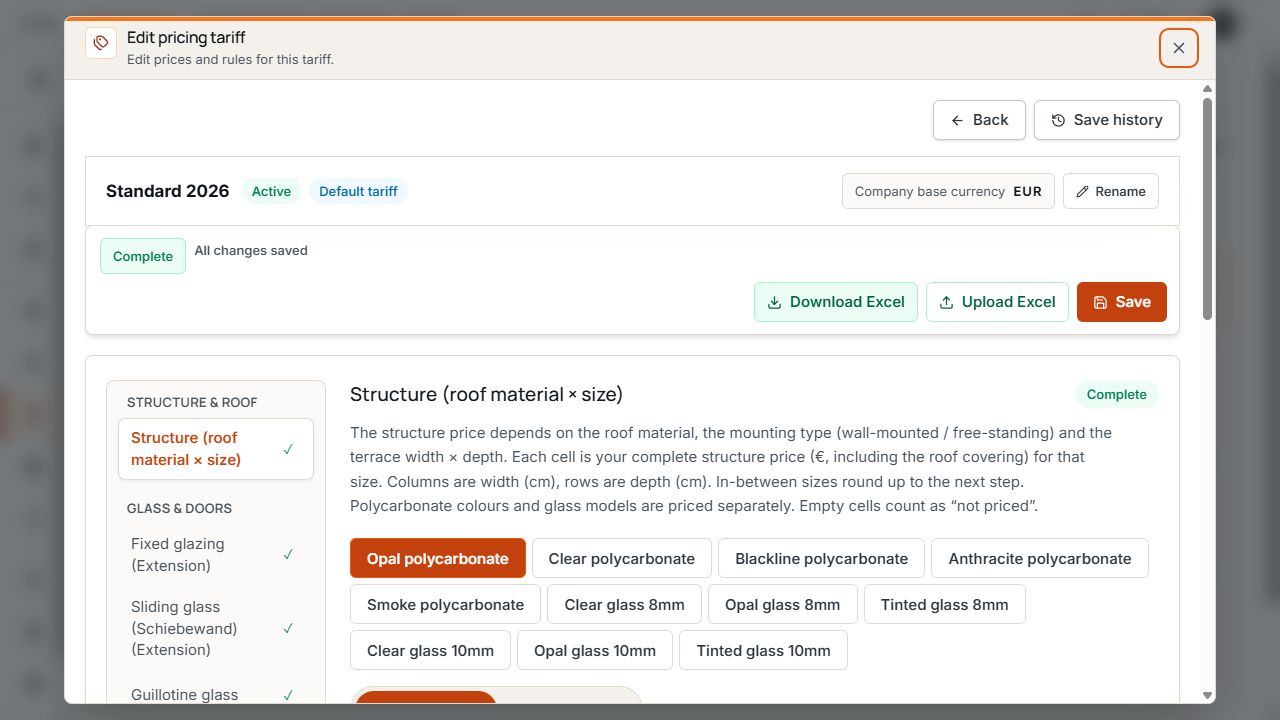
Pricing tariff header and price groups
Status and Excel actions belong to the open pricing tariff. The left navigation leads to individual price groups. View with sample data.
Prepare company branding and the inquiry route
- Check official company details under Contract & access and report required corrections through the intended support channel.
- Check the logo, colors, browser title, and favicon under Settings.
- Check active languages, sales countries, currencies, and the settings offered for customer inquiries.
- Under Privacy policy & legal notice, check and publish the intended version; a preview alone is not enough.
- If enabled, save, test, and explicitly activate your own company email; otherwise use the available Terrace3D sending service.
3. Make the configurator available on the website
- Open Website publication and choose a shared selection, individual publication, or enabled starter design to suit the customer's entry point.
- Check the model, images, permission to show prices, and, where applicable, the pricing tariff, and activate the publication.
- Open and test the currently provided Terrace3D link. For an iframe, use this exact address on the registered company website.
- When using your own web address, separately check its permission, saved domain, DNS/SSL status, and assigned active publication.
- Check presentation, language, market, legal links, and inquiry form on a computer and smartphone.
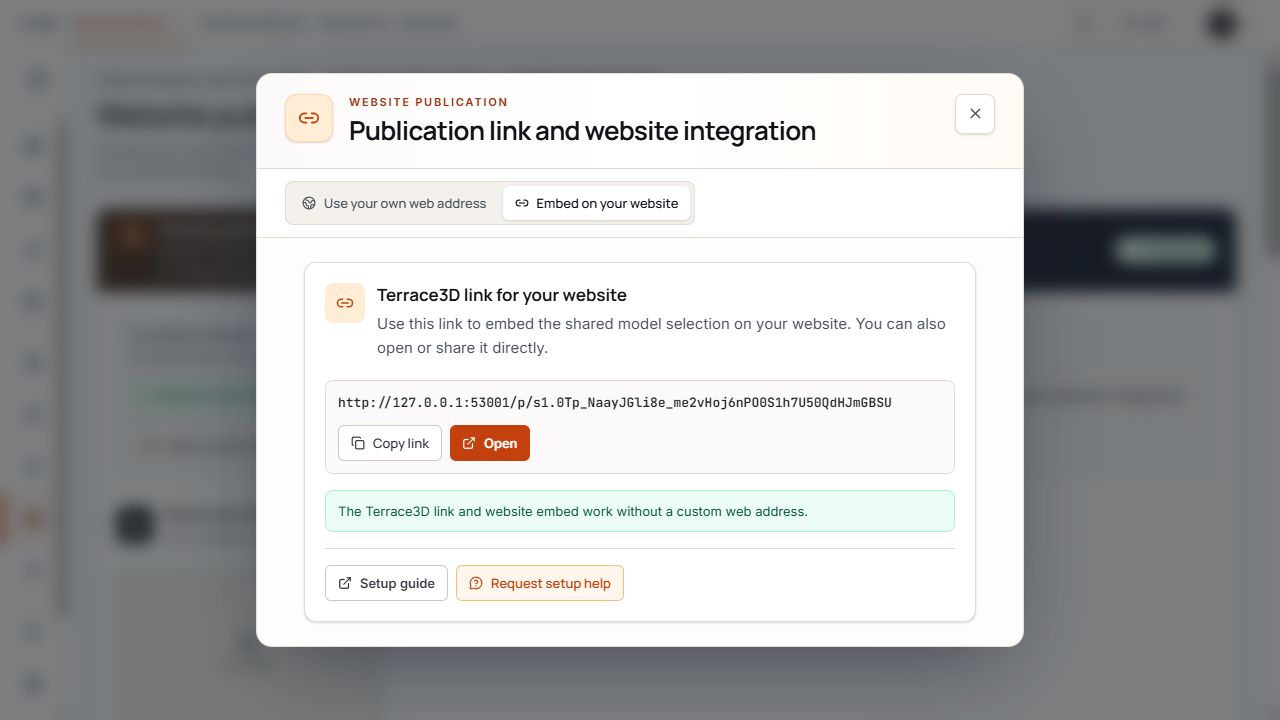
Publication link for the shared selection
The dialog shows the permanent link for the shared model selection and the copy and open actions. View with sample data.
An active Terrace3D link may be usable while your own web address is still being set up. Embedding on the company website and the additional domain route must each be checked separately.
Commission optional settings work
If you would like assistance, use the available additional services or intended contact channel. Describe the affected model variant, pricing profile, or desired website work and provide approved source data.
Scope, price or hourly rate, estimated effort, and date are agreed for the specific assignment. The software environment's provisioning deadline does not automatically set a deadline for additional data maintenance. Paid orders do not automatically unlock all customer-specific data work immediately.
The acceptance and order confirmation determines the agreed scope. An introduction or further training also depends on the confirmed service; general setup does not imply unlimited training.
4. Check and approve the workflow professionally
- Company assignment, user rights, and required features are correct.
- An intended test project with correct dimensions, products, pricing tariff, and currency has been saved and reopened.
- If included: the draft quote has been checked, saved, and explicitly finalized; the completed PDF has been checked.
- For an intended email test, recipients, copies, and actual sending status have been checked.
- For public use, an explicitly marked test inquiry has been matched by reference to the correct saved project; incoming emails have been checked separately.
- Corrections and outstanding tasks have been assigned to a contact person.
Later changes and follow-up questions
After changes to model rules, pricing tariffs, market settings, and public publications, check them again at the affected entry point. An already finalized quote remains a fixed version; corrections require the intended new quote or project version.
For additionally commissioned work, clarify before implementation whether the change is covered by the confirmed scope. In Support, an order, model, project, or quote reference and the visible message help identify the issue.
