Step 3: drainage
After Dimensions comes the separate Drainage step in Studio. The front gutter profile's shape was already selected under Structure; the offered downpipe settings are edited here.
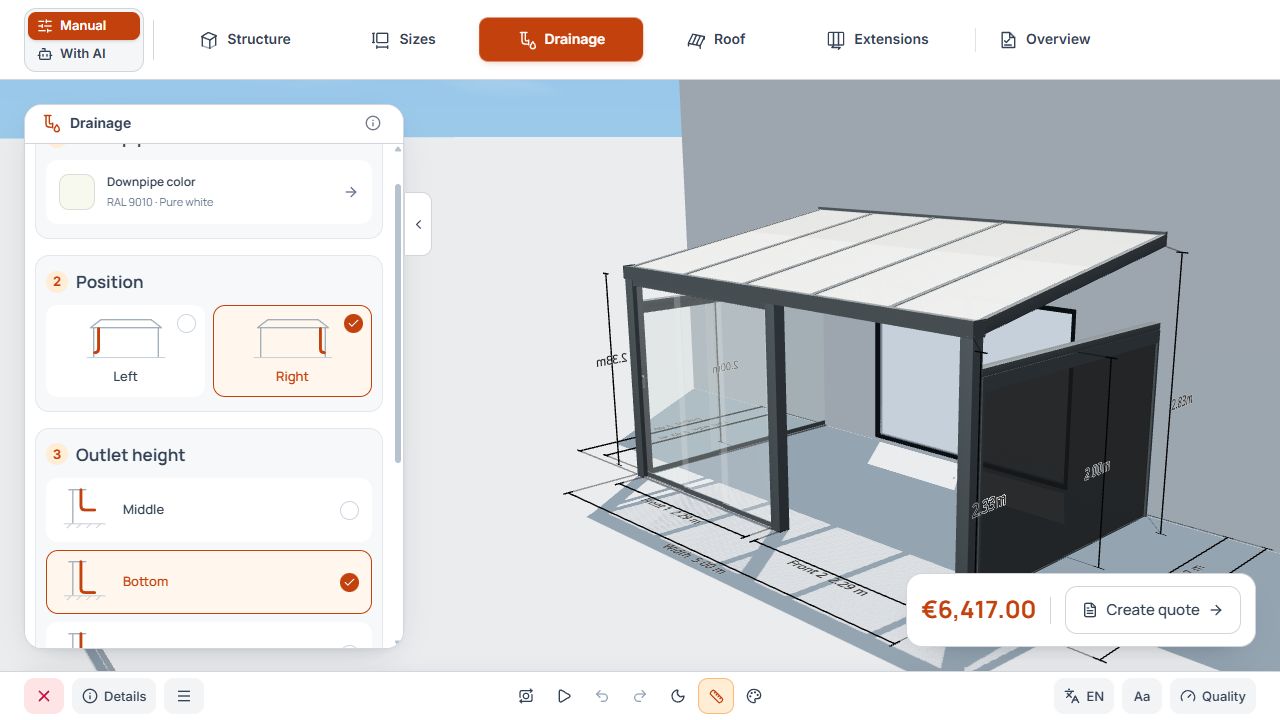
Studio step 3: drainage
The outlet's position and height are adjusted in the separate Drainage step. View with sample data.
In the standard view, drainage is within the Roof area. The following numbers 3 and 4 refer to Studio.
Select downpipe color and position
- Open Downpipe color and choose from the colors offered for the model variant.
- Under Position, select Left or Right.
- Check the selected side and color directly on the downpipe in the 3D scene.
Set outlet height and direction
- Height: select Middle, Bottom, or Underground according to the planned design.
- Direction: for an above-ground outlet height, Front or Outside is offered.
- With Underground, the direction selection for the above-ground outlet is omitted.
- The sketches explain the selection. Then check the specific pipe routing on the model.
Step 4: roof
After drainage, move to Roof in Studio. Here you choose roofing, additional rafters, and enabled roof accessories. Over-roof awning, under-roof awning, pleated sunshade, and lighting remain parts of this step.
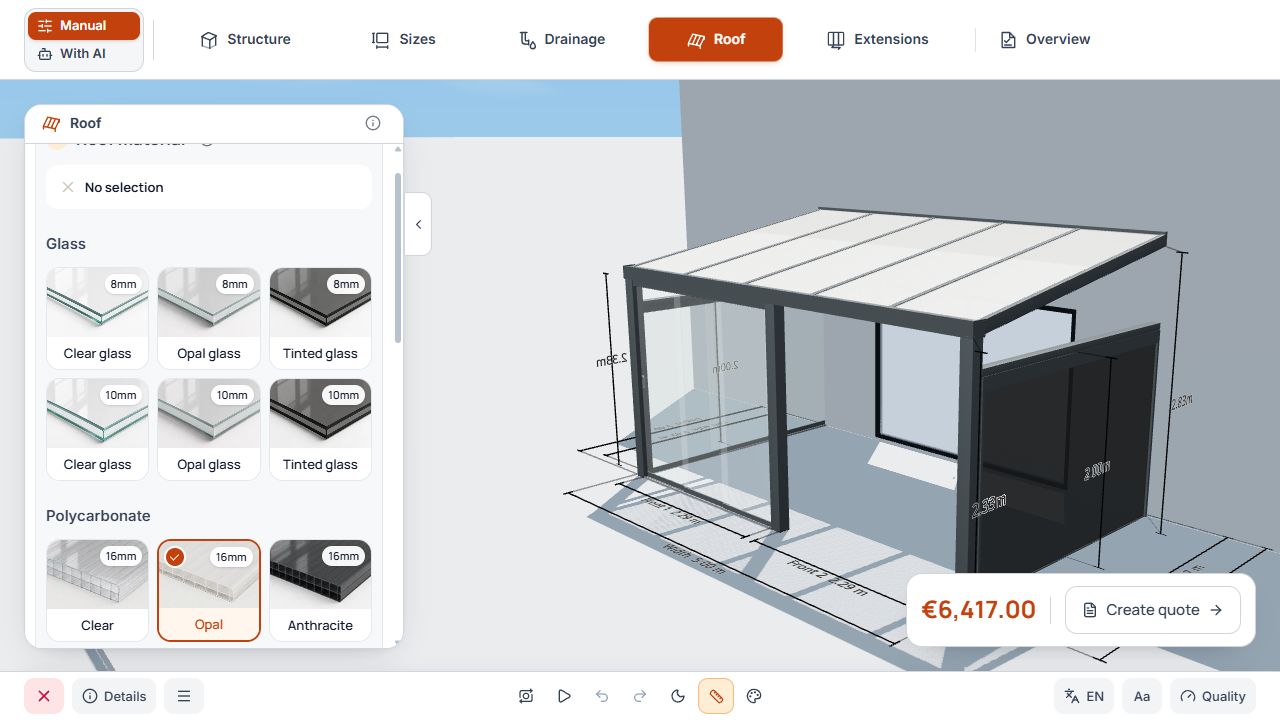
Studio step 4: roof
The roof material selection is beside the design preview. View with sample data.
Select roofing
- Depending on the model permissions, choose glass, 8 mm solar glass or 16 mm polycarbonate. Check the material thickness and the limits for the current depth on the card.
- For a disabled material card, check the notice about the current depth or another product limit.
- Check the actual roofing and subdivision in the 3D scene.
Roofing and material-dependent limits
The roof material selection is beside the design preview. View with sample data.
No selection shows a structure without selected roofing. A calculated price without roofing requires the corresponding company/configurator permission and a suitable pricing basis. A visible structure or missing price does not mean the design is free.
Set additional rafters
- Choose the number of additional rafters offered for the width and model variant.
- Check the resulting roof subdivision in the 3D model.
- After changing the subdivision, check awning coverage and selected pleated sunshade panels again.
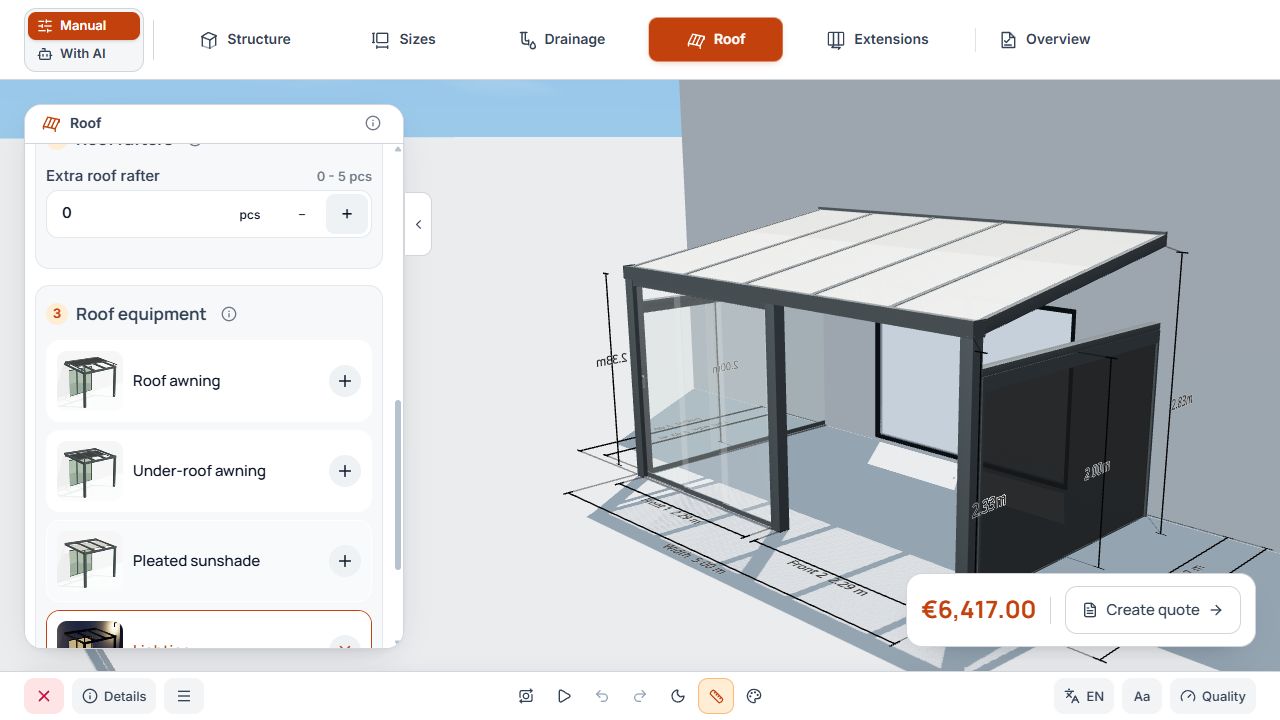
Additional rafters and roof panels
The number of additional roof rafters is available as a separate field; in the example, it is zero. View with sample data.
Check the roof basis
- Drainage and downpipe routing have been checked in the third Studio step.
- Roofing, material, and additional rafters match the plan.
- Displayed material or dimension conflicts have been resolved.
- Add desired roof accessories in the Roof step; then follows Extensions as step 5.
