When shared model selection fits
Shared model selection shows visitors several enabled model variants on one selection page. Selecting one opens the appropriate configurator with that model variant's settings.
Open Website publication and then Shared publication. Shared selection and individual publications are managed independently: showing or hiding a model in the selection does not change its separate individual publication.
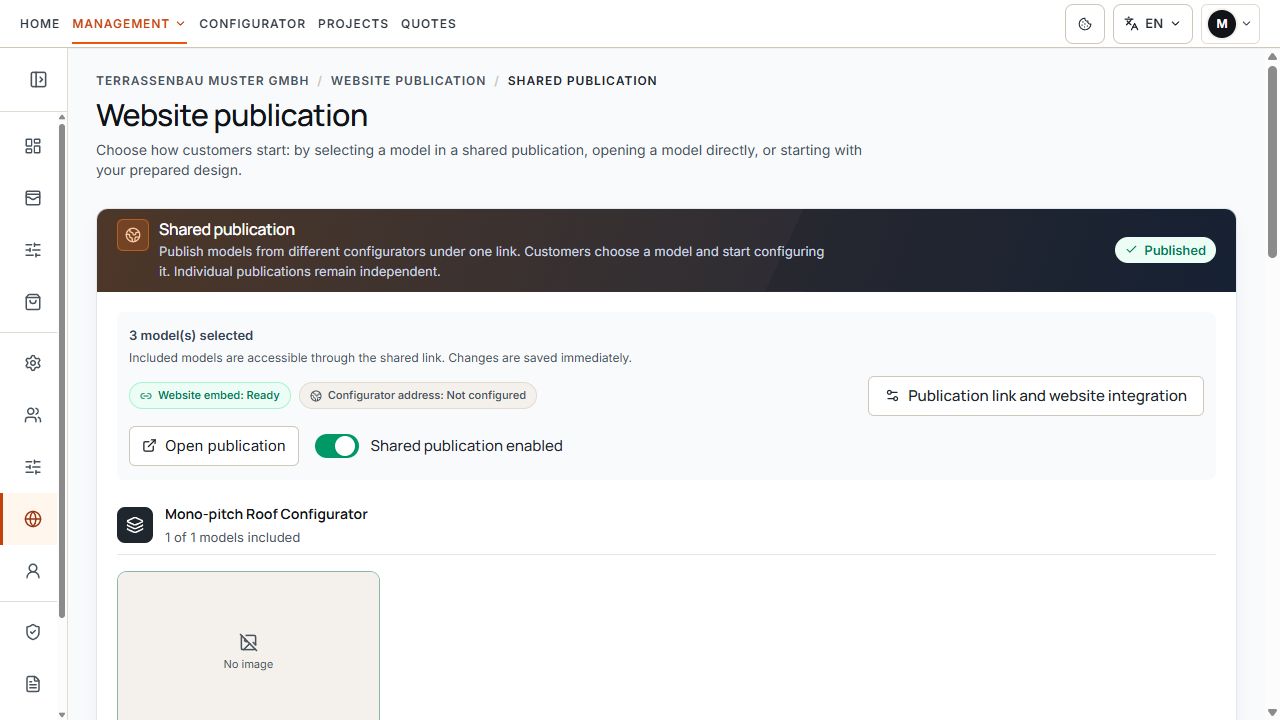
Shared model selection
The selected models belong to the shared model selection for visitors. View with sample data.
Check prerequisites and permissions
- The website module and relevant configurator must be active for the company. Active, unarchived model variants of available configurators are offered as models.
- Changes require company-wide access and the corresponding permission. An account without editing rights may be able to view prepared content but cannot save the selection, order, or prices itself.
- Visible prices additionally require the active pricing module and an available active, complete pricing tariff for this model variant.
- Demo access provides a preview during its term. Displayed demo previews do not authorize embedding on your own website.
- Permission for a custom web address is another, separate approval. A usable Terrace3D link does not require an already configured custom web address.
Select and publish models
The selection is saved directly after each change; there is no final Save step for the entire page. The shared publication may already be created and activated with the first selection.
If an existing shared publication is closed, you can continue preparing its content. A selection change alone does not reopen it: explicitly activate the shared publication status. Without a selected active model, the publication cannot be opened.
- Check the model variants offered in the product groups.
- Enable Include in shared publication on the desired model.
- Wait for confirmation of the saved model selection and check the new status.
- Select more models the same way if needed.
- At the top, check that Shared publication active is on and at least one model remains selected.
- Use Open publication or test the Terrace3D link in a new tab.
For an error message, check which state is actually saved. An unconfirmed change is not a reliably published selection.
Check order and model names
For selected models, define the order through Position in this group. The order applies within each product group; the product groups themselves retain their predefined order.
A position change is saved immediately. With only one selected model in a group, no further position is required. The model name comes from the model variant; the position field does not rename the model.
- First arrange selected models in the desired order.
- Check that visitors can clearly distinguish similarly named variants.
- Then open the public shared selection and check the order in each product group.
Provide an image for each model card
The model image belongs to the model variant and is shown here for orientation. It is not a separate image only for this publication.
On a selected model, open Settings and follow Edit model image in configurator settings. The image is managed in that model variant's settings, even before it is published. A change can therefore also affect other views using the same model image.
- Open the correct model in configurator settings.
- Provide an image suitable for the model and save it there.
- Return to the publication and check presentation and image crop.
- Check several model images together for recognizability in the public selection.
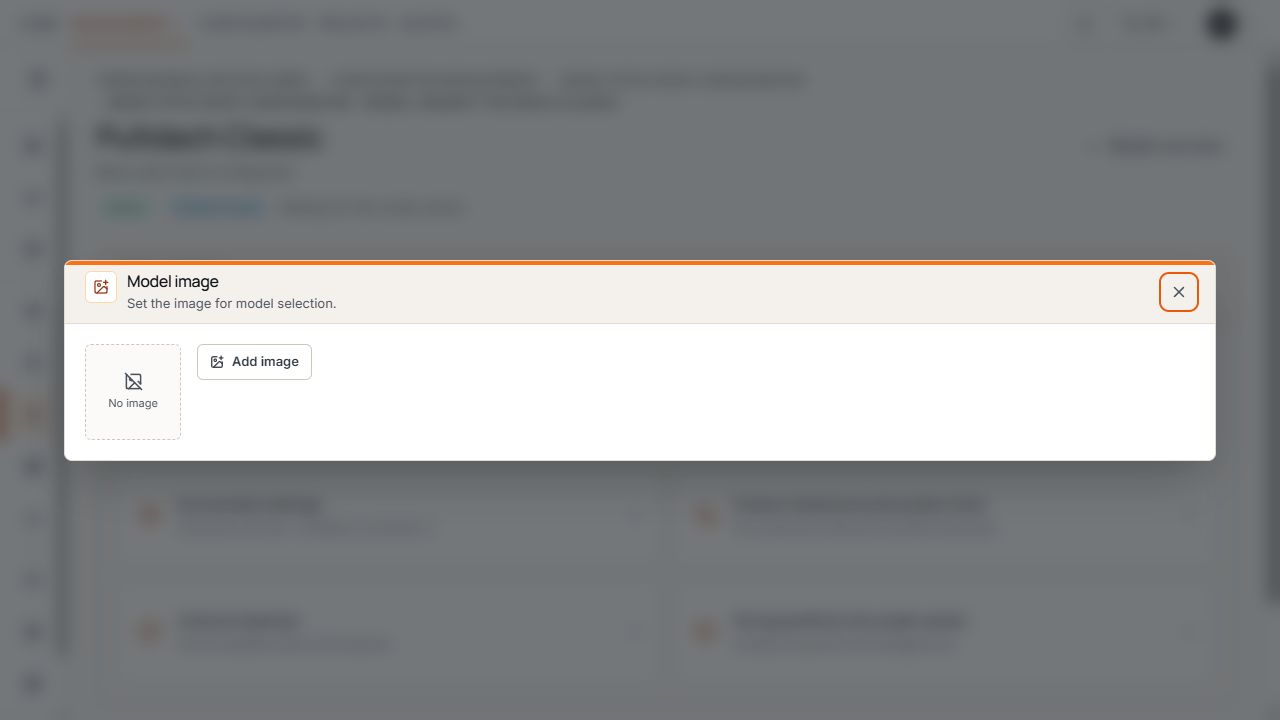
Add model image
Add image leads to image selection for the selected model variant. View with sample data.
Set price display per model
- These pricing settings apply only to this model within the shared publication. The separate individual publication retains its own settings.
- Pricing tariff selection is editable only when price display is on. Without an active pricing module or suitable active, complete pricing tariff, price controls remain locked.
- Show prices can remain off while the model continues to be offered for configuration and inquiries.
- If a pricing tariff is later withdrawn or becomes incomplete, price display may disappear while model publication remains available.
- Available products, materials, dimensions, and options come from the model variant and its permissions. The price switch grants no additional product rights. Then check model and pricing tariff changes together.
- Open Settings on the already selected model.
- Under Price display, check whether an available pricing tariff exists for this model.
- Enable Show prices if visitors should see prices.
- Select the intended pricing tariff and wait for saving confirmation after each change.
- Open the public preview and check a typical pricing case.
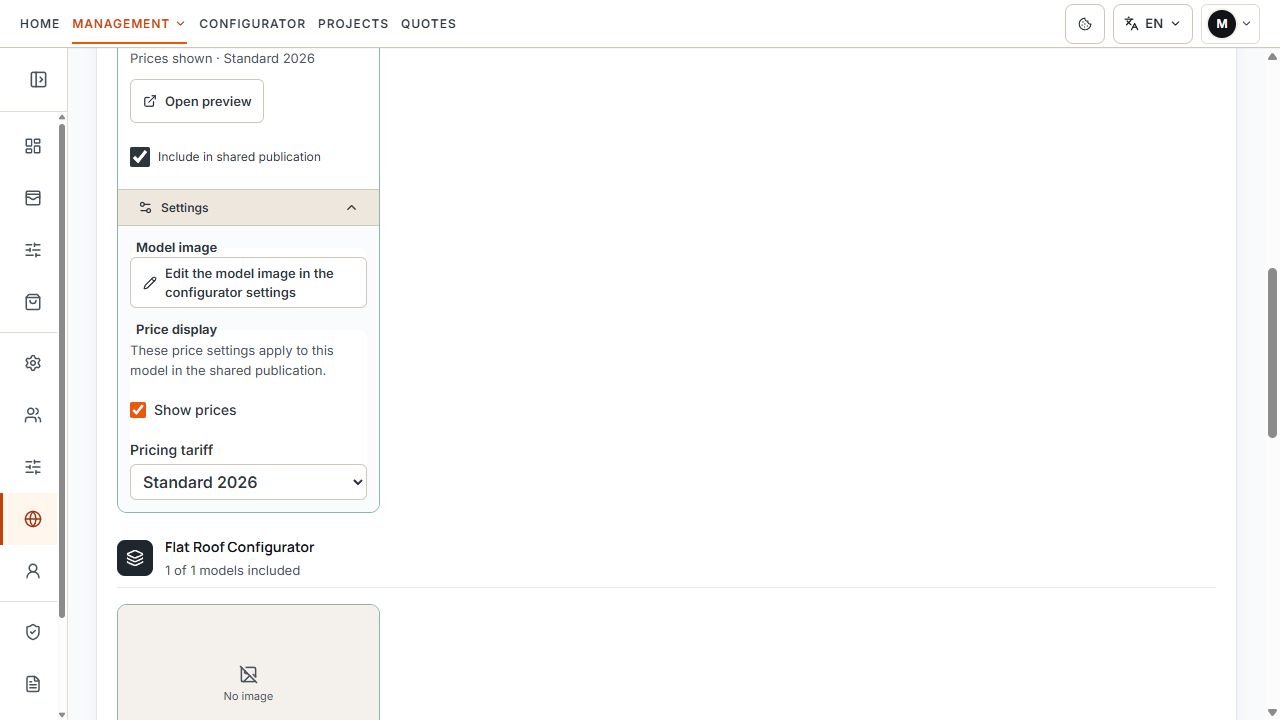
Control prices separately for each selected model
The price option and assigned pricing tariff apply to this model within the shared publication. View with sample data.
Terrace3D link, website, and custom web address
Open Publication link and website embedding. Under Embed in website is this shared selection's permanent Terrace3D link. Open tests it directly; Copy link copies the address actually saved.
You can share this link directly or use it as your iframe address. Embedding in an existing website requires its appropriate registration and permission; a directly working link does not confirm that every arbitrary iframe parent window is allowed.
If Use custom web address is enabled for your company, you can also assign the same publication content on the configured company subdomain. Check path, saved address, and activation status separately there.
- Pending DNS or SSL setup for the custom web address must be distinguished from shared publication status. You can continue testing and using the available Terrace3D link separately.
- Changes to model selection become visible under the running publication's link. After deactivation, reactivation, or an address change, always check the currently displayed link again.
- If embedding on the registered website fails, clarify the website address and permissions; do not manually construct the visible address from old code.
Close and reopen shared publication
Shared publication active switches the entire shared selection on or off. Switching off retains the saved model selection; separate individual publications remain unchanged.
Removing a model from selection affects only its place in this shared publication. Removing all selected models closes the shared publication. To reopen, select at least one available model and activate shared status.
- After changing, check the saved status.
- Test the current Terrace3D link and any custom web address separately.
- Check model order, model images, options, and prices on desktop and smartphone.
- Check the inquiry process with the intended language and desired sales country.
