Website visitor workflow
In the Mono-pitch Roof Configurator, the workflow depends on the company layout: Studio offers six manual steps, Standard four. The final Studio step is called Overview on desktop and Summary & quote on mobile devices. If the AI assistant is enabled for this entry point, visitors also check its result before the inquiry.
Public actions depend on the publication. Internal features such as project management, pricing tariff maintenance, or quote finalization are not part of the visitor form.
- Open an active publication as an embedded configurator or through the public link offered.
- For shared model selection, choose the appropriate model variant. An individual or prepared publication may open the defined model directly.
- Check sales country and product basis and assemble the model with available settings.
- Check the summary and open the offered inquiry action.
- Complete the entire inquiry form and wait for confirmation with a reference number.
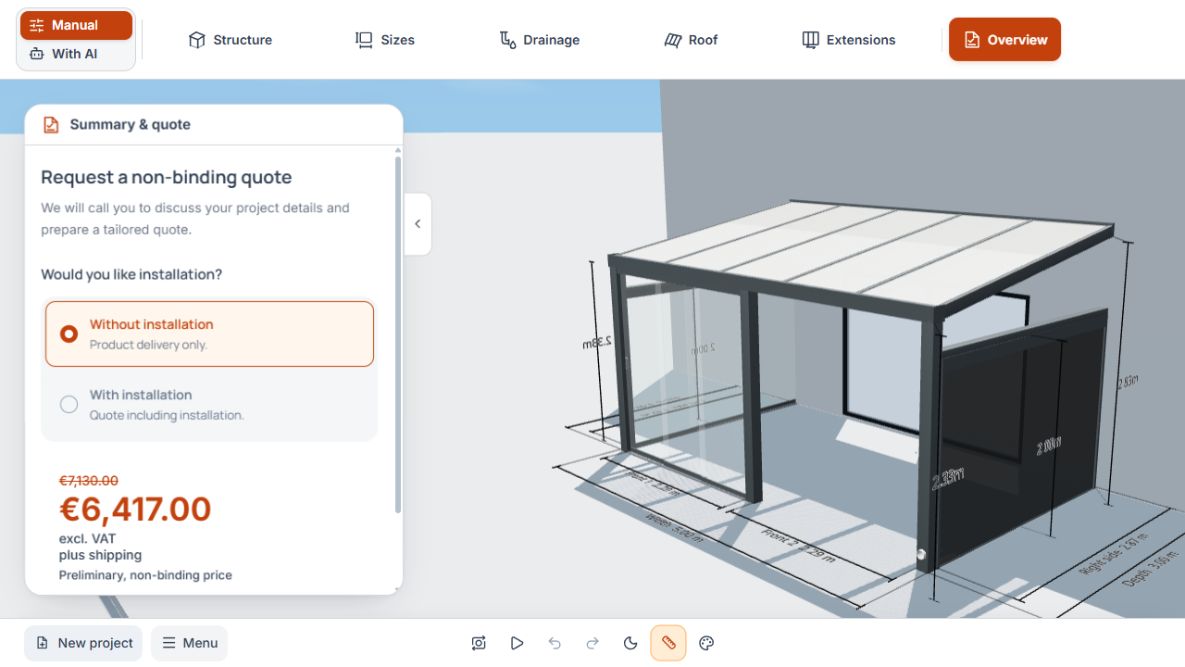
Overview for website visitors
The visitor overview shows the installation choice and non-binding preliminary price beside the design. View with sample data.
Send inquiry submits a configuration to the company. The operation neither automatically creates a finalized quote nor makes a payment or online purchase.
Inquiry form sequence
With file upload enabled, the form has four steps: Attachments, Message, Contact, and Location. Without upload, it starts with Message and then leads to Contact and Location.
Attachments and the personal message are optional. Contact and Location steps contain required information and checks.
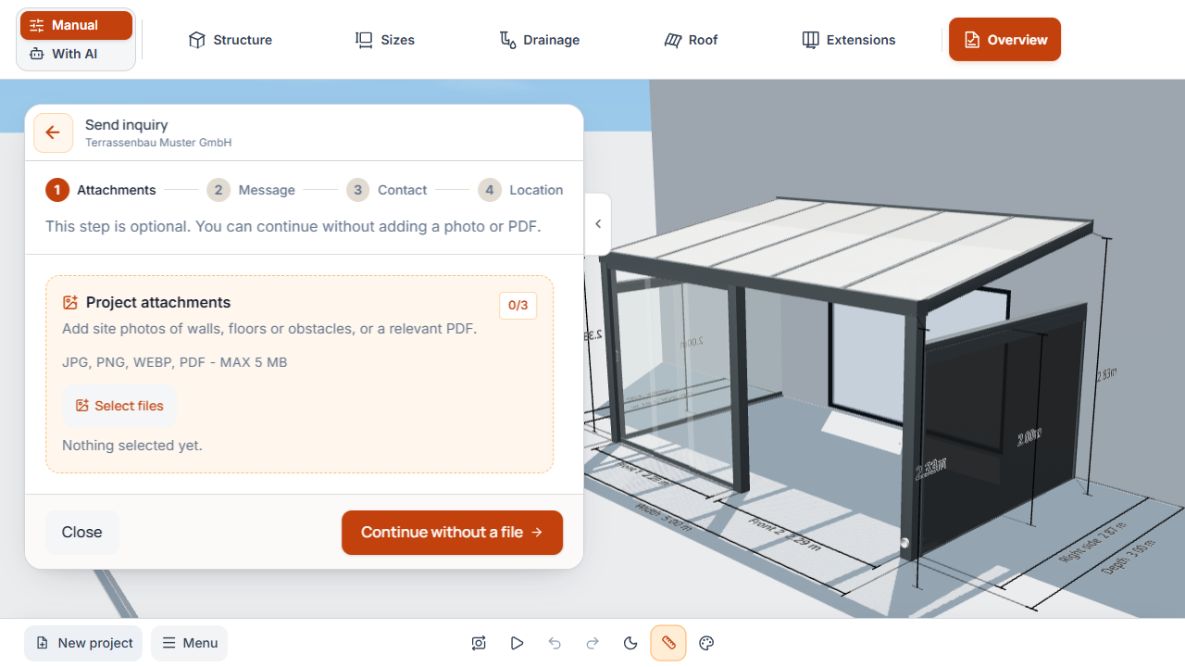
Attachments, Message, Contact, and Location steps
With project attachments enabled, the inquiry starts with Attachments. Message, Contact, and Location follow. View with sample data.
Add optional photos and PDF files
- If upload is offered, visitors can add relevant photos or PDF documents about the situation on site or continue without a file.
- JPG or JPEG, PNG, WebP, and PDF are supported. Observe the count and file size limits shown in the form; normally up to five files of no more than 5 MB each.
- Unsuitable formats, oversized files, and excess attachments are rejected with a message.
- Selected files can be removed again before submission.
- Files belong to the inquiry or saved project. They are not automatically created quote PDFs.
Optional project attachments in the inquiry form
Photos and PDF files supplement the project inquiry. Continue without file skips this optional step. View with sample data.
Add or skip a personal message
In the Message step, visitors choose whether to add a personal message. Without this selection, no completed message content is sent.
The message suits open questions, special features of the installation site, or wishes not evident from the 3D model. The offered text field is limited to 2,000 characters.
Contact details and telephone consent
Telephone consent relates to this inquiry. The text shown in the form also explains how it can be withdrawn from the company.
- Name, valid email address, and valid phone number are required. The phone number is recorded with an international dialing code.
- Inquiry-specific consent to telephone contact must be confirmed. The form does not alternatively offer an email-only inquiry without a phone number.
- Offered time windows or any time can be selected as the preferred contact time. This is not a binding appointment booking.
- The displayed privacy notice describes processing by the company and links to the available privacy policy.
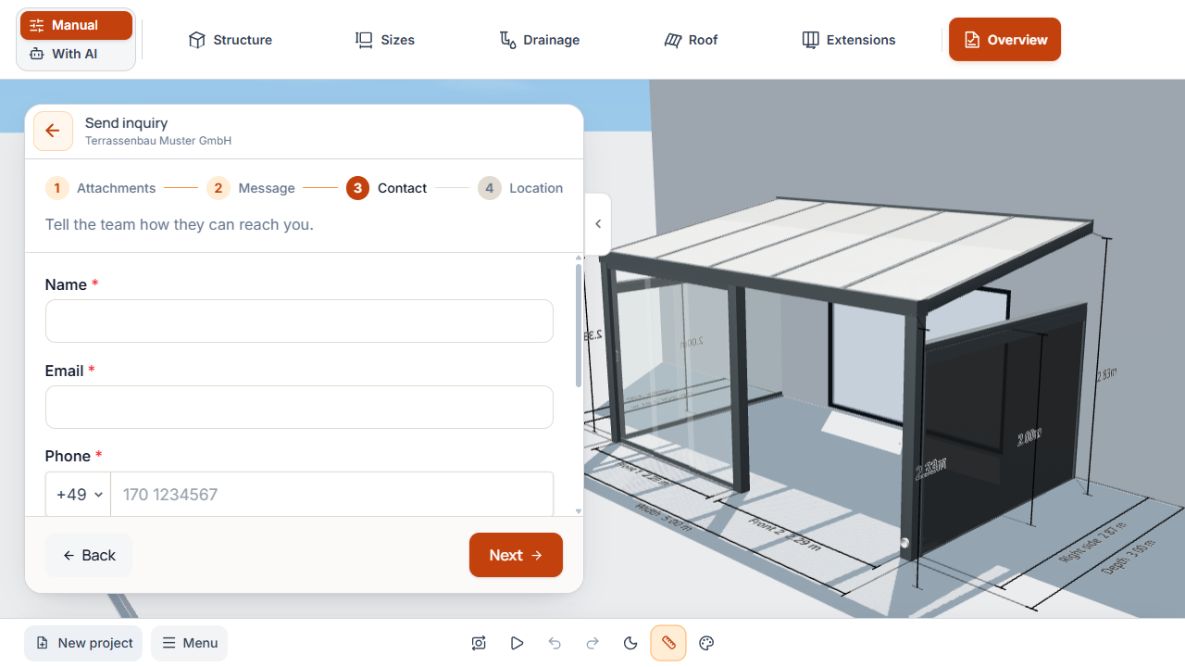
Contact details in the inquiry form
Name, email address and phone number are entered in the contact step. View with sample data.
Check location and submit inquiry
For an incomplete address, missing security check, or another error message, required corrections remain visible in the form. For a temporary limit, note the message before trying again.
If the company currently cannot accept further project inquiries, the form shows a corresponding notice. Then contact the company through its direct contact options.
- Check the sales country adopted from project start. The location form shows this project country.
- Enter postcode and city; add street and house number if needed.
- Complete any displayed security check if enabled for the transaction.
- Submit the inquiry once and wait for the result.
- After successful receipt, keep the displayed reference number.
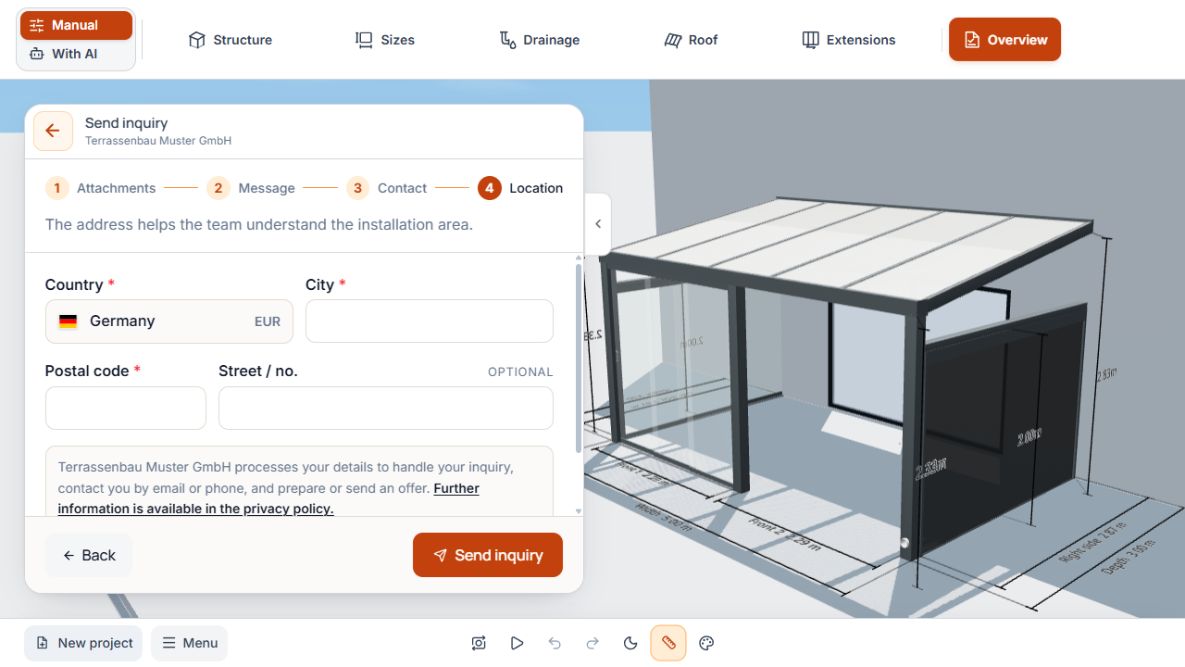
Location before submitting the inquiry
Country, city, postcode, and optional street associate the inquiry with the project location. View with sample data.
Interpret confirmation and emails correctly
A successfully saved inquiry receives a reference number and is created as a web inquiry in the company portal. The customer confirmation and notifications to authorized company users are then sent or queued for processing.
The success message confirms receipt of the inquiry. It does not guarantee that every email has already been delivered to the inbox. A later email problem does not delete the saved inquiry.
- The customer confirmation goes to the email address entered in the form and uses the inquiry's language.
- Active company users with full company-wide access can receive the new inquiry notification. Restricted users are not automatically included in this email distribution list.
- With company SMTP enabled and activated, the customer confirmation uses the company connection. Internal new inquiry notifications remain with Terrace3D system email.
- The same applies to company SMTP here: sending and errors can be logged; delivery, email opens, and email clicks are not recorded through it.
If the confirmation email is missing, first check the portal using the reference number. An already confirmed inquiry should not be resubmitted solely because an email has not arrived.
3D viewer and augmented reality
If 3D sharing is available for the company and configurator, the customer confirmation may also contain a protected viewer link to the saved project. The validity shown there is authoritative; the inquiry can also be accepted without this optional link.
AR is offered only with the corresponding permission and on a supported device. Camera access and displayed prerequisites must be satisfied. A visible 3D view does not automatically mean AR is also available.
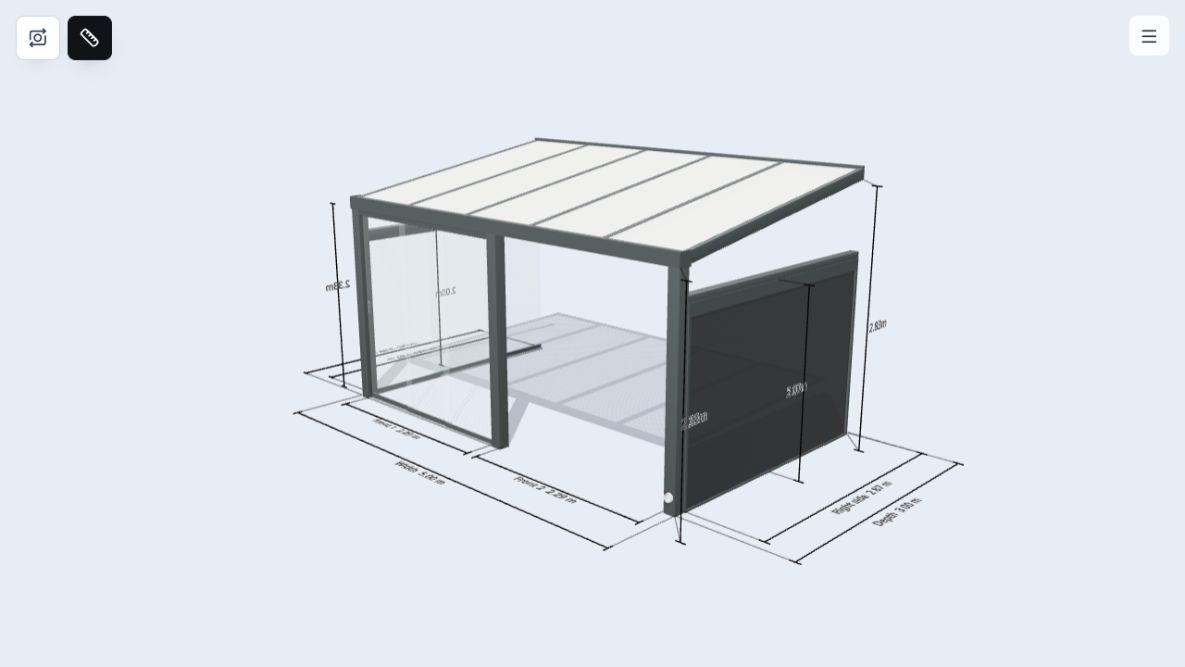
Read-only 3D project view
The project model, dimensions, and tools support viewing the shared 3D project. View with sample data.
Public configuration, viewer, and AR have their own availability rules and possible usage limits. A successful inquiry is not equivalent to an already created or usable AR file.
Process a web inquiry in the company portal
A web inquiry creates a real project and counts toward available project quotas. A prepared publication's starter design is only the starting basis; the customer project contains the configuration submitted by the visitor.
A publicly shown price and its saved version do not replace professional checking and approval of a later quote. Observe the information on quote version and pricing tariff used.
- Open Projects and filter or search for Web inquiry or the received reference number.
- Check model, configuration, source, and existing customer and location details.
- Read the message and contact time and check saved attachments and displayed contact information.
- Continue editing the technical and pricing basis within your project permissions.
- If needed, create a quote from the checked project. Check and save the draft and explicitly finalize it before PDF or email sending.
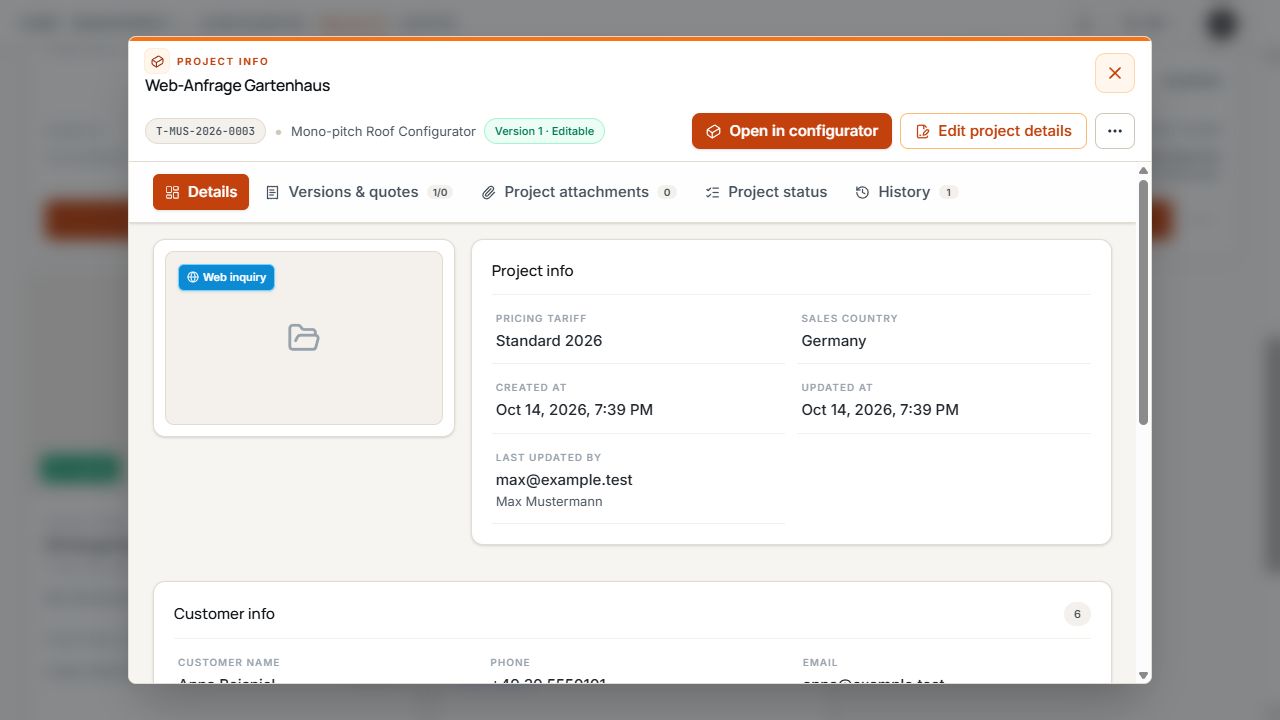
Web inquiry in the company portal
The WEB label identifies the saved project version as a website inquiry. Project information brings together the associated details. View with sample data.
Test the public workflow after changes
- Open the publication actually used and its link.
- Check model, starter design, language, sales country, and displayed currency.
- For visible prices, check pricing tariff and price status.
- Check the inquiry form with and without available attachments, on smartphone and desktop.
- Check required contact details, location, legal links, and any security check.
- For an explicitly intended test, match the reference to the saved project and check email processing separately.
