Open company details under Contract & access
Open Contract & access in the company portal. The Contracting party card shows the stored company and contact details. Company details is no longer a separate menu item.
These details are used for contracts, invoices, quotes, and legal company documents. The card is for checking; master data is not edited directly there.
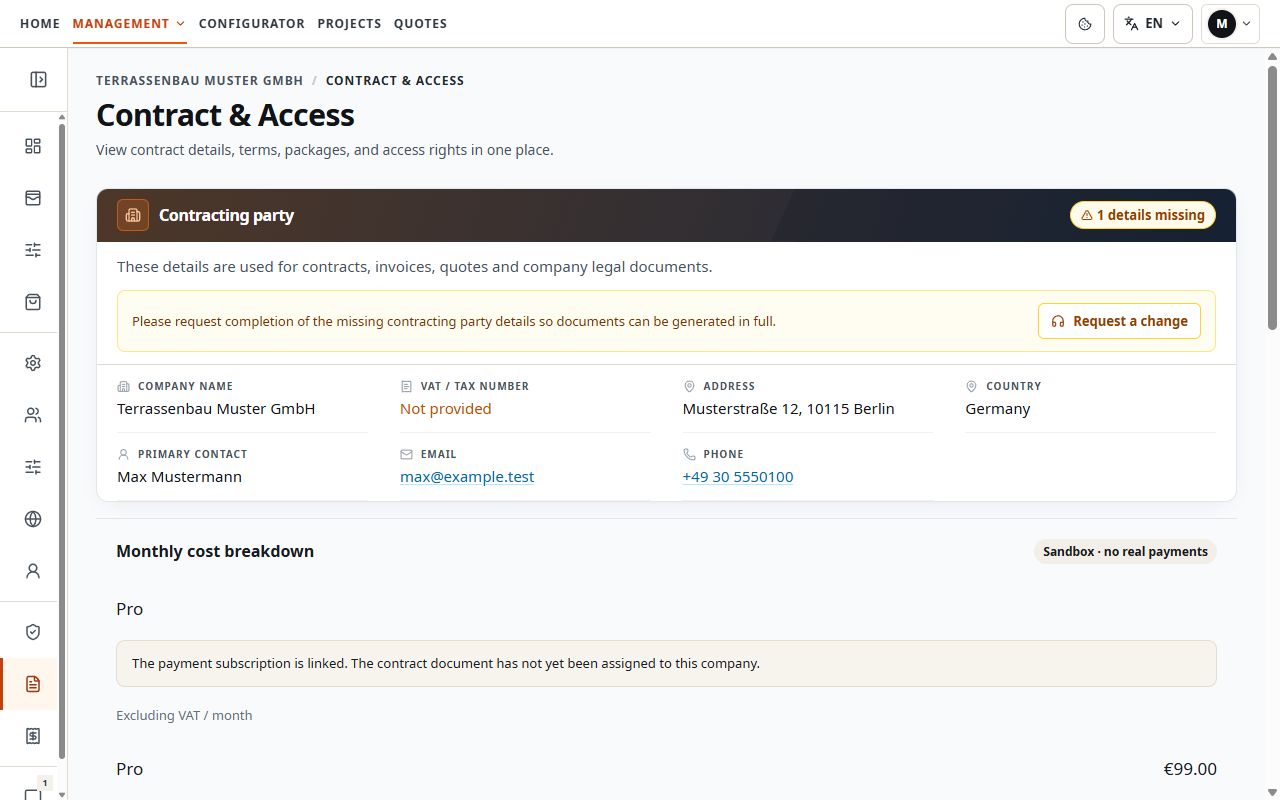
Contracting party in the contract area
Saved contracting party details and the missing-information notice are in the same area. View with sample data.
Check company and contact details
- Company name: the stored company designation.
- VAT ID / tax number: the saved company tax information.
- Address and country: the company's street, postcode, city, and country.
- Contact person and email: central details for communication with the company.
- Phone: an optional contact number, if stored.
The card shows the company address. Check a different billing address used for an order in the relevant order or invoice. The personal login email is separate account information.
Request a change or missing details
If details are missing, the card shows a notice and the Request change action. Use this action if displayed; for other corrections, open Support.
- First check that you are working in the correct company account.
- Note the affected field and the existing and desired information.
- Open Request change or a support ticket and describe the correction.
- Provide a contract or invoice reference if a specific document is also affected.
- Follow the response in the same ticket and check the data again after processing is confirmed.
Missing company details and change request
The notice draws attention to missing contracting party data. Request change is the visible route to clarification. View with sample data.
Manage logo, domain, and email sender
- Company logo, favicon, tab title, color theme, and font: under Settings → Appearance.
- Company website and custom configurator address: under Settings → Domain.
- Your own email sending: under Settings → Email, if company SMTP is enabled.
- Personal name, phone number, and job title: under My account.
A new logo or SMTP setting does not replace correcting saved contracting party details. Check each detail in the area to which it belongs.
Distinguish company account from personal account
The contracting party's contact email belongs to the company. Under My account, by contrast, you see the logged-in user's email address and personal details.
The login email cannot be changed by the user after account creation. Changing your name, phone, or job title in your own profile does not change the company address or contact person on the contracting party card.
Visibility and follow-up questions
- Contract & access is unavailable to restricted company users. If the view is missing, clarify access and company assignment.
- A missing-information notice calls for checking the data; it alone does not imply a particular payment or activation status.
- Master data is clarified through Support even if your own logo settings can already be edited.
- For follow-up questions, specify the field and a suitable reference; do not send account or email passwords.
