Structure of Configurator management
Configurator management leads from the configurators assigned to the company to their model variants. A model variant brings together its enabled products, technical specifications, colors, visualization, and associated pricing tariffs.
This page is the entry point for management. A model variant's settings apply beyond a single design. In contrast, edit the dimensions and options of a specific customer project in the configurator.
- Open Configurator management in the company portal.
- Choose the desired configurator and then the appropriate model variant.
- Check the model name, status, and default marker, and use the offered open action.
- In the model overview, open the appropriate settings card, such as Model image, Available products and features, Environment settings, Dimensions, Colors, or Pricing tariffs.
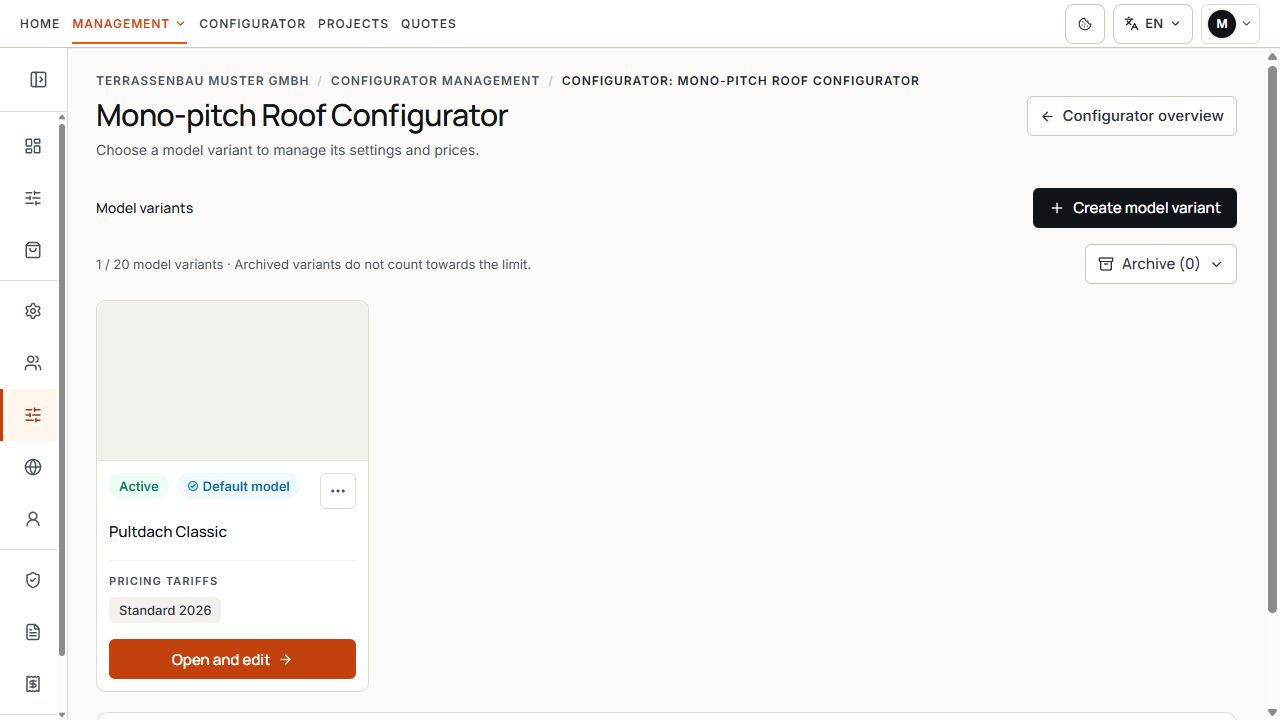
Model variants in Configurator management
The model card shows the variant, status, and associated pricing tariff. View with sample data.
View and change according to user rights
Users with full company-wide access and platform administrators in the appropriate company context may change model variants. With restricted access, information and settings offered can be viewed; change actions are absent or remain locked.
If a card is missing, first check the selected configurator, company permission, and user rights. Not every product family offers the same settings. A model switch does not enable a company feature that was not previously assigned.
Create or copy model variants
A copy takes over the source variant's settings and associated pricing tariffs and, if a model image exists, its own image copy. The new variant must then be checked and edited separately.
A variant created without a template is not a fully priced model. Before displaying prices, the associated pricing bases must be checked and completed.
- Check the selected product family and displayed free model slots.
- Select Create model variant and enter a unique name.
- Create a new model variant from the configurator defaults or copy the currently selected active model variant.
- After confirmation, open the new model variant and check products, technical settings, model image, and prices.
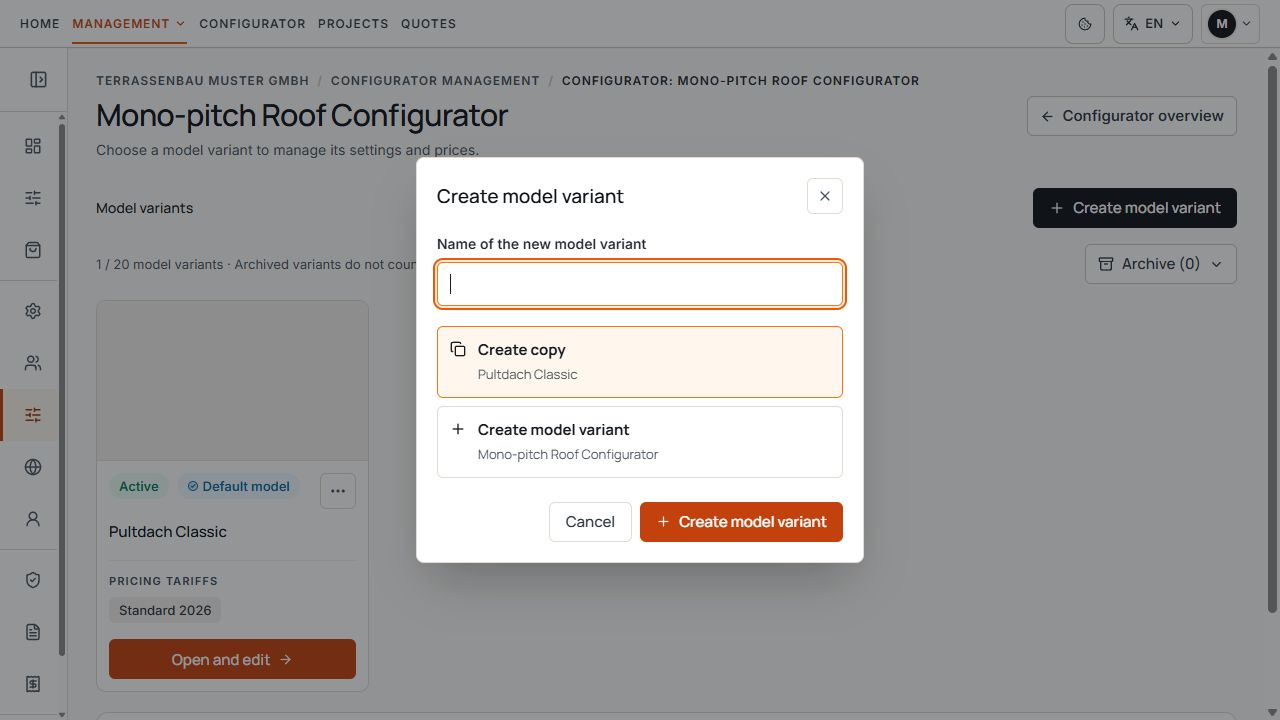
Create a model variant with a copy or new model
An existing variant can be copied or a new model variant created. View with sample data.
Distinguish active status, default model, and publications
- Active or Inactive describes the usability of the model variant. It is not evidence of an active website publication.
- Set as default defines the default model variant of the selected configurator. The interface also activates the selected model in the process.
- Before the current default model can be deactivated or archived, another model must be set as the default.
- If a variant is still used by active publications, deactivation or archiving may be blocked. First check the affected publications in the publication area and stop them deliberately if needed.
- Rename changes the model name. Existing settings and prices are retained.
A default model is not an automatic shared selection, a pricing default for all pricing tariffs, or a public release. Publication and public prices are managed separately.
Manage the archive and model slots
The capacity display shows occupied model slots for the selected configurator. Archived variants do not count there. Creating and restoring require a free slot; an inactive, unarchived variant still occupies a model slot.
Archiving affects the model variant and its associated pricing tariffs. Settings are retained and existing projects are not deleted. The archived variant cannot be selected for new projects and publications.
In the archive, authorized users can open the history or restore a variant. If the name has since been taken, choose another name. Restoration makes the variant available again but does not automatically set it as default or republish earlier website links.
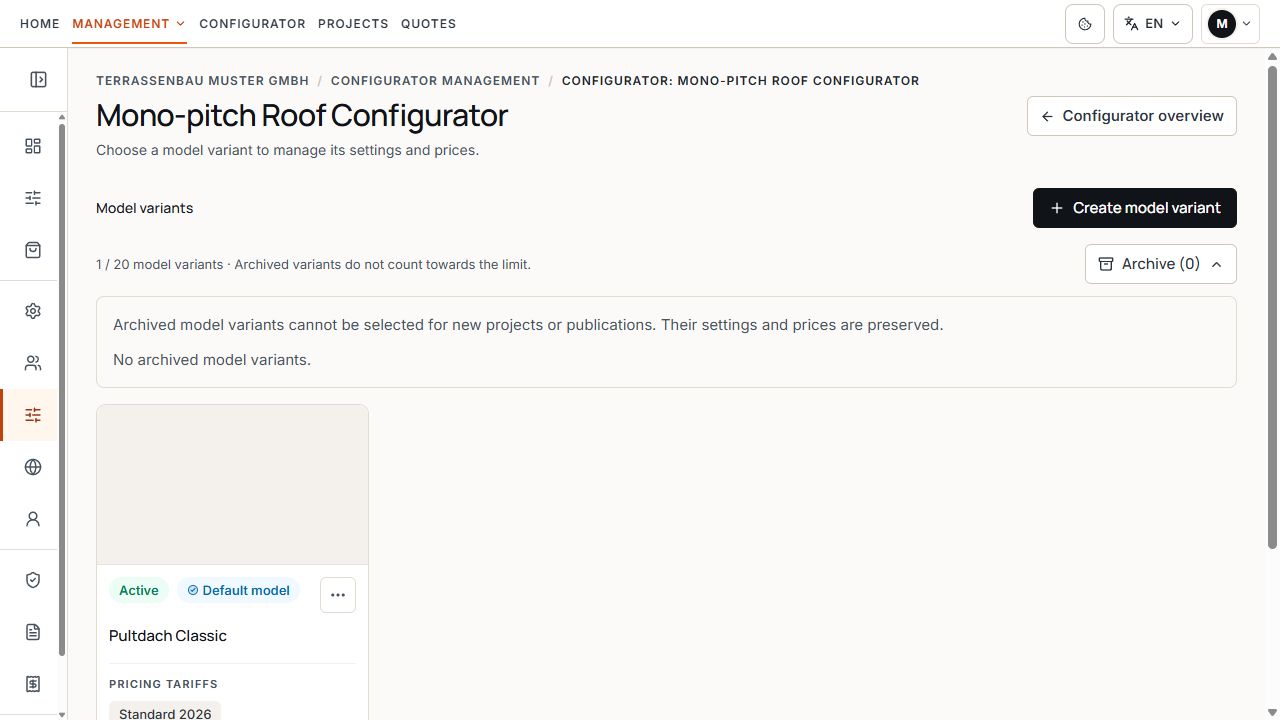
Model variants archive area
The open archive area shows an empty collection in the example. View with sample data.
After restoration, check pricing tariffs for completeness and active status. Restoring the model does not promise that every former pricing tariff is immediately active.
Open model image, dimensions, and colors
- Model image: the image belongs to the model variant. Add image or Change image opens image editing with the offered templates or your own PNG, JPEG, or WebP file. Apply the change and then check the model card.
- The model image is also used for public model selection. It replaces neither the actual 3D configuration nor the project-specific starter design of a prepared publication.
- Dimensions and technical settings: open the limits and rules offered for this product family. Changes affect model defaults, not automatically the dimensions of an already saved customer project.
- Colors: open the available color groups of the selected model variant and check the offered colors and display values. The groups actually visible depend on the product family and activated products.
Starting environment and customer environments
If the product family and company support environments, Environment settings opens two areas: Starting environment for new designs and Customer environments for selectable prepared scenes.
First activate the desired available environments under Customer environments. Under Starting environment, select one of them or Neutral environment and use Save. Without an enabled prepared environment, the model uses the neutral environment.
The starting selection applies to new designs of this model in the app and on the website. It does not change the saved environment of existing projects. A company entitlement to additional environments is not expanded by this model selection.
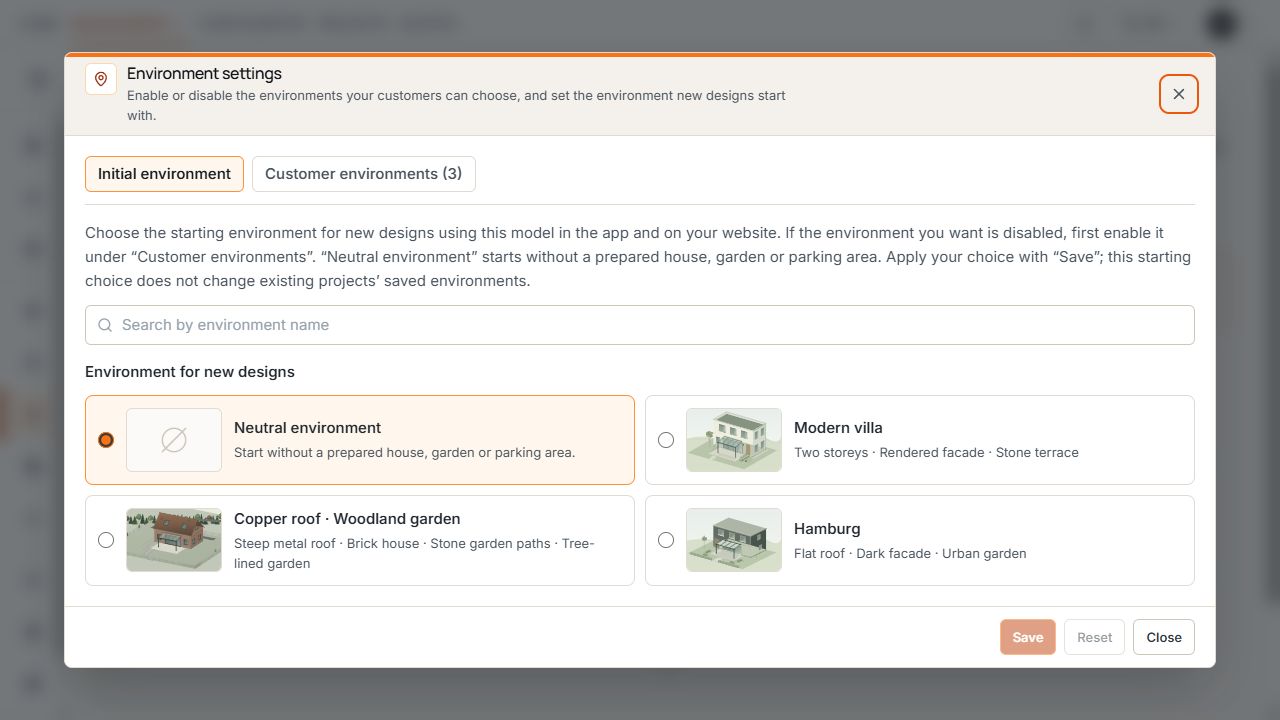
Starting environment and customer environments
Starting environment and Customer environments are separate tabs. In the example, the neutral environment is selected as the starting environment. View with sample data.
Separate product selection, company features, and prices
Available products and features limits the products offered in this model variant, such as extensions, roof equipment, roof materials or louvered roof systems, and gutter profiles. Only options enabled for the company can be used.
Company features such as the pricing area without roofing, photo and PDF upload in the public configurator, or the AI configurator assistant are enabled for each configurator at company level. They are not freely copyable switches in each individual model variant.
An available option and an entered price are different prerequisites. When the pricing module is active, the selected pricing tariff must cover the prices required for this variant. Conversely, a price row does not activate a locked product.
Continue with pricing tariffs and Website publication
The Pricing tariffs for this model variant action opens the associated tariff overview and price editor if the pricing module is active. Pricing tariffs, completeness, and offered Excel actions are managed there. Detailed steps are in the pricing guide.
Public model links, shared model selection, and publications with starter designs are managed under Website publication. Select the correct model variant, public price display, and respective pricing tariff there; enabling a model variant alone does not publish it.
After changes, wait for saving confirmation, check history if needed, and test a new design and the public publication actually used. An older saved project may use its historical settings.
- The company, configurator, and model variant are correct.
- Products, dimensions, colors, model image, and, where applicable, environments have been checked.
- The required pricing tariffs are complete and available.
- Active status, default model, and public publication have been checked separately.
