What price management is for
Price management contains a model variant's pricing bases. Open Configurator management, select configurator and model variant, and open the intended pricing tariff. Check the company, model, and pricing tariff before each change.
Which price groups and calculation methods appear depends on the configurator and enabled products. Matrices, m² prices, unit prices, surcharges, and installation values are maintained according to their labels.
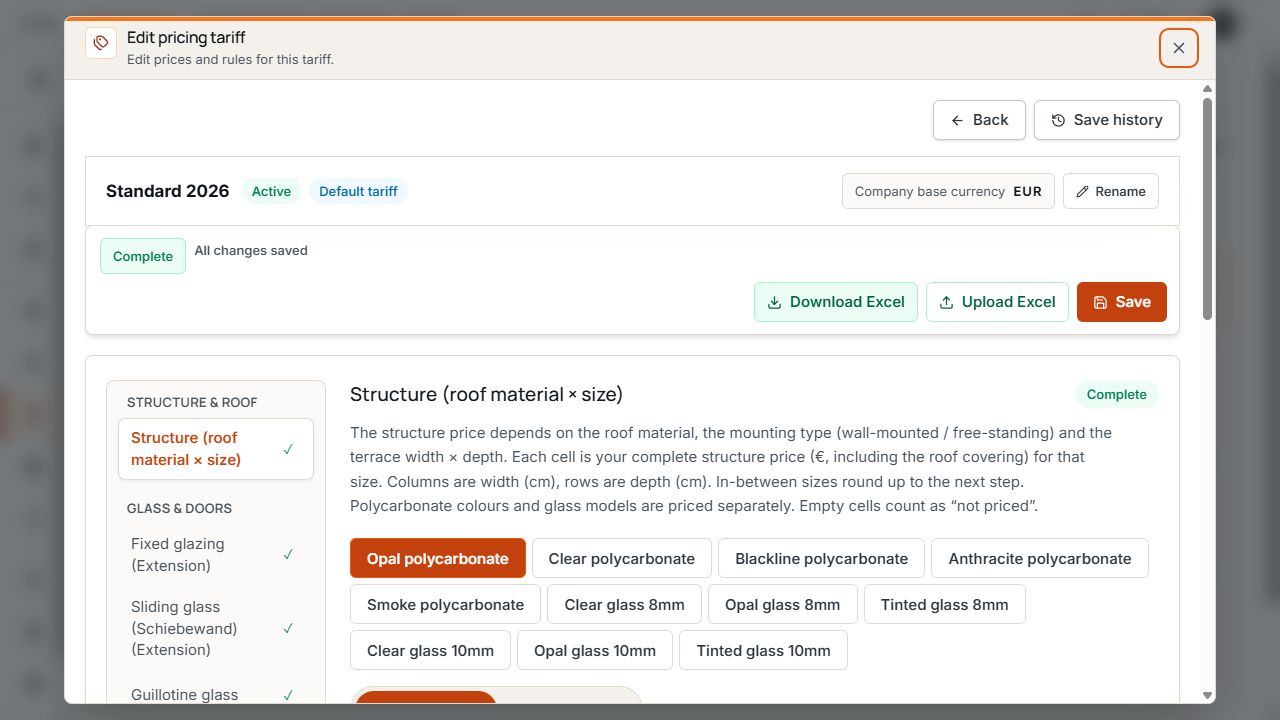
Pricing tariff header and price groups
Status and Excel actions belong to the open pricing tariff. The left navigation leads to individual price groups. View with sample data.
Package, pricing permissions, and user rights determine the available scope. Basic does not include automatic price calculation. A visible pricing area does not automatically mean the user may edit values or import Excel files.
Understand pricing tariffs
A pricing tariff is a named price table for a particular model variant. This allows standard, dealer, and website prices, for example, to be maintained separately. Visible prices, Excel files, and history entries each belong to the selected pricing tariff.
- Default pricing tariff: the intended default selection for new records if no other pricing tariff has been assigned.
- Active and complete: can be offered for new projects or publications.
- Inactive or incomplete: unavailable as a regular new pricing tariff assignment.
- Archived: no longer part of normal selection for new assignments; existing saved links remain traceable.
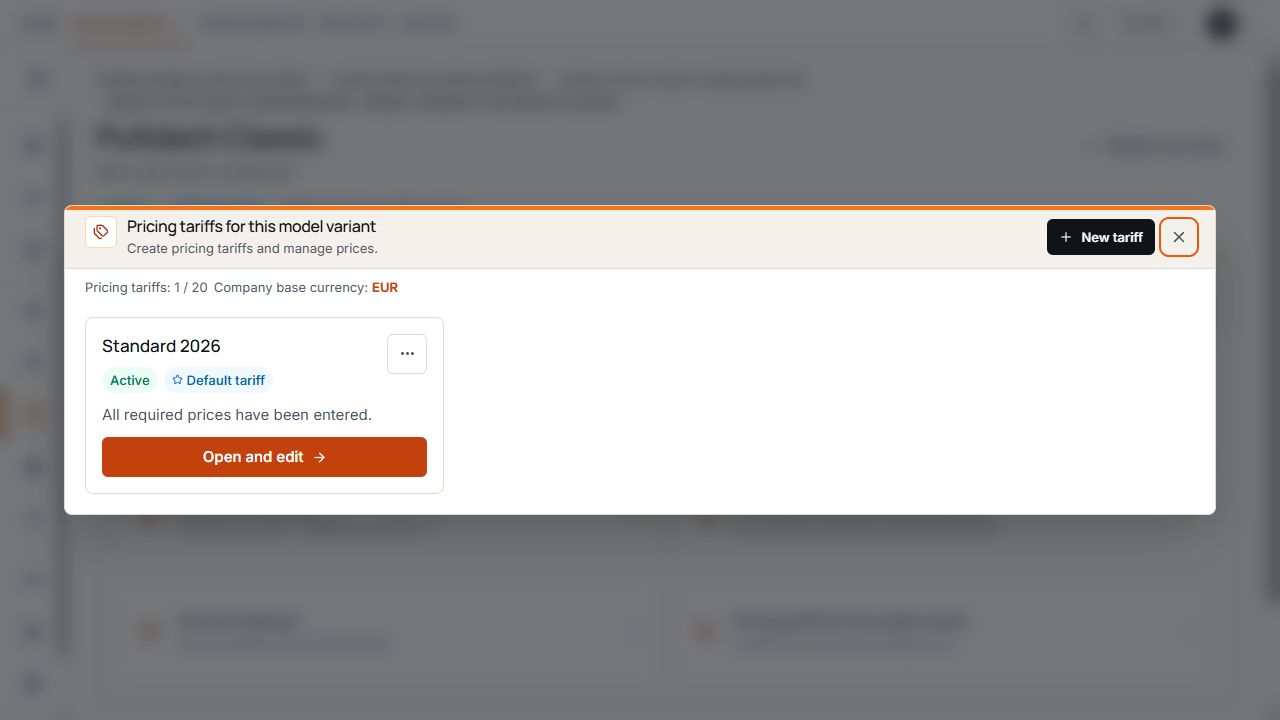
Select and manage pricing tariffs
Status, completeness, and default marker classify the existing pricing tariff. View with sample data.
Create a new pricing tariff
- Select the correct model variant and deliberately save or discard pending price changes.
- Open New pricing tariff if the action and a free pricing tariff slot are offered.
- Enter a unique name and choose Copy current pricing tariff or Create empty pricing tariff.
- Create the pricing tariff and check its name, price values, and status.
- Complete and check an empty or copied pricing tariff before use.
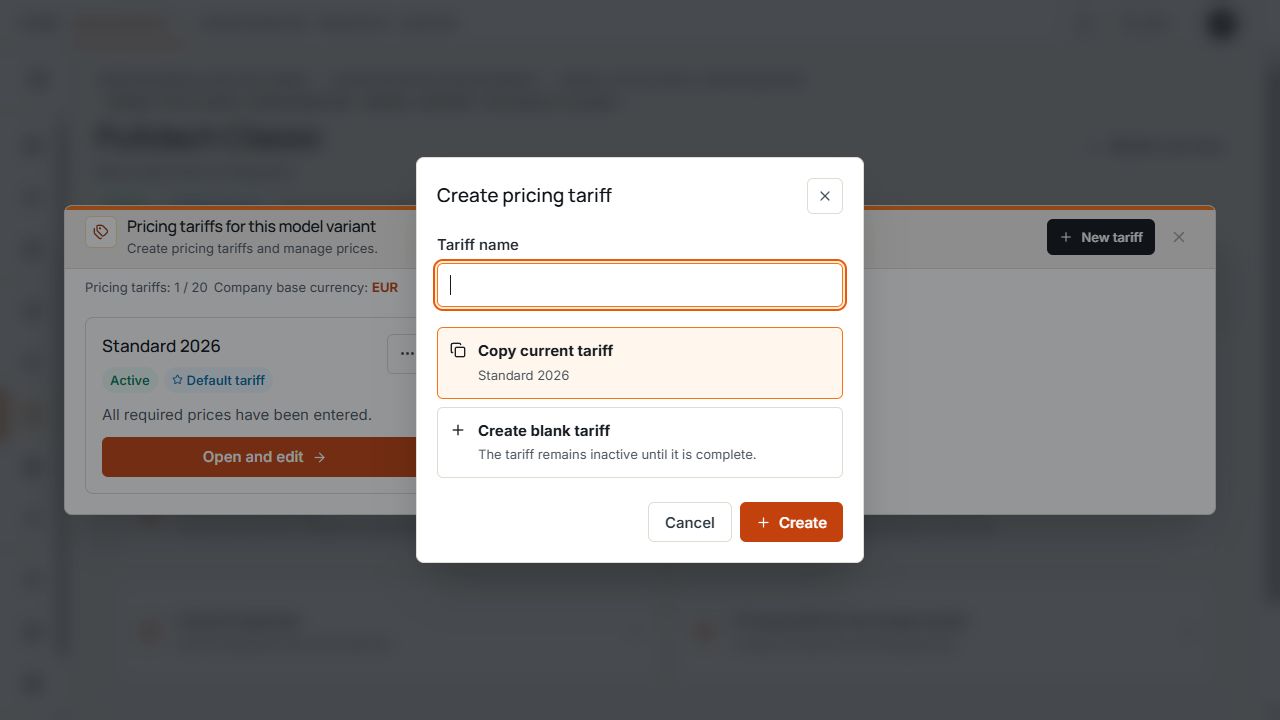
Add a new pricing tariff
The name and starting basis are defined before creating the pricing tariff. View with sample data.
The interface shows existing pricing tariffs and the permitted limits. A copied pricing tariff adopts initial values; an empty pricing tariff is not yet a complete sales price list.
Rename, activate, or archive a pricing tariff
- Rename changes the designation, not automatically the price values.
- A complete suitable pricing tariff can be set as default through the offered action.
- Activate or Deactivate controls availability for new assignments.
- The current default pricing tariff is protected against deactivation or archiving. First choose another suitable default pricing tariff.
- Before management actions, save pending price changes or deliberately discard them.
Read or edit depending on user type
- Restricted user: can view enabled pricing areas but may not change or save price values.
- Authorized company-wide user: can edit offered prices and use Excel actions where the package and permissions allow.
- A disabled Save button may indicate no changes, an operation in progress, or missing editing rights.
- If an expected pricing or Excel action is absent, check access, package, and selected model variant.
Understand the base frame matrix
In a base frame matrix, width and depth are set against each other in the displayed units. Each cell contains the price for the described material and installation combination. Use the displayed price list basis; values are not universally in euros.
For products with several calculation methods, the price table, m² price, and any unit price differ. Observe the tier selection or rounding-up instructions for the specific pricing area.
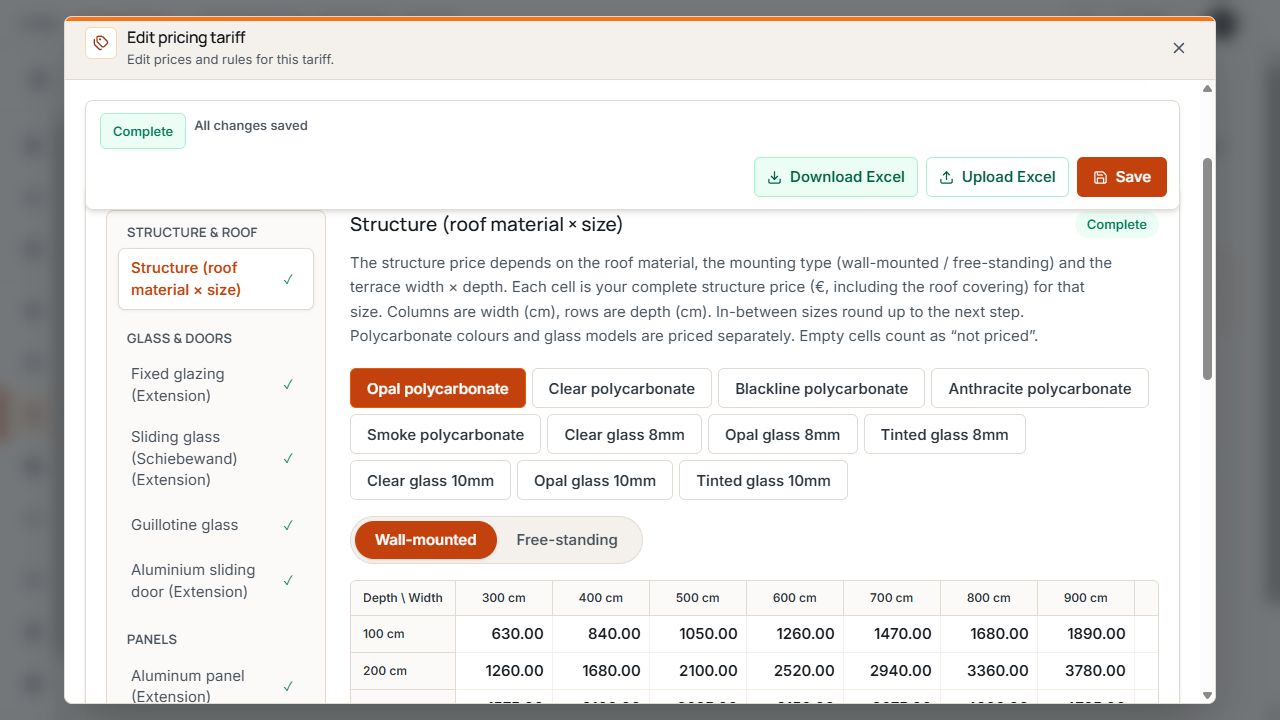
Base frame price matrix
Material and mounting type define the displayed matrix. Rows and columns organize prices by depth and width. View with sample data.
Change a price or add a missing price
- Select model variant, pricing tariff, and affected price group.
- Check material, mounting type, calculation method, and the appropriate row or column.
- Enter the professionally correct price as a permitted number.
- Check error messages and completeness and add required mandatory prices.
- Save the change and wait for feedback.
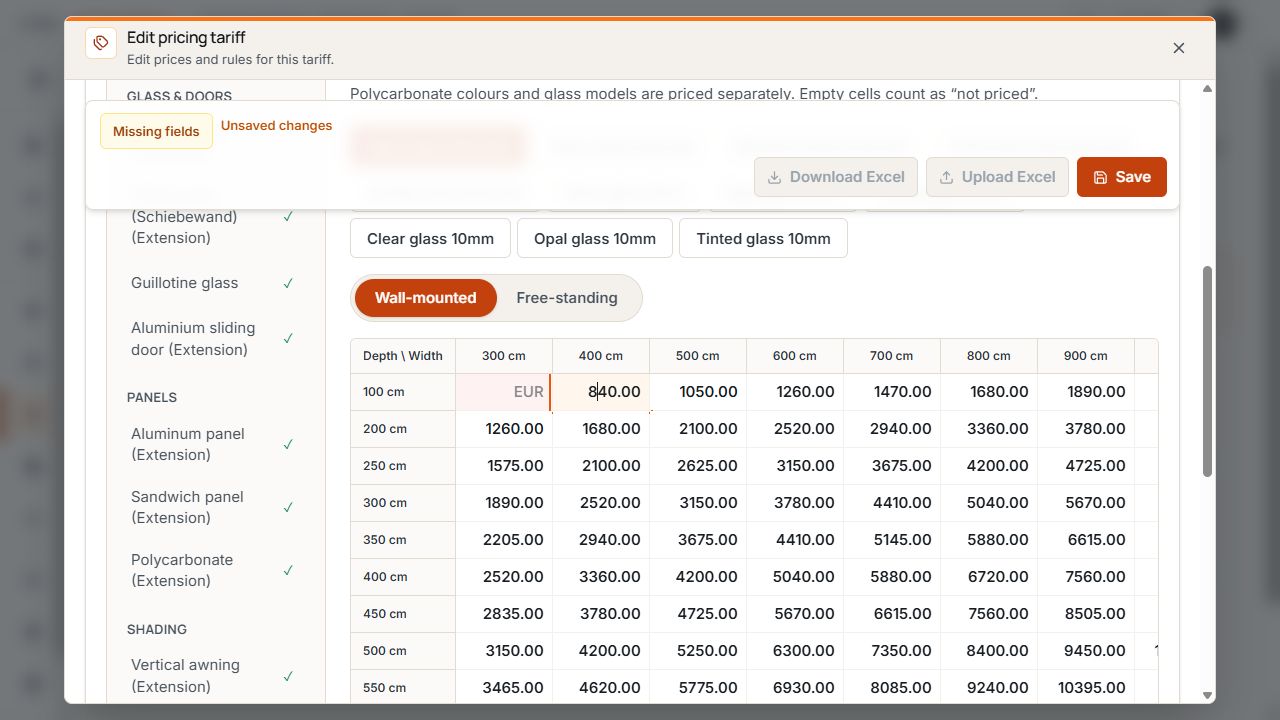
Missing price cell and active Save button
The highlighted price cell, Missing fields status, and unsaved changes notice show current editing progress. View with sample data.
A missing price does not mean a product is free. Enter 0 only if professionally intended and permitted for that field. Observe the distinction between normal net prices and later discount.
Check saving and completeness
Save applies changed values in the currently selected pricing tariff. Wait for confirmation or All changes saved before assuming the version has been permanently applied.
Complete checks required fields and rules, not the commercial correctness of your prices. An actively usable pricing tariff needs the appropriate status and a complete pricing basis.
If a message reports prices changed in the meantime, reload the page and compare current values. Do not replace someone else's newer version by saving again without checking.
Default discount instead of list price factor
If Default discount is offered, matrix, m², unit, installation, and additional prices remain normal net prices. The percentage is applied to the normal calculated total. This default discount does not create an artificially inflated comparison price.
Each pricing tariff has its own value. Empty or 0% means no default discount. New quotes may be prefilled with the discount from the pricing version used; the quote discount remains a separate setting afterward.
- Enter normal net prices in the tables; do not apply an additional discount to values already reduced.
- An existing saved quote does not retroactively receive a later changed pricing tariff discount.
- If another configurator displays List price factor instead, its own displayed pricing logic applies.
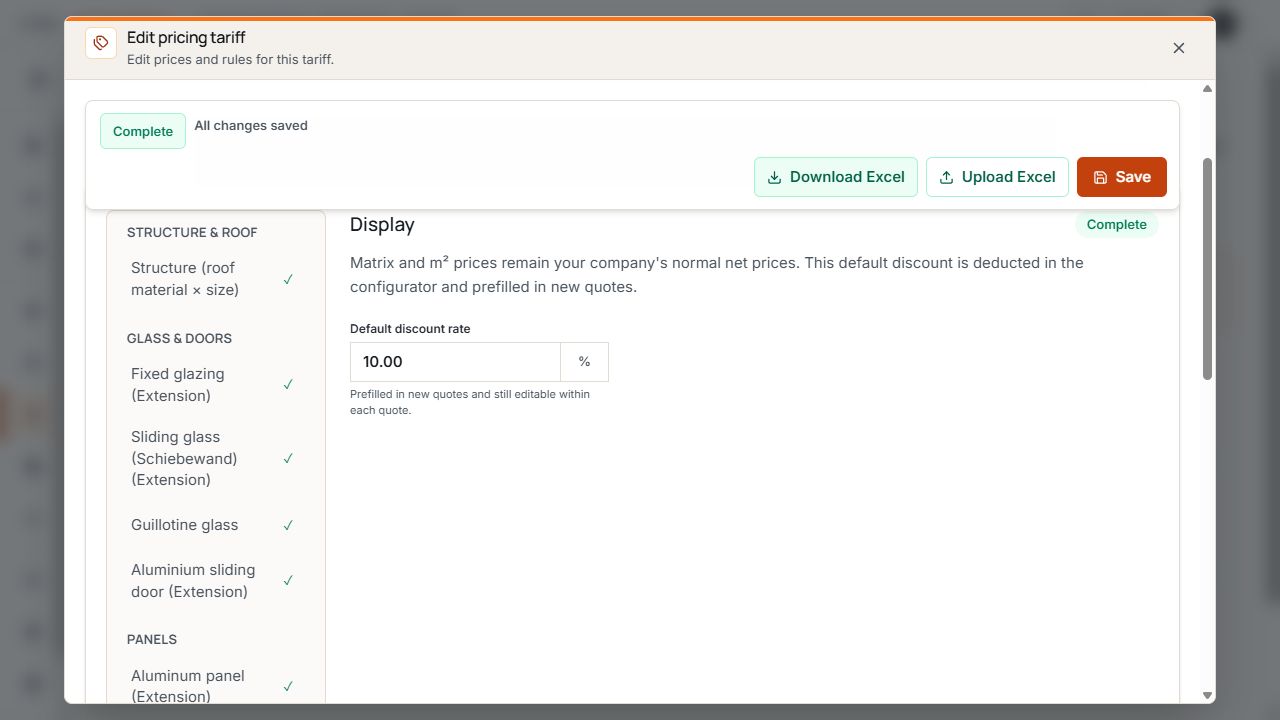
Default discount in price management
The default discount is maintained separately from normal company net prices. The notice explains how it is prefilled in new quotes. View with sample data.
Download Excel
Use the file downloaded from Terrace3D for the exact selected company, model variant, and pricing tariff. An arbitrary supplier Excel file is not a directly usable import template.
- First save pending changes in price management.
- Check configurator, model variant, pricing tariff, and base currency.
- Select Download Excel and save the generated .xlsx file.
- Edit a copy of this current file so that the unchanged export remains available for comparison.
Pricing tariff header and price groups
Status and Excel actions belong to the open pricing tariff. The left navigation leads to individual price groups. View with sample data.
Edit the Excel file
- Edit only the orange highlighted input fields of the generated file.
- Do not move or change headings, table structure, sheets, or protected file information.
- Enter prices as numbers without additional currency symbols or unit text. For calculations, paste the result as a value; formulas are not imported.
- Do not leave required active price fields empty. Check zero values separately for their intended meaning.
- Observe offered dropdown lists, calculation methods, and units.
- Save as .xlsx up to 5 MB. Macros and external Excel links are not accepted.
Transfer prices from other sources into the current Terrace3D template. Simply renaming a CSV, XLS, or other file does not produce a valid .xlsx import file.
Upload Excel and check the file
- Open the same pricing tariff for which the file was downloaded and resolve pending form changes.
- Select Upload Excel and then Select file.
- Select the edited .xlsx file and click Check file.
- Read the feedback and counts for Changes, New zero prices, and Errors.
- Check identified changes with their old and new values. Note that the visible list may show only an excerpt.
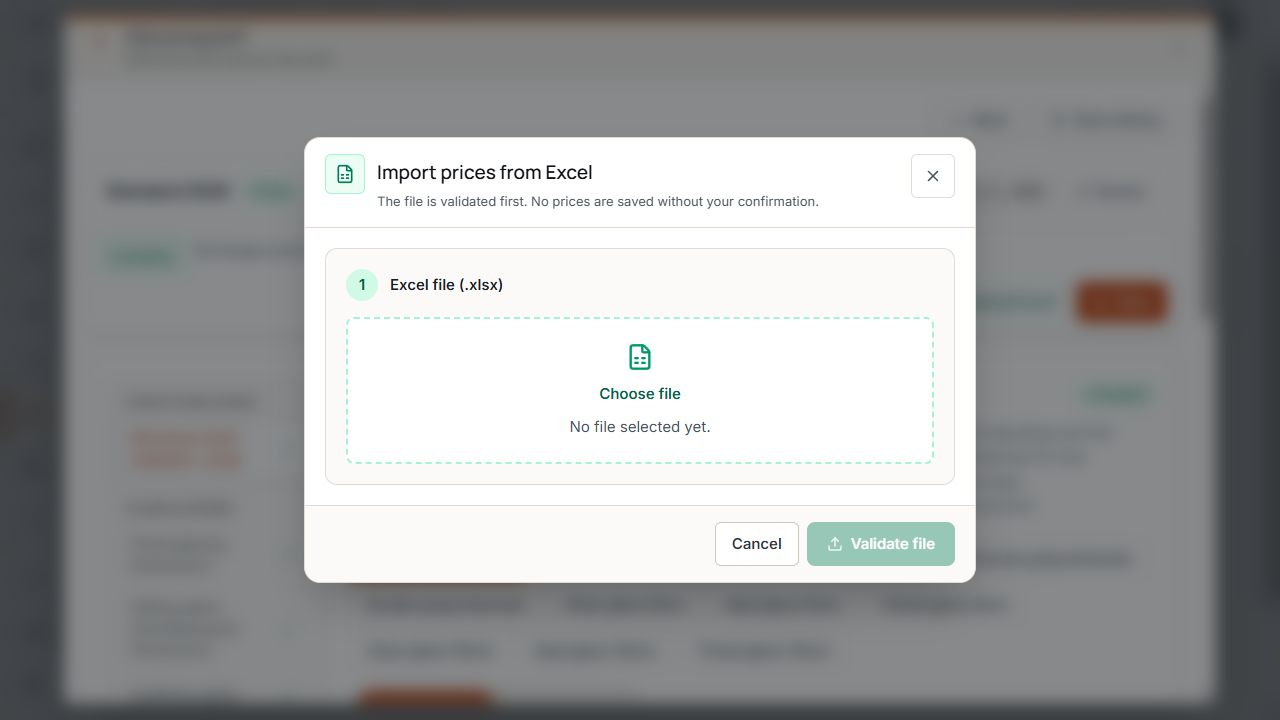
Select an Excel file for checking
Select file prepares the Excel import; Check file is the following step. View with sample data.
Select file and Check file do not yet save prices. For errors, correct the specified sheets and cells in the file, select the corrected version again, and have it checked again.
Give a reason for changes and import
- Continue only when the file check permits import and the preview has been professionally checked.
- Under Reason for change, enter a traceable description, such as the reason and price list version.
- Click Import and save.
- Wait for The Excel prices have been saved or feedback that there were no changes.
- Then check completeness, the saved pricing tariff, and change history.
Import and save already applies the checked version permanently. It does not merely load it into an unsaved form; another normal Save click is not part of successful Excel completion.
Resolve outdated files and import errors
- Wrong company, model variant, or pricing tariff: the file belongs to another pricing basis. Use the correct export.
- Prices changed since export: download a new export and reconcile desired changes with the current version.
- Base currency or available products changed: download a new template for the current state.
- Preview no longer current or expired: check the file again. If the pricing tariff version has also changed, first use a current export.
- Missing required prices or invalid cells: correct the specific details named and check again.
- Import unavailable: send the error message with pricing tariff, model, and affected cell to Support.
Base currency and sales markets
The displayed company base currency is the currency of price lists and the Excel export. A different label in Excel or changed display formatting does not convert the pricing basis to another currency.
Sales countries and their offered display currencies are managed under Settings → Configurator & inquiries. This selection determines the market for starting the configurator and is used for displayed prices or later quotes.
- Check the price list basis before manual maintenance and Excel import.
- After a change in base currency, export a new Excel file.
- Open the test project in the intended sales country and check the displayed currency.
Pricing tariff in the project and website publication
A new internal project can use the selected or intended default pricing tariff. For a website publication, the pricing tariff for new public configurations is assigned separately.
- Project information shows the assignment for information. Make an offered pricing tariff change in the configurator through model/pricing tariff selection and check the recalculated price.
- For a project version linked to quotes, pricing tariff changes may be locked. Use the offered route to an editable project version.
- Saved quotes retain their own documented price and discount version. A pricing tariff change is not a general retroactive quote correction.
- For new publications, check a suitable active, complete pricing tariff and the desired price display.
Open change history
Open Change history for the selected pricing tariff. Check the time, user, affected fields, and displayed old and new values or existing reason for change.
After an Excel import, identify the saved change by your reason for change. History helps traceability; professional checking of the price version remains necessary.
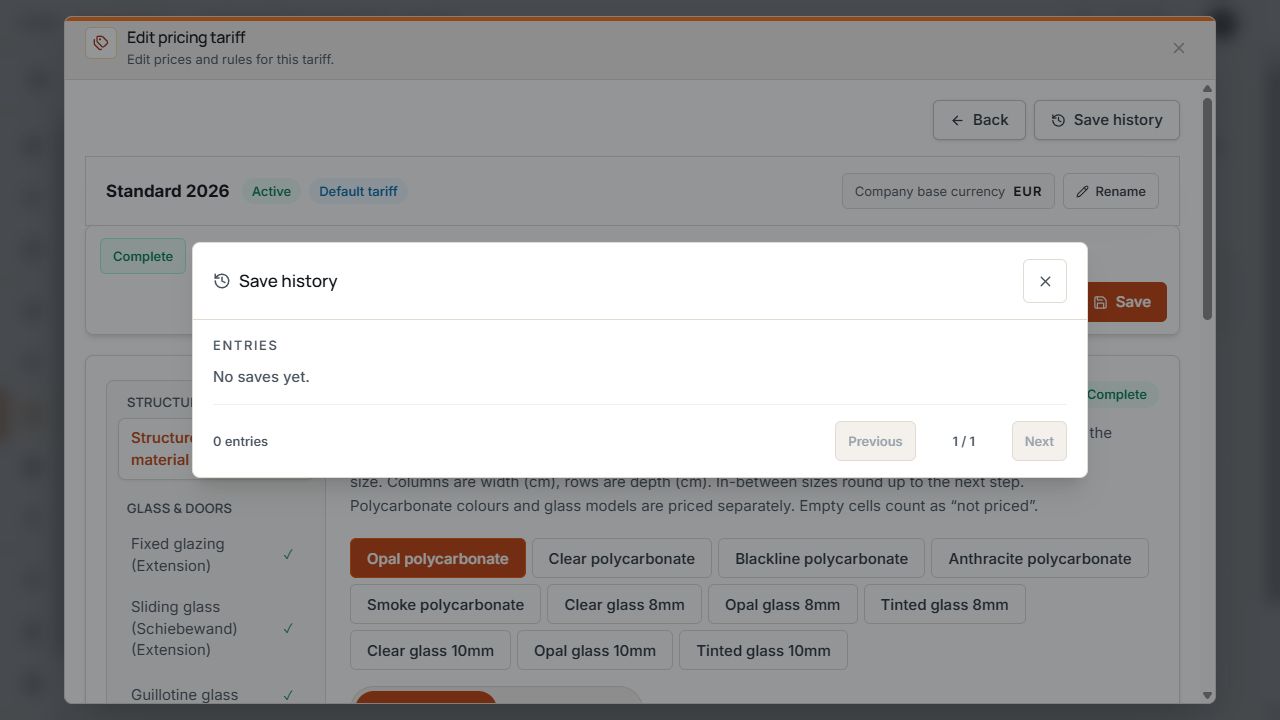
Pricing tariff change history
History is the area for saved price changes. The example shows an empty history. View with sample data.
Check saved prices in practice
- Start a new test project with the affected model variant and correct pricing tariff.
- Check representative dimensions, materials, installation, and changed accessory products.
- Check discount, market, and displayed currency.
- For a website publication, also check its own pricing tariff assignment and permission to show prices.
- For discrepancies, identify the pricing tariff and change history; reconcile existing documented quotes separately.
