What Support is for
Support brings together your company's communication with Terrace3D. Use a ticket for usage questions, technical problems, and questions about projects, quotes, payments, contracts, or website publications.
Subject, category, messages, files, and processing status remain in the same history. Add new information to an existing issue there instead of creating more tickets for the same matter.
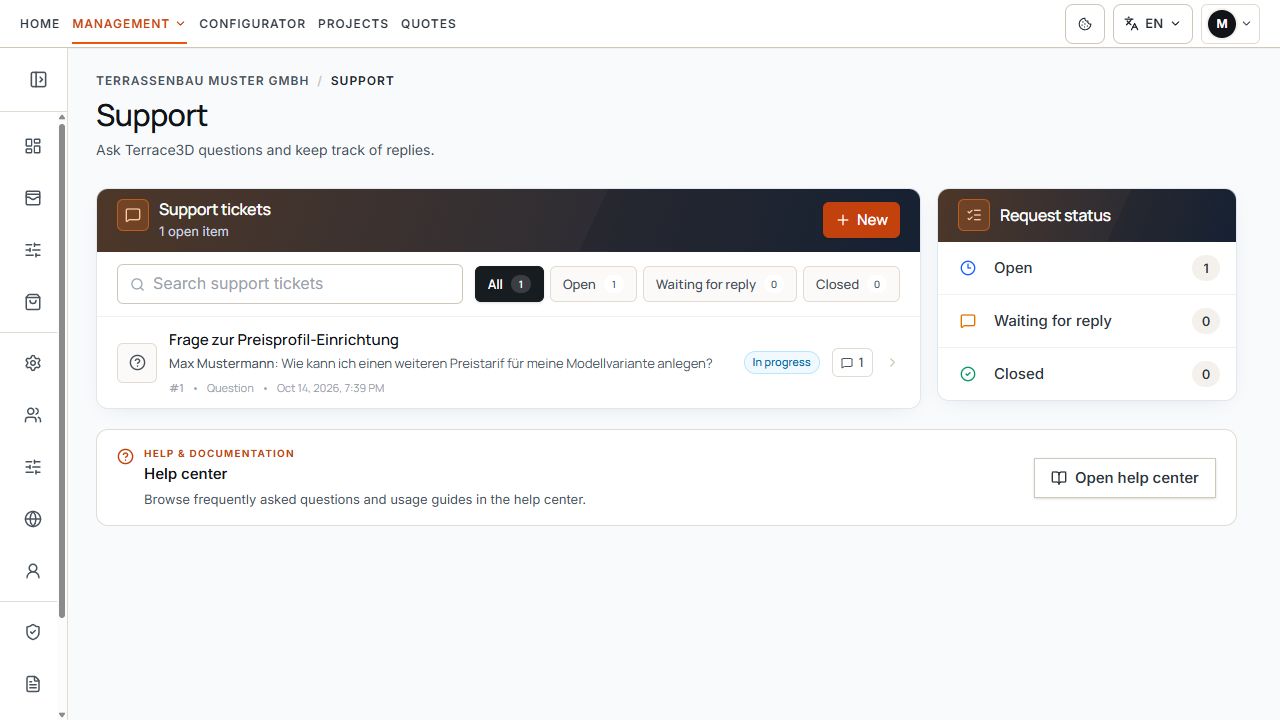
Support area with ticket list and status overview
Search and status filters narrow the visible tickets. The sample case is being processed. View with sample data.
A category such as Order or a support message does not yet order, pay for, or activate a service. The respective intended ordering, payment, and approval processes are authoritative.
Distinguish personal and company-wide tickets
- Restricted company users see only tickets they created themselves.
- Company users with full company-wide access see their company's support tickets, including those created by colleagues.
- A direct ticket link does not override these boundaries. It does not make a ticket from another company accessible.
- A public guest conversation belongs to the logged-in company account only after confirmed transfer.
- If an expected ticket is missing, check the account used, company assignment, and your own access level.
Use the list, search, and status filters
- New opens a new support request.
- All shows all tickets visible to your access.
- Open includes open cases and those being processed.
- Waiting for reply filters tickets with the Waiting for company reply state. Check which response is needed from your side there.
- Closed groups resolved and closed tickets; the history remains readable.
- Search considers the subject, category, status, last message, and visible creator address, among other things. It is not a guaranteed full-text search of every earlier message.
- The status overview and pagination help narrow and read longer lists.
Search and filters for visible support tickets
Search and status filters narrow the visible tickets. The sample case is being processed. View with sample data.
Create a new ticket
Some areas open a prefilled ticket, for example about a payment, company detail correction, or website address. Check and complete this text before sending; opening it alone does not send an inquiry.
- Open Support in the dashboard and select New.
- Enter a meaningful subject of no more than 190 characters.
- Select Problem, Order, Question, or Other.
- In the message, describe what you wanted to do, what happened, and the result you expected. The message may contain no more than 10,000 characters.
- Provide relevant references, such as project, quote, or invoice number, affected domain, and time.
- Add files if needed and check the details.
- Select Create support request and wait for the saved ticket history to open.
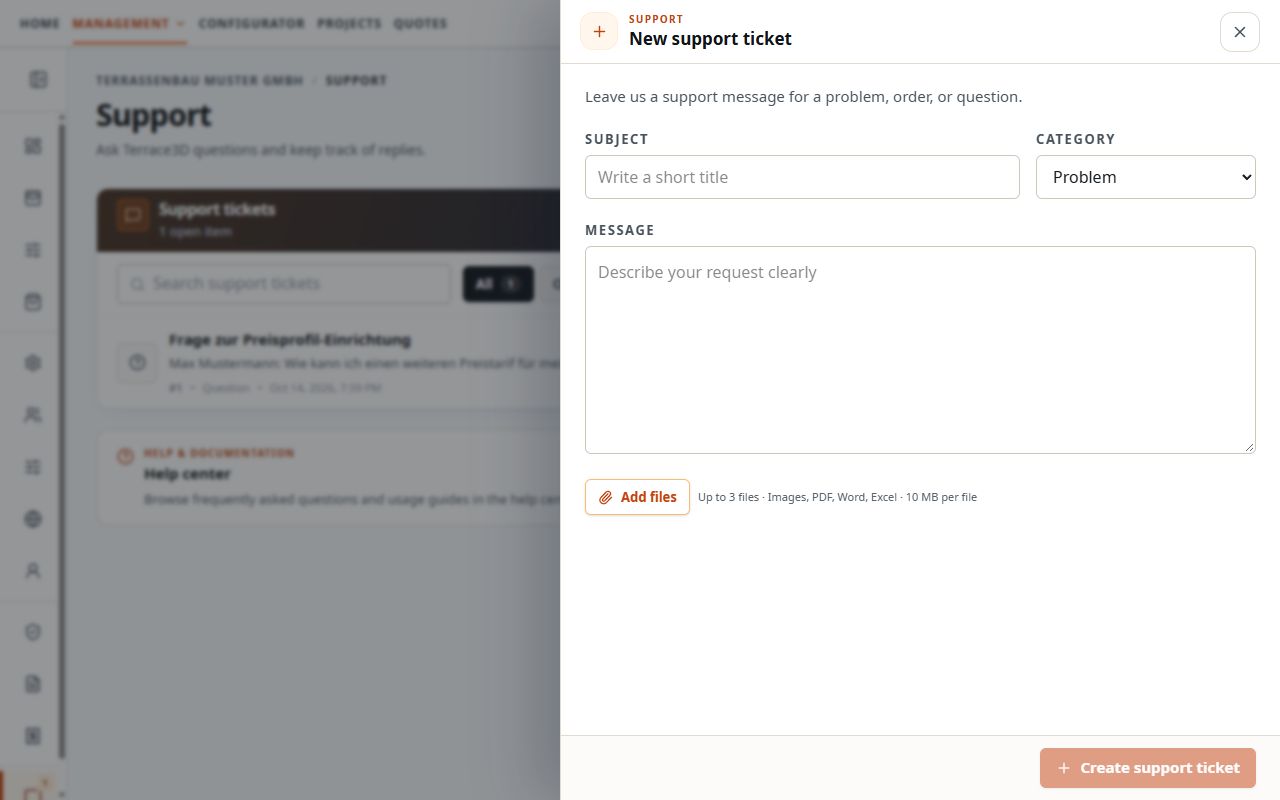
New support request with category, message, and files
The form collects the subject, category, message, and optional files before submission. View with sample data.
Add files to a message
- Add files accepts JPEG or JPG, PNG, WebP, PDF, and Word and Excel files in the offered DOC, DOCX, XLS, and XLSX formats.
- Up to three files of at most 10 MB each can be attached per message. This applies both to the new ticket and later replies.
- A selected file can be removed before sending. A text message is still required; sending files alone does not replace it.
- In the history, images can be enlarged and offered documents opened or downloaded.
- Files have a limited retention period. An expired or unavailable file may be marked accordingly; the message history remains separate from this.
- Public guest support does not support attachments. This file feature belongs to the regular company ticket.
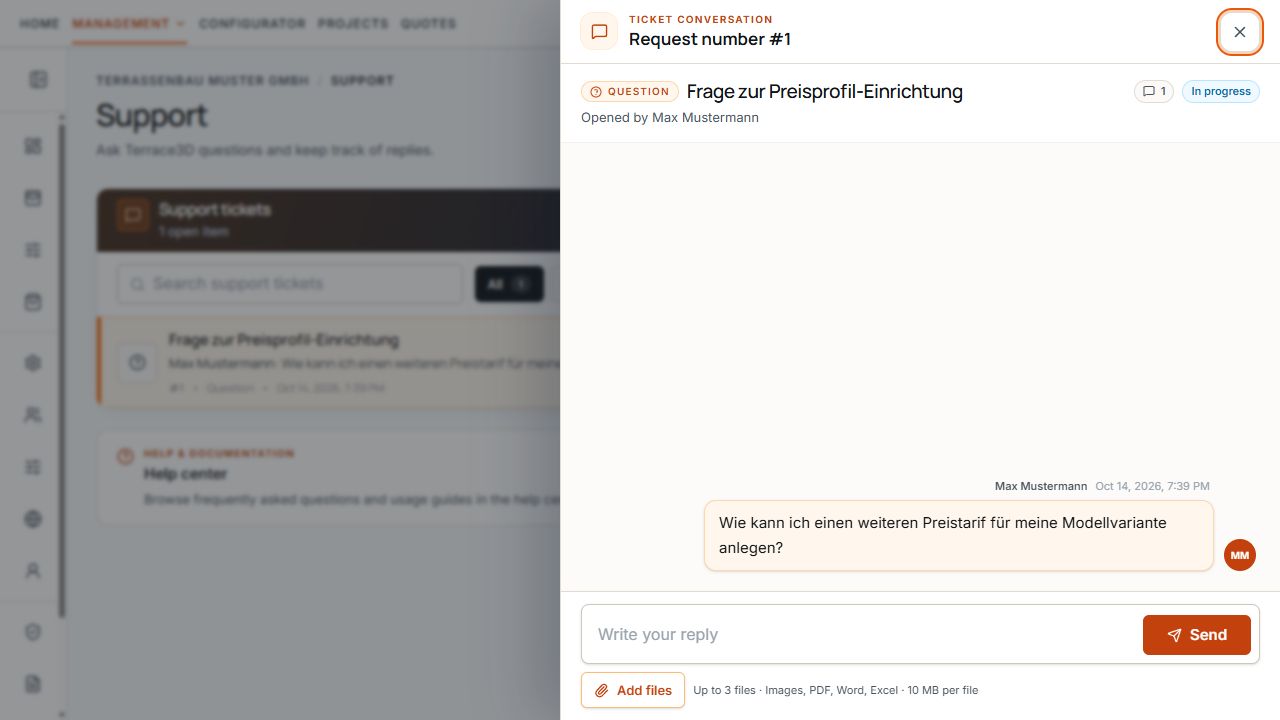
Add files to a support reply
Add files is below the reply field and supplements the message with relevant documents. View with sample data.
Upload only content required for the question. Login passwords and complete payment credentials do not belong in a message or file.
Open a ticket and reply in the same history
Opening the history marks the visible conversation as read. It does not close the ticket. The dialog actions for closing the view simply return to the list.
If a message could not be sent, the error message remains visible in the area. Check the history before sending the same message again.
- Open the relevant ticket from the list or through its existing ticket link.
- Check the subject, category, creator, times, and current status.
- Read existing messages and open required attachments.
- Add your reply with up to three relevant files if needed.
- Send the reply and wait for it to appear in the history.
Ticket history with reply field and file selection
Message history, reply field, and file selection keep follow-up questions together in the same ticket. View with sample data.
Understand status and reopening
- Open: the request is not yet complete.
- Processing: the case is being handled.
- Waiting for company reply: check and answer the question in the history.
- Resolved and Closed: the case is marked as completed and remains readable.
- Company users do not change processing status through their own status management; the relevant status actions belong to the Terrace3D team.
- In a regular company ticket, you can also reply to a resolved or closed case. Such a reply automatically reopens it.
Reopening by replying applies to company tickets. A closed public guest conversation accepts no further guest reply and shows the route to a new conversation.
Track new replies and notifications
The Support area can receive new replies automatically. If the real-time connection is interrupted, data is also synchronized when focus returns and regularly in the background; immediate display is therefore not guaranteed on every connection.
Unread indicators and the Support counter draw attention to new messages. The number of unread cases and number of open tickets are different metrics.
- Email notifications may reach the creator and active users with company-wide rights. This does not give a restricted user general access to other employees' tickets.
- The notification contains an excerpt and a ticket link. Open Support for the full history, attachments, and further replies.
- Support messages remain part of Terrace3D system email. A company-owned SMTP connection configured for customer quotes does not replace this support sending service.
- A saved reply and delivery of its email notification are separate operations. If an email does not arrive, first check the ticket history.
Use public guest support
Through the public support offered, a person without a company login can start a text conversation with Terrace3D. They write a message, provide a valid email address and optional name, and complete any displayed security check.
Guest messages are limited to 5,000 characters. Files are not supported in this public conversation. To continue, use the still-valid session on the device or a secure link from the support email.
- Keep a secure conversation link confidential; it allows access to the associated conversation.
- If the link has expired or the conversation is no longer available on the device, follow the displayed message and offered route to a new conversation.
- A closed guest conversation is locked against further guest replies. This differs from a closed regular company ticket.
Transfer a guest conversation to the company account
Messages are retained during transfer. The case is assigned to the logged-in user and their company; normal visibility rules for personal and company-wide tickets then apply.
Different email addresses are explicitly shown and require particular checking, but do not automatically rule out an authorized transfer. Without valid access and explicit confirmation, a guest conversation is not transferred solely because someone logs in.
After successful transfer, previous guest access routes are deactivated. A conversation already assigned to an account is opened through the intended company access; a public link destination does not bypass company permissions.
- Open your own guest conversation through the still-valid secure link or available session.
- Log in with the company account to which the conversation should belong.
- In the confirmation dialog, check the logged-in account and displayed conversation email.
- Confirm Move to Support only if the conversation actually belongs to you or the company.
- Then continue the conversation in the company account's regular support ticket.
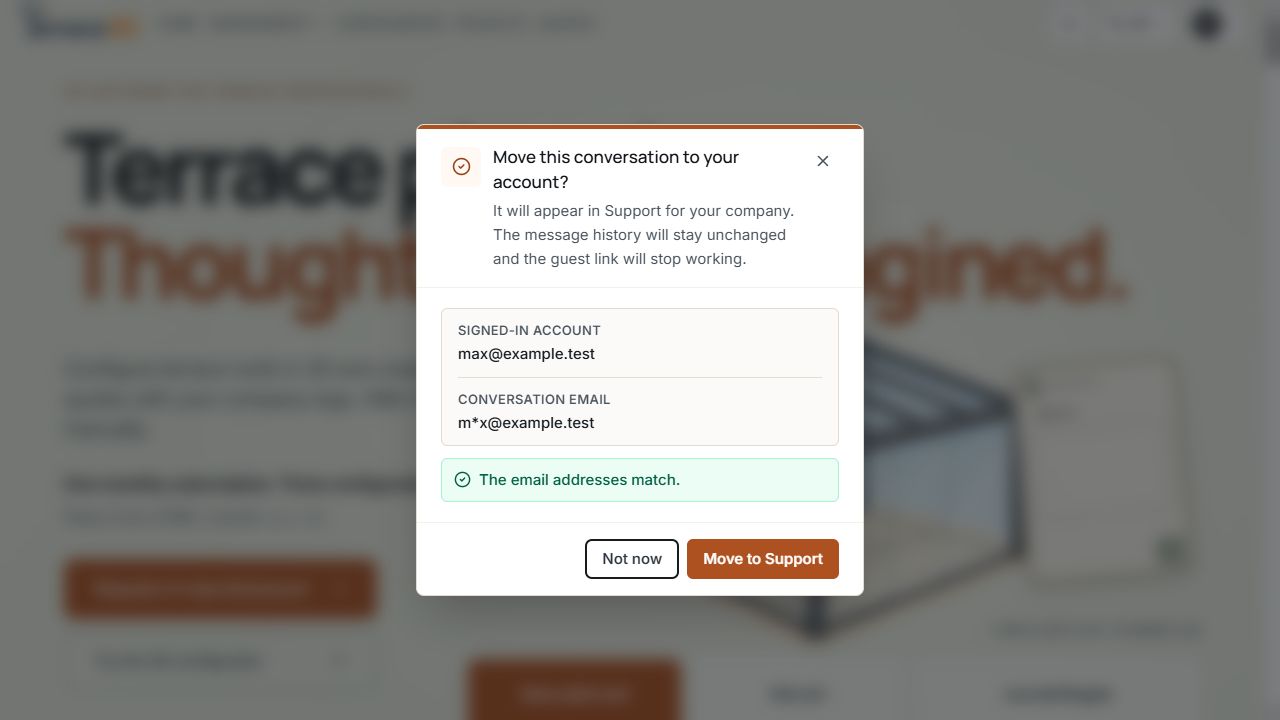
Confirm a guest conversation before transfer
The dialog assigns the guest conversation to the company account and explains data retention before Move to Support. View with sample data.
Open the help center
Open help center or Open help opens the documentation in a new tab. It contains guides to the available areas and functions.
Use the support area for individual questions. Include the topic or guide address so support can identify what your question concerns.
Details for quick clarification
- Describe the affected area and specific action.
- Compare the expected and actual result.
- Provide the reference number, domain, and approximate time.
- For a display problem, add an informative screenshot.
- For a file or import question, identify the specific file and visible message where needed for clarification.
- Before sending another message, check whether a reply is already present in the existing history.
