Structure of quote management
Open Quotes to find company quotes visible to your access. Each quote belongs to a saved project; several quote versions may arise within the same project.
Quote features, price calculation, and editing rights must be available for your access. A read-only view does not automatically allow editing, sending, or deletion.
- Refresh reloads the list and counters.
- Search, status, date range, sorting, and offered quick filters narrow the list.
- Quote number, product or project, customer, total amount, and responsible user help identify records.
- Open draft or Open quote leads to the report. Project & versions shows the associated project context.
- Quote quota, Trash, and deletion history are displayed according to availability and permissions.
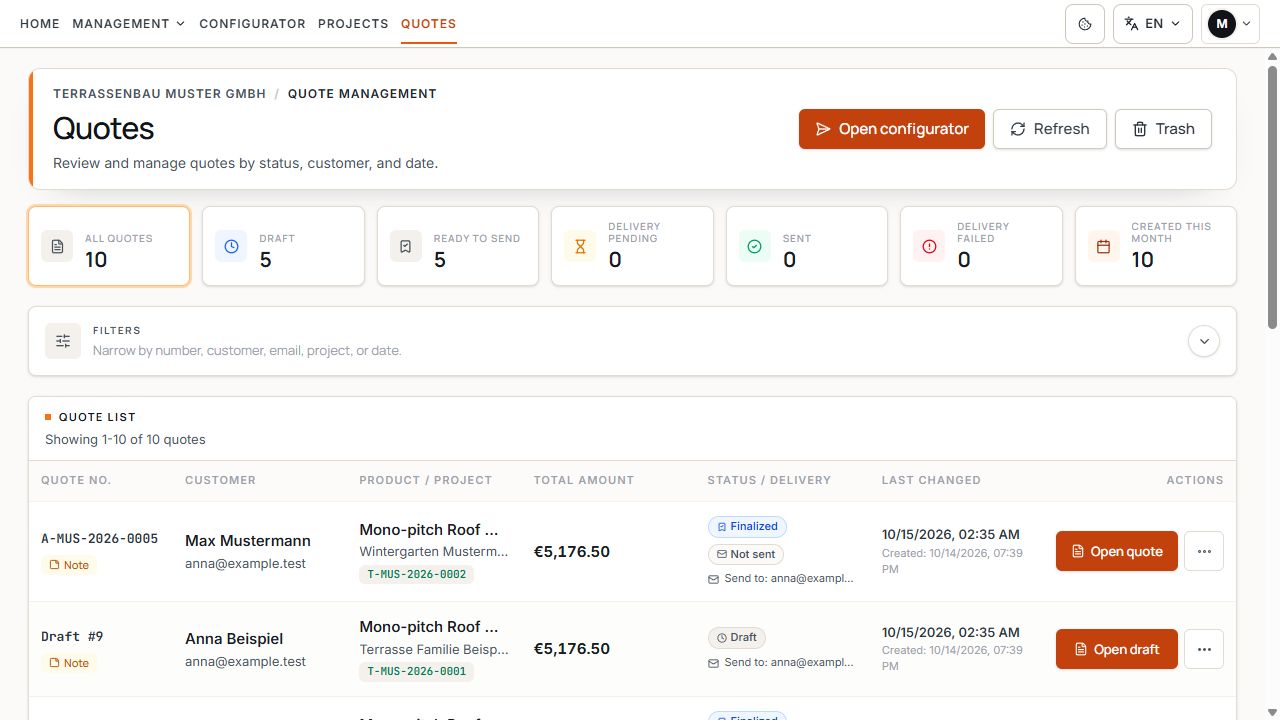
Quote list with project and sending status
Document status and sending status are separate in the list. The example contains a draft and a finalized quote. View with sample data.
Distinguish document state and sending
- Draft: quote content can still be edited and saved with the appropriate permission.
- Finalized or Ready to send: the content is fixed. PDF and email are available; an email has not yet been sent by this alone.
- Not sent: no corresponding sending has been completed for the finalized document yet.
- Sending pending: the requested email is being processed. Wait for the result and refresh the list.
- Sent: the sending service used has accepted the send. This confirms neither inbox delivery nor personal acknowledgment.
- Sending failed: check the error message and recipient before starting the offered resend.
Save draft does not send or finalize the quote. Finalizing alone also sends no email.
Open project and quote report
Actions are in the report's side navigation; on smaller screens, open the corresponding action menu. Open project leads to the configurator. Changes to the project do not retrospectively change an already finalized quote.
- Find the quote by quote number, customer, or project.
- If needed, check Project & versions or project information with preview, customer details, and history.
- Open the draft or finalized quote through the offered document action.
- Check the quote number and document state in the report workspace.
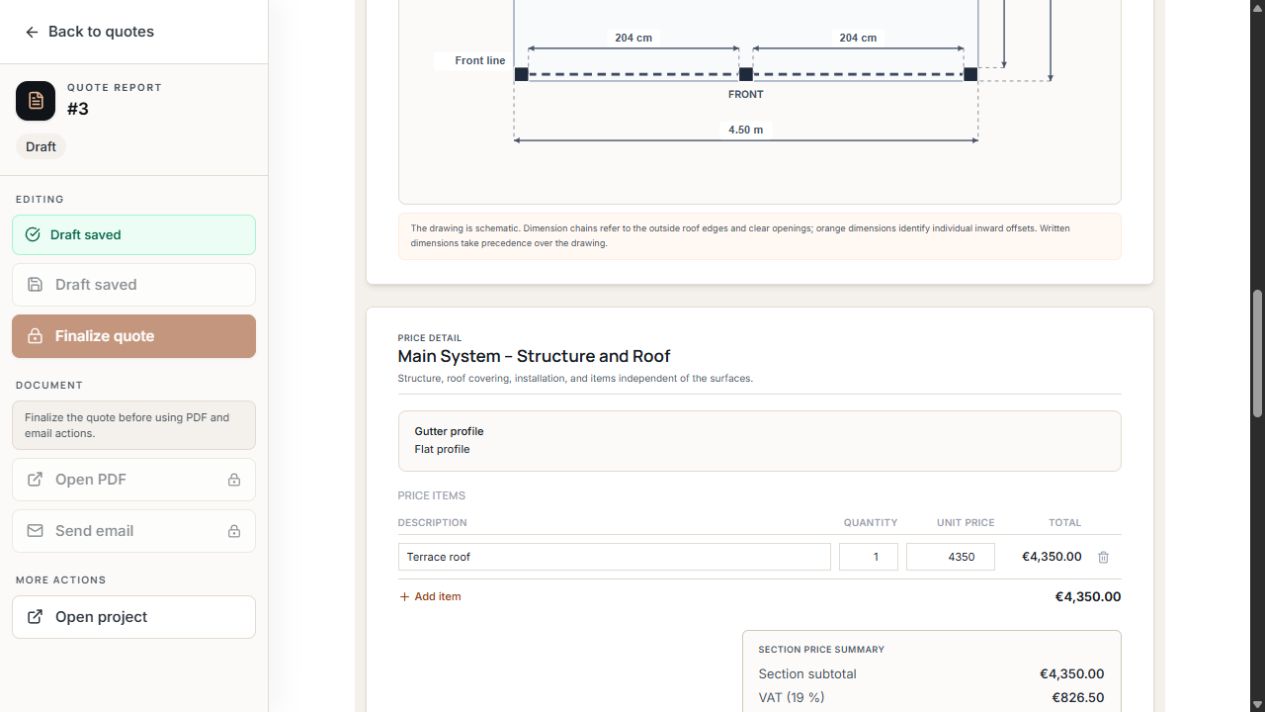
Editable pricing area of the quote
Price line items belong to quote content. PDF and email are still locked in the draft. View with sample data.
Check header and customer details
Before finalization, correct incorrect source data using the intended project or company features and check the resulting quote version again. The recipient address in the sending dialog is separate sending information.
- Check company logo, company name, contact details, and address.
- Compare the quote creator and customer details with the underlying project.
- Check quote date and the selected Non-binding quote notice.
- If an expiry date is enabled, select a date; without a date, this selection cannot be saved or finalized.
- Check installation scope and offered technical views.
Check technical views and price line items
The report shows technical views suitable for the product and configuration. Front, sides, roof, and accessories may be structured differently depending on the configurator and equipment.
Check dimensions, material, color, mounting type, surface elements, and scope of price line items. An empty area does not automatically mean a service is included free of charge.
- Main system – supporting structure and roof groups general system line items.
- Surface-specific line items and notes are in the associated technical area.
- In an editable draft, you can add or edit offered line items and check description, quantity, unit price, and total.
- An offered special color may require an explicitly completed coating line item. Observe the check before finalization.
- If the required overall view is missing, use the offered return route to the configurator and recreate the required quote version.
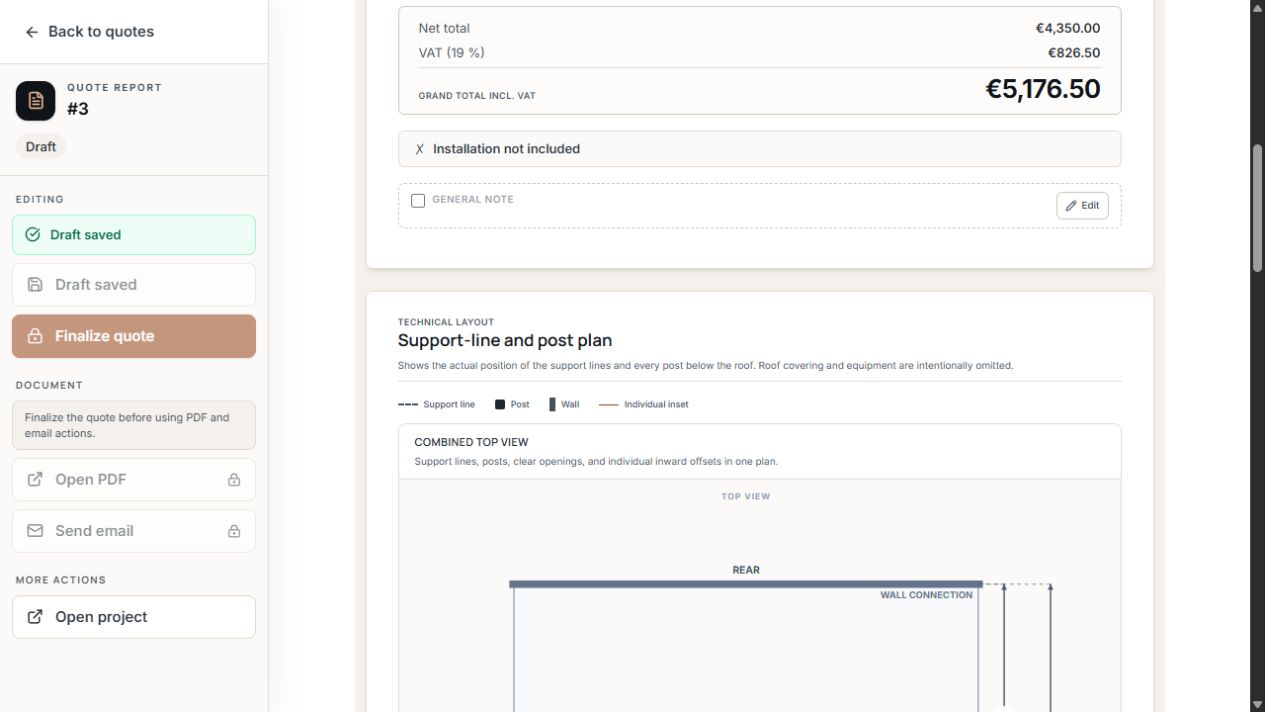
Technical post view in the quote report
The technical view associates post rows and positions with the project. View with sample data.
Set discount and VAT
A default discount adopted from price management at creation may already be prefilled. The report's discount belongs only to this quote; a change does not write it back to the pricing tariff. Do not also record the same discount through already reduced line items.
- Subtotal: total of line items before quote-specific discount and VAT.
- Net amount: subtotal less the activated discount.
- VAT: calculated on the net amount after discount, using the rate entered in the quote.
- Gross total: net amount plus calculated VAT.
- Fixed amount: entered in this quote's currency; check the displayed currency.
- First check all price line items and the draft's net subtotal.
- If needed, activate Apply discount and select Percentage or Fixed amount.
- Enter the value and optionally a label. Percentages are limited to 100%; a fixed discount cannot exceed the subtotal.
- Check the VAT rate and calculated amounts in the quote overview.
- Save the draft and check the result before finalization.
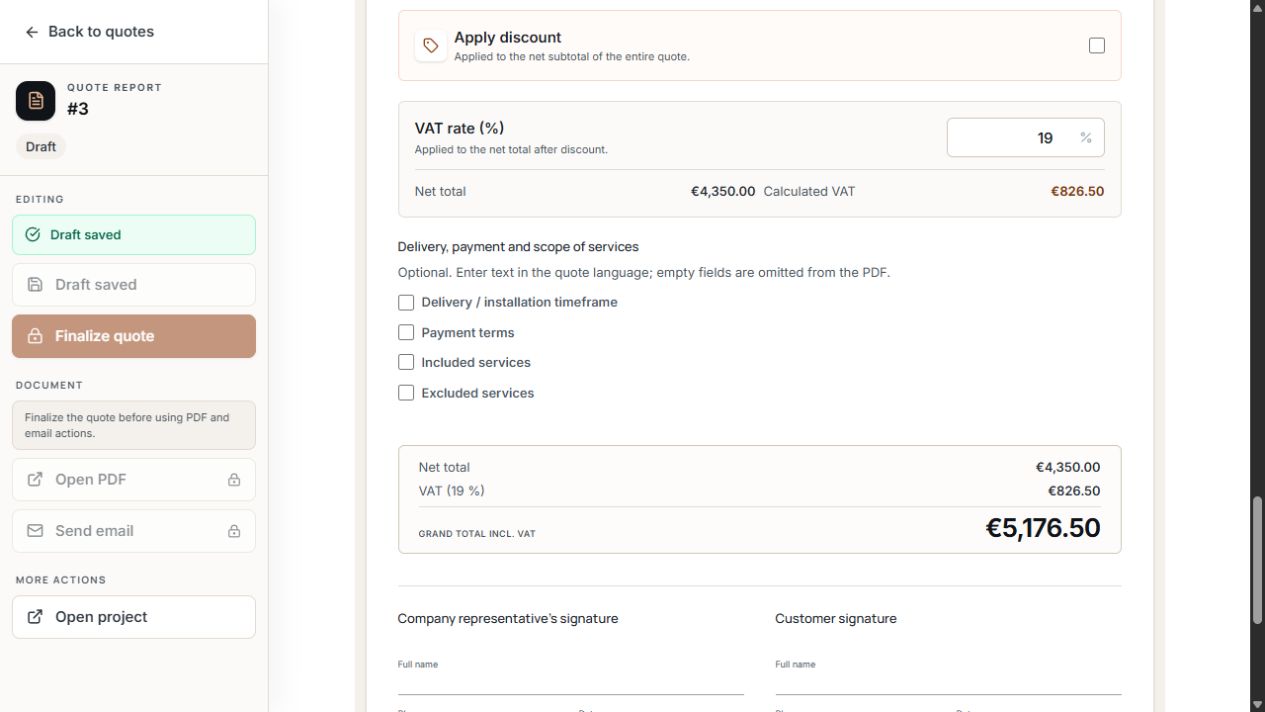
Discount, VAT, and quote overview
The visible VAT rate is applied to the net amount after discount. The total including VAT is below; the discount option is off in the example. View with sample data.
Terrace3D calculates using the entered VAT rate. The company determines the appropriate rate for the transaction.
Separate customer notes and internal notes
Surface notes, general quote notes, and completed delivery or payment terms may form part of the customer document. Use these fields for information the customer should receive.
Internal note is explicitly marked as an area not sent to the customer. Use it for internal information and still check all other text fields before sending.
- Delivery, payment, and included and excluded services can be explained in the offered terms fields.
- Add general note applies the technical note saved for the quote.
- Authorized users can edit the company-wide general note, view its history, and apply a current version to a draft.
- A new company template does not change an already finalized quote. Before finalizing, check which version the draft uses.
Save draft and finalize
Only after successful finalization are Open PDF and Send email available. If another user has changed the same version in the meantime, load the current version and check it again before continuing.
- Edit and check the draft quote in full.
- Use Save draft if you want to save the current state and continue editing later.
- Select Finalize quote or Save and finalize when the content is complete.
- Read the confirmation: finalization locks prices, line items, customer details, and other quote content.
- Confirm finalization. If needed, the draft is saved first. Then check the Finalized state.
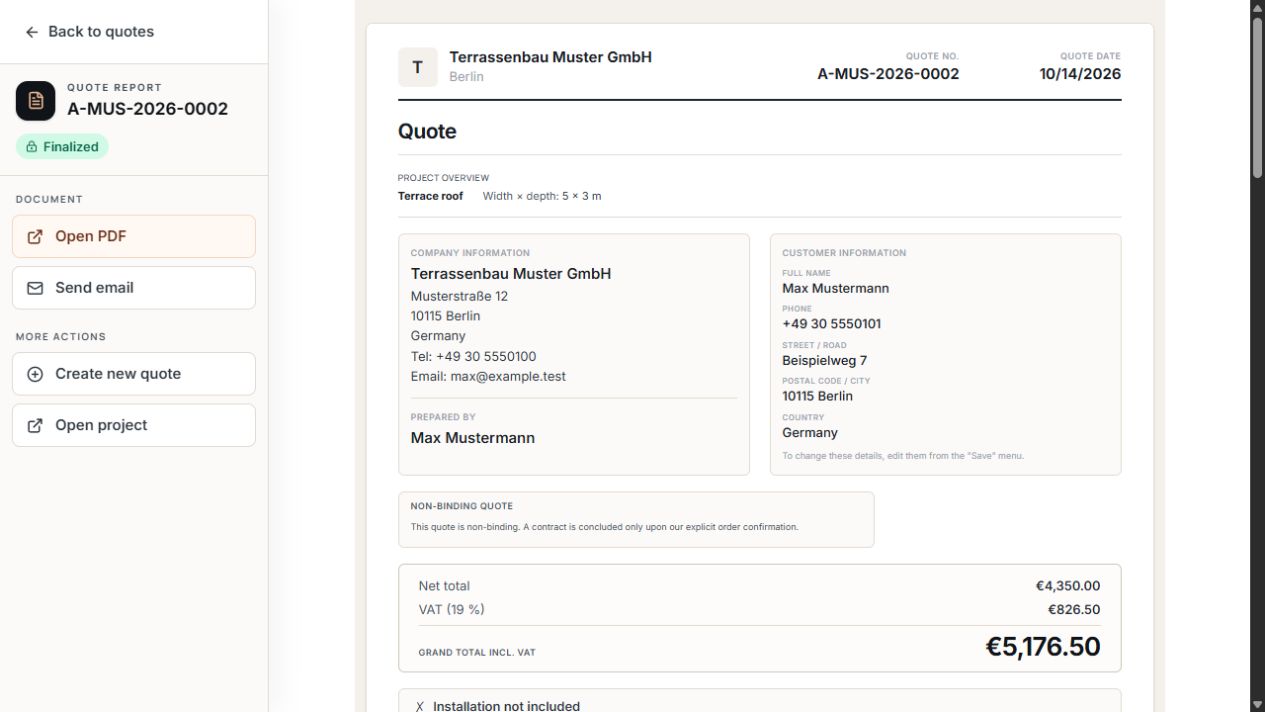
Finalized quote with document actions
Finalized identifies the fixed document version. PDF and email are available as separate document actions. View with sample data.
After finalization, document content can no longer be edited. For content changes, create a new quote in the same project.
Prepare, open, or download a PDF
In the finalized quote, open Open PDF. The Quote PDF window first checks whether a current file is available for this quote version. If required, it is queued and created in the background.
You can close the window during creation. Once PDF is ready appears, open the file in a new tab or save it on your device using Download.
- Queued and Creating PDF are intermediate states; wait for the finished file.
- If a company limit is reached, the window shows the waiting time and automatically retries preparation afterward.
- If the PDF service is unavailable or creation fails, use Try again.
- Check the finished PDF before manually sending it from your own email program.
- A version with corrected content requires a new quote; a finalized document is not overwritten for this.
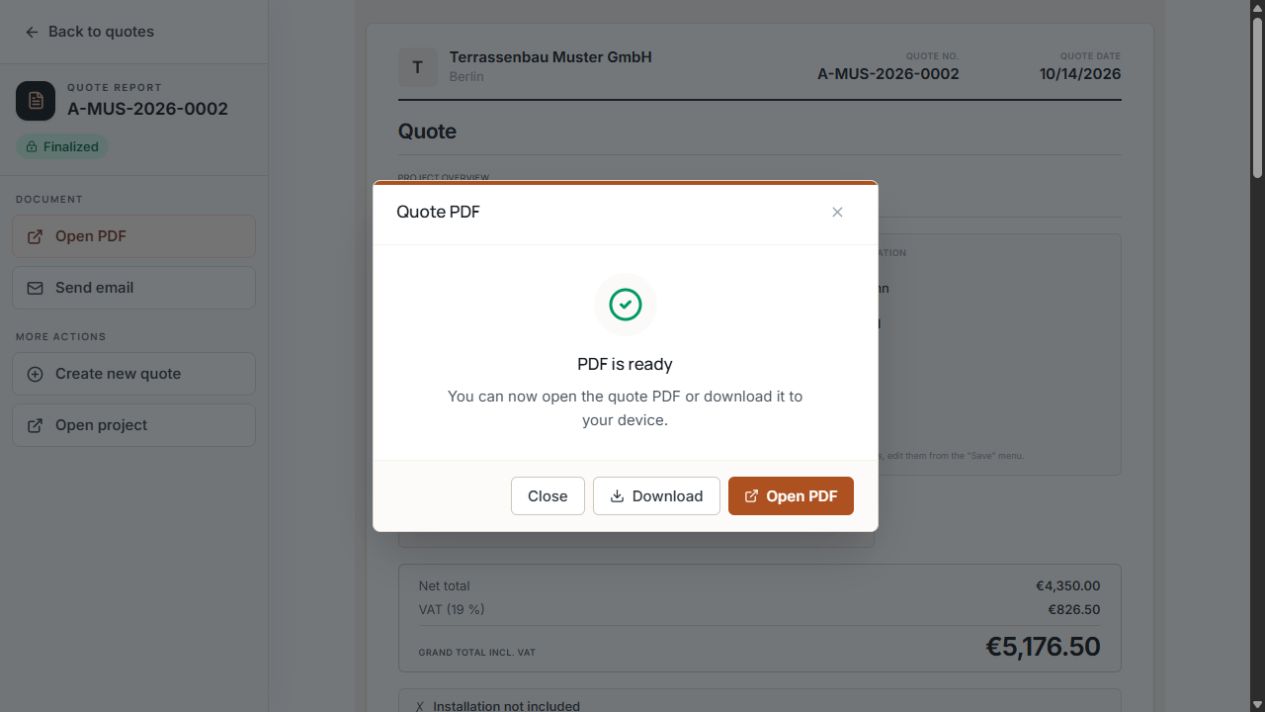
Open or download the ready quote PDF
The prepared quote PDF can be opened in the browser or downloaded to the device. View with example data.
Send a quote by email
- Also send to users with company-wide rights is normally not preselected. Copies go to active users with full company access.
- Also send to the quote creator is selected by default and can be deselected in a normal company account.
- Internal copies are sent separately. Customer and employee addresses are not disclosed to each other; duplicate recipients are consolidated.
- In a demo account, the recipient address may be fixed to your own registered address. This test send then does not constitute sending to an end customer.
- Open the checked, finalized quote and select Send email.
- Check Recipient email. A change applies only to this send and does not change the email in the customer record.
- Add a message to the customer if needed.
- Check both copy options for users with company-wide rights and the quote creator.
- Select Send and then check the sending state or history.
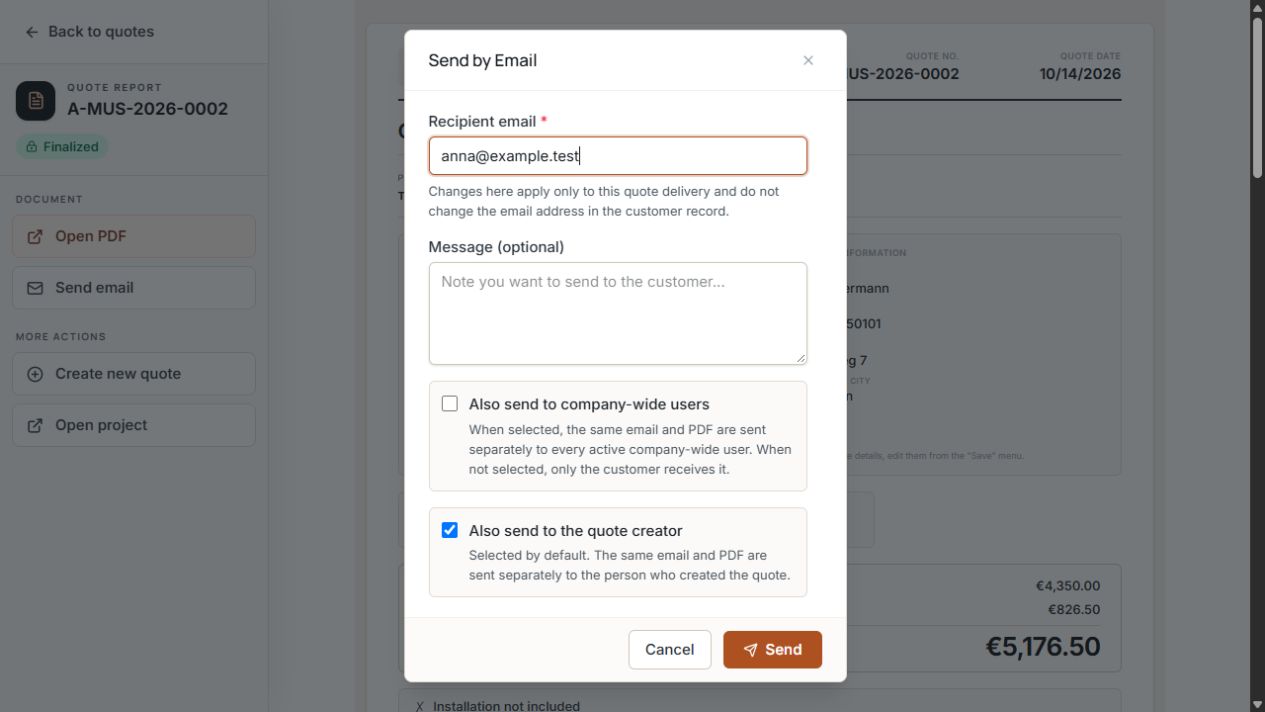
Email dialog with recipient and copy options
Recipient, message, and copies are checked before sending. The creator copy is selected in the example. View with sample data.
If only an internal copy is missing, do not rush to resend the customer quote. The already accepted customer email may have succeeded even though an additional copy failed.
Set up your own company email
If custom SMTP connections are enabled for the company, users with full company access find the Email tab under Settings. Without this permission, sending through Terrace3D remains available; the tab is not automatically shown for every account.
- Changes to saved SMTP settings, including the sender name or reply-to address, as well as a new password disable sending through this company connection. Save, test and enable the connection again.
- An empty password field can retain the already saved password.
- An empty reply-to address uses the company contact address if available; therefore also check that contact detail.
- Deactivate switches affected customer emails back to sending through Terrace3D.
- Open Settings and Email.
- Enter SMTP server, username, password, sender address, and, if needed, sender name and reply-to address.
- Select the connection appropriate for your provider: STARTTLS with port 587 or TLS / SSL with port 465.
- Save the connection details.
- Select Send test to me. The test message goes to the logged-in user's address. Check the inbox.
- Activate Use own SMTP only after a successful test.
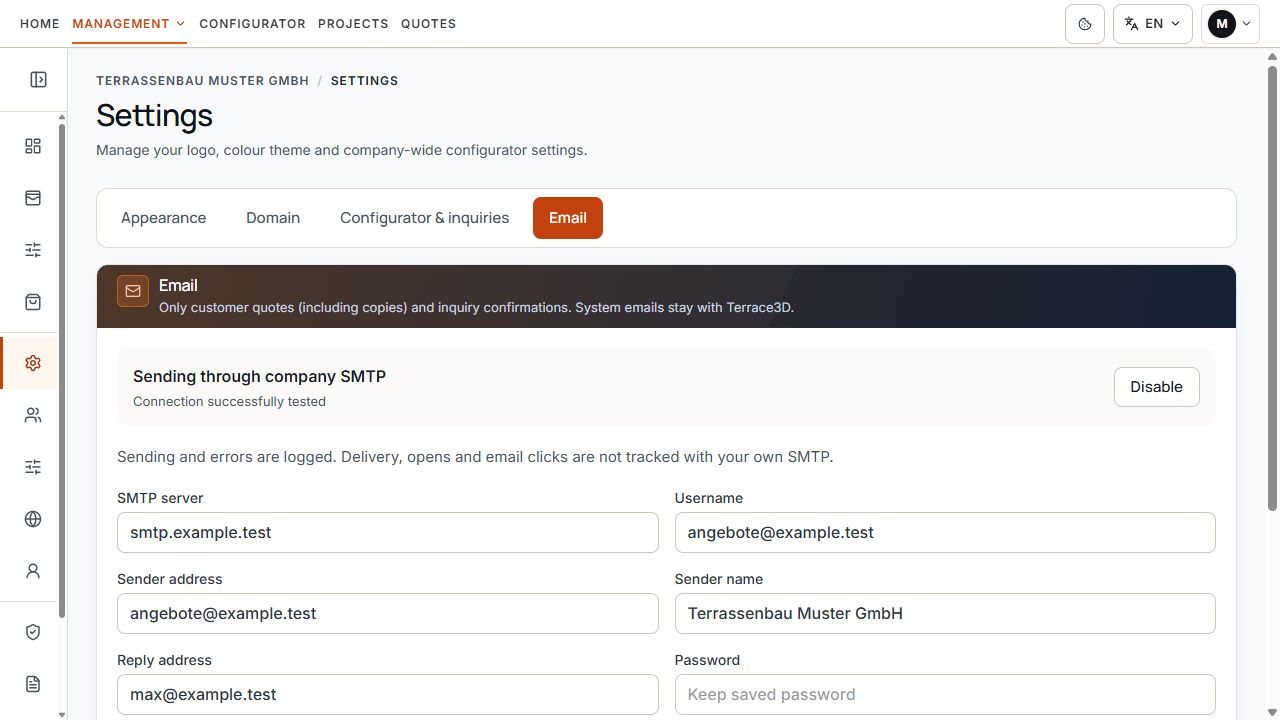
Company email status and sender details
The status shows the tested company connection. The SMTP server and sender details identify your company’s email setup. View with example data.
Which messages use company SMTP
- When company SMTP is active, customer quotes including selected copies and inquiry confirmations are sent through the company connection.
- System emails remain with Terrace3D. The SMTP setting does not replace sending of all account, contract, or system messages.
- When company SMTP is active, the sender address and any sender name come from these settings. Without your own connection, the company association is presented through Terrace3D sending.
- Replies follow the configured reply-to address or available company contact address.
An SMTP connection test confirms acceptance by the server. It guarantees neither later delivery of every customer email nor placement outside the spam folder.
Customer email, 3D sharing, and AR
The customer email contains the quote reference and PDF attachment. An optional message is included in the send.
If 3D sharing is available for the company and configurator, a protected, read-only project link may also be included. For finalized quotes, this sharing uses the fixed quote version; later project changes do not replace it.
AR is offered only if the relevant permission for company and configurator is active and a suitable device is used. A 3D link may be available without AR.
- Check the link validity and any expiry date shown in the document or email.
- Where available, the PDF may also contain a link or QR code to the shared view.
- A missing optional 3D link alone does not prevent sending the PDF quote.
Read sending status and tracking correctly
Document state, sending state, and possible opening signals describe different events. A finalized version remains finalized even if sending is pending or fails.
When sending through company SMTP, sending and errors are logged. Delivery, email opens, and email clicks are not recorded; the list may show Tracking unavailable.
With supported sending, a detected opening signal may appear. Such a technical signal does not prove personal acknowledgment; its absence does not prove the email is unread.
- For Sending pending, wait for processing and reload the status.
- For Sending failed, the list may offer Resend email to the saved recipient. Check the address in the confirmation dialog.
- History helps trace processing and sending events.
- For problems, give Support the quote number, time, and visible message; do not share SMTP passwords.
Maintain processing status within the team
Processing status is an internal organizational label. Authorized users can choose, for example, Decision pending, Planned, In progress, Completed, or Not intended.
A manual status change sends no email, finalizes no draft, and alone does not document binding customer acceptance.
Corrections and new quote versions
While a quote is a draft, authorized users can edit its content and save again. A finalized quote remains a fixed version.
For changes to dimensions, equipment, or protected project customer details, first continue the project in an editable project version. For a quote-only correction, check the new draft quote; do not confuse a quote version with a project version.
- For a content correction, open the associated project or Create new quote.
- Create the required new quote version in the same project and check technical data, customer details, and prices again.
- Save and finalize the new version before PDF or sending.
- When sending, check which quote number the customer should receive.
Trash and deletion history
With the appropriate permission, you can move an unneeded quote to Trash after confirmation. The offered restore and permanent delete actions are available there. Deletion history helps traceability.
- Before the action, check quote number and project.
- Consider documents already sent and previous customer communication.
- Do not use deletion as a correction to content already sent.
- For a lock message, check ongoing project or quote editing and, if needed, contact Support with the reference.
Check before finalization and sending
- The correct project and quote version are selected.
- Company, creator, and customer details are correct.
- Dimensions, technical views, services, and installation scope have been fully checked.
- Currency, price line items, discount, net amount, VAT, and gross amount have been checked.
- Expiry date, notes, and terms have been checked; internal information is only in the marked internal area.
- Content is finalized and the PDF has been checked in full.
- Recipient, optional message, and copy options have been checked.
- The desired sending route is activated; actual sending status has been checked after Send.
