Structure of the area
Contract & access brings together information on your company's business relationship with Terrace3D. Depending on existing records, you see the contracting party, contract details and monthly amount, recurring additional services, package and access rights, and contract documents.
Contract, payment, and technical activation are different pieces of information. A contract document alone is neither payment confirmation nor proof that an ordered upgrade has already been set up.
Check contract details and monthly amount
- Compare the contract number, status, and package with your confirmed order.
- Check the contract start and licensed company website, where stored.
- For the online subscription, read the components of the monthly amount: package, additional users, and recurring services.
- Distinguish the net amount, listed tax, and gross total; a comparison price from the current package overview does not replace your saved contract value.
- Include a separately agreed license, setup, or installment line item only if it is recorded in your own contract.
For new online subscriptions, mono-pitch roofs, flat roofs, and louvred pergolas are included in the monthly package. Existing contracts retain their agreed prices and payment schedules. Paid later changes may be documented as a contract addendum.
Term and cancellation deadline
New online subscriptions are billed in individual monthly periods from the confirmed first successful payment. They can be canceled at the end of the current period without an additional notice period. Existing calendar-based subscriptions and manual contracts retain their agreed terms.
Check the next billing date or displayed service end. Under Contract terms and cancellation details, find saved information on the current period, notice period, and cancellation, where available.
The terms saved for your contract and displayed end date are authoritative. For new online subscriptions, billing dates are defined in UTC; the local date and time may shift with daylight saving and standard time.
User types: company-wide and restricted
Contract & access, Invoices and payments, and Additional services are protected company areas. Restricted company users cannot open them. Under My account, users see their own access type; they cannot change it there themselves.
- Company-wide: can view company-wide data and enabled management areas. The actions offered also depend on the package, company status, and permissions.
- Restricted: works with their own or explicitly shared data and the configurators assigned to the account.
- Support: restricted users see only support tickets they created themselves. Company-wide users see the company's support tickets.
- Company-wide access is not a platform administrator role. It does not allow company users to manage other companies or global platform data.
Contractual rights and actual activation
The Package and access rights table compares documented scope with actual assignment. A paid contract change may already belong to the agreed scope while its technical implementation is still pending.
- Contractually agreed: saved rights and limits, including paid contract changes taken into account.
- Currently assigned: the limits and features currently technically enabled.
- Current usage: usage of the respective quota recorded in the system.
- Assigned configurators: expandable list of configurators available for the displayed access.
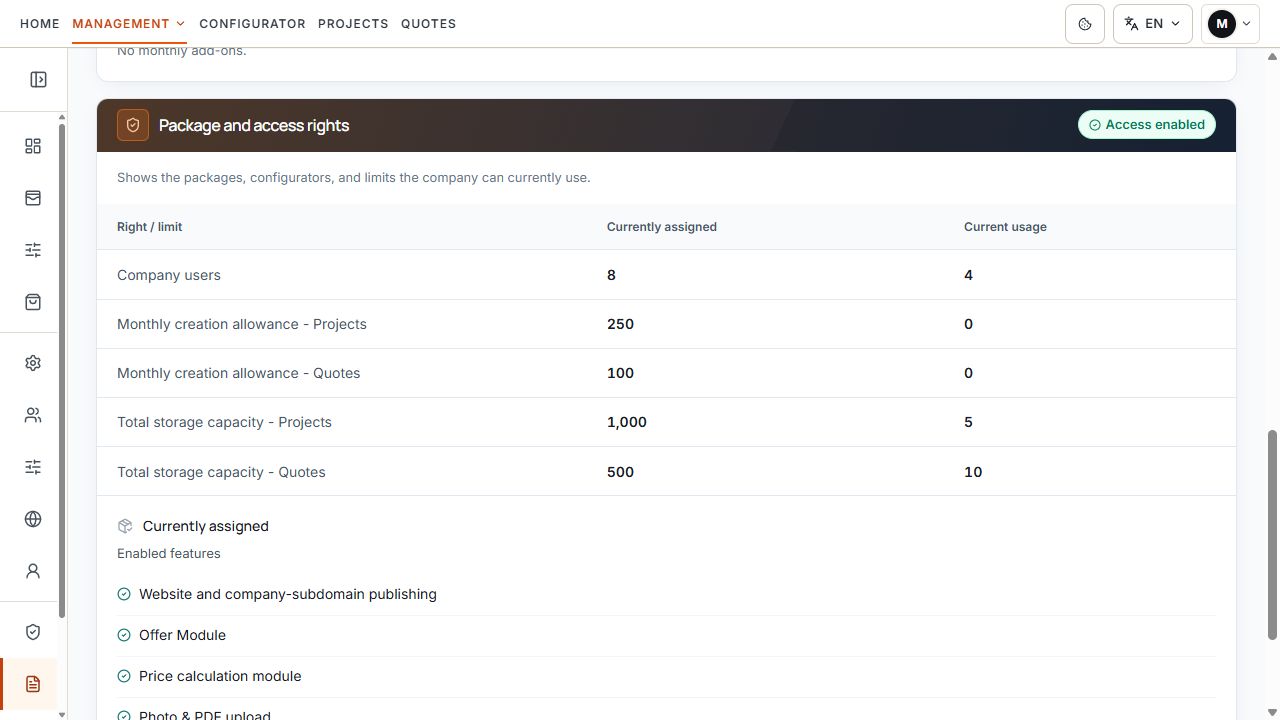
Assigned rights and current usage
The overview compares assigned rights and usage. View with sample data.
A discrepancy is not a reason to order the same scope again. First compare the existing order and its processing status; clarify missing activation with Support.
Compare quotas correctly
- Monthly creation quota: permitted new projects or quotes within the relevant monthly quota.
- Total storage capacity: permanently stored projects or quotes; this is a separate limit.
- Company users: check the contractual user count, assigned limit, and current usage separately. Also check pending invitations in User management.
- Quote quotas are displayed only where quote creation is available for the account.
- Further usage values are under Usage & quotas.
A new monthly creation quota does not automatically provide additional permanent storage. Always check the affected row and its actually assigned limit.
Recurring additional services
Monthly additional services appear under Contract & access. Check the name, recurring amount, stored dates, and any available contract addendum.
If a service is marked as included in the monthly total, it is already counted there. Do not add this amount to the stated total again.
Order new services and changes under Additional services. Track payment and processing there under My orders; recurring subscription management remains in the contract area.
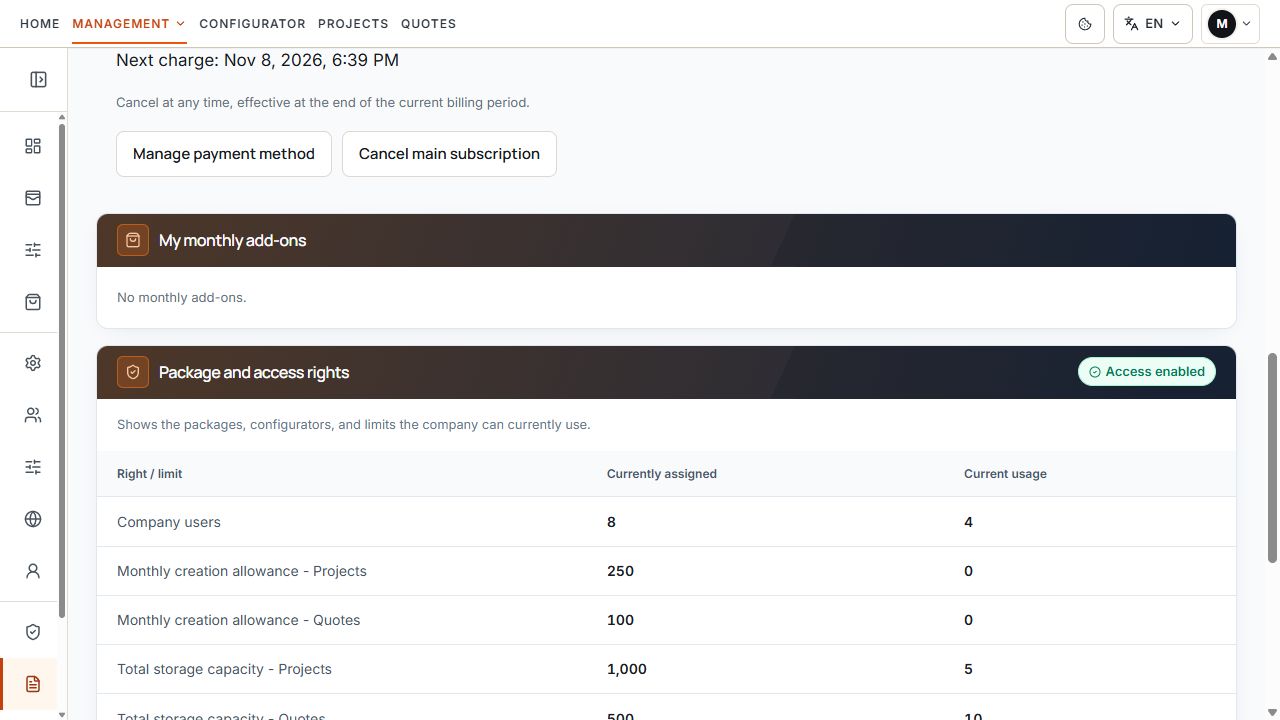
Area for monthly additional subscriptions
The example has no monthly add-on subscriptions. The currently assigned package and access rights appear below. View with sample data.
Documents and legal texts
The documents area provides the original contract and existing addenda separately. Check the number, acceptance date or Valid from date, and open a stored document using Open PDF. Existing older assigned contract documents may also be displayed.
- A missing PDF means the relevant document is not yet available for download. It alone does not indicate payment status.
- The saved versions of the terms and conditions, privacy policy, and data processing agreement form part of the respective contractual basis where stored.
- Existing document checksums and version information can be viewed under technical evidence.
- Later addenda do not replace the display of the original contract.
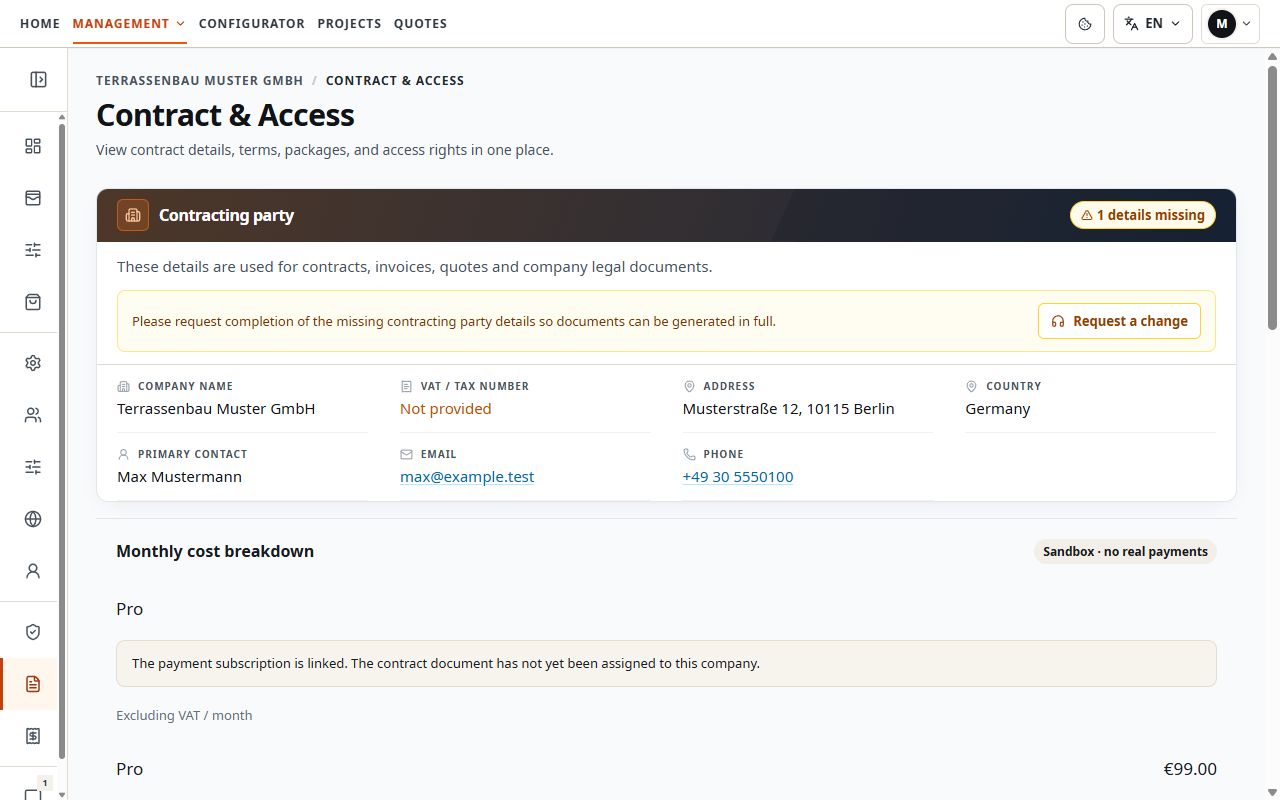
Contracting party and contract area
Saved contracting party details identify the company account in the Contract & access area. View with sample data.
Existing manual contracts and setup installments
This information concerns only contracts for which such line items were actually agreed and saved. A setup fee or installment schedule is not generally assumed for new online subscriptions.
If your contract includes setup installments, the saved payment schedule shows the installment sequence, amounts, and billing dates. Compare these exact dates with the associated invoices and your contract.
Contracting party in the contract area
The contract area brings together saved contracting party details. View with sample data.
Outstanding setup installments continue after contract cancellation according to the agreed payment schedule until fully paid. Cancellation does not replace clarification of outstanding amounts.
Cancel a Stripe subscription
For an online-managed Stripe subscription, cancellation is recorded directly. Prior admin approval is not required for this route.
- Open Contract & access and check the displayed earliest possible end date.
- Select Cancel main subscription.
- Read the affected scope and date; add a reason if needed.
- Continue the process and read the final confirmation with the service end and all affected monthly services.
- Confirm the final cancellation with Yes, cancel subscription.
- Then check the feedback and scheduled service end.
For this cancellation, the main subscription includes the package, additional users, and all monthly additional services. Automatic renewal ends at the confirmed service end. Amounts already paid are not automatically refunded; one-time orders and outstanding amounts remain.
Cancel individual additional subscriptions
For an individual monthly service, use the Cancel this additional subscription action on that exact service. Check the amount and displayed end date and confirm cancellation.
An individual cancellation affects only that additional subscription. The main subscription and other additional subscriptions remain. If cancellation is already scheduled, check the displayed service end instead of creating a second cancellation for the same record.
Manual contracts: request cancellation
For an active manually managed contract, Request cancellation may be offered instead. The Terrace3D team reviews the request; the saved term and cancellation conditions remain authoritative.
- Check Contract terms and cancellation details and the earliest possible date.
- Select Request cancellation if this action is available for your contract.
- Add a message if needed and confirm your authority to request on the company's behalf.
- Send the request and follow the response in the contract area.
Cancellation request received means the request is still being reviewed. Cancellation confirmed shows the confirmed end date. A rejected request and any recorded reason also remain visible.
If contract, subscription, or access do not match
- If a contract or assigned online subscription is missing, contact Support with the existing order or contract reference.
- For an outstanding payment, first check Invoices and payments and the existing order.
- For a paid service not yet implemented, check processing status under My orders.
- For an unclear cancellation status, provide the existing record and displayed end date.
- Do not create a new order merely to resolve a missing contract assignment or activation.
