Two publication methods
On the desired shared or individual publication, open Publication link and website embedding. Embed in website provides the Terrace3D link. Use custom web address is additionally offered if enabled for the company.
The Terrace3D link can serve as an iframe source in your existing website, be opened directly, or be shared as a button destination. A custom configurator address under your website domain is an additional publication route.
Publications with starter designs can also be used through their Terrace3D link while a custom web address is absent or its DNS check is pending. Use the link action of the relevant prepared publication for this.
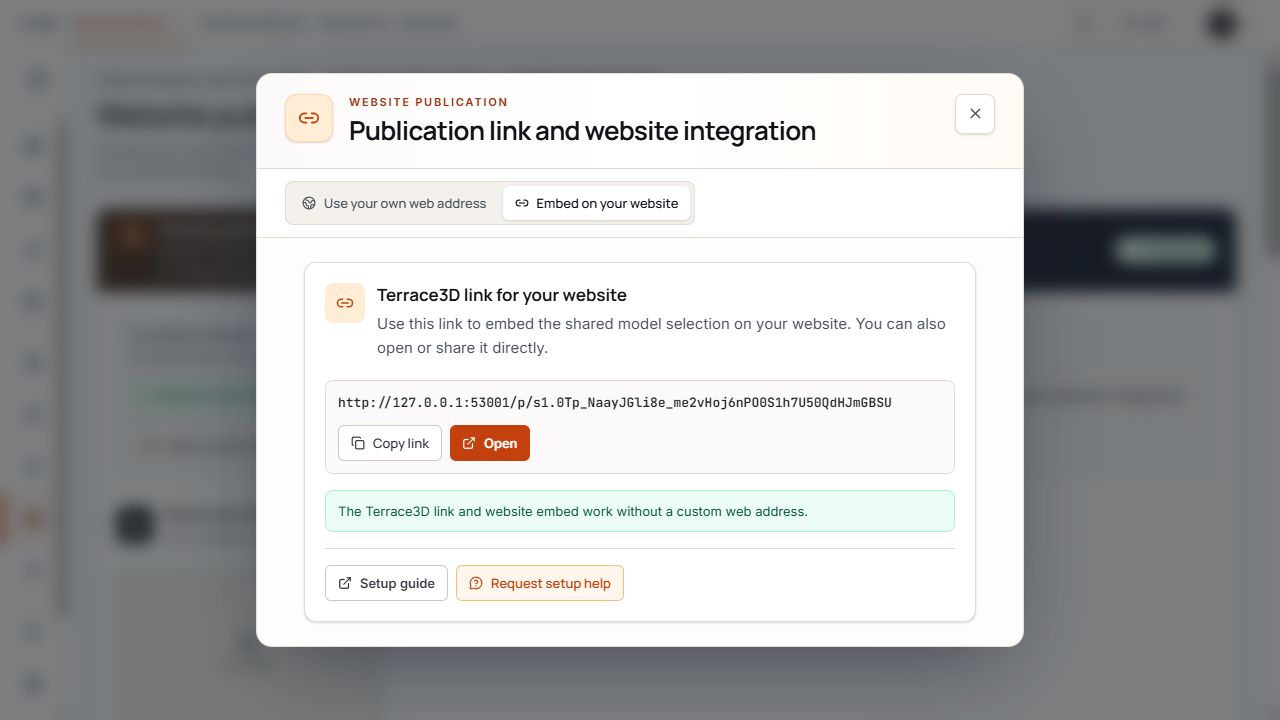
Publication link for the shared selection
The dialog shows the permanent link for the shared model selection and the copy and open actions. View with sample data.
A custom web address is optional. A working Terrace3D link still requires an active publication available to the company.
Use the current publication link
The term permanent link does not mean a deactivated publication is accessible. Normal content changes and publication status changes are different operations.
- Check the correct publication and its status.
- Open Embed in website and copy the Terrace3D link displayed there using Copy link.
- Use Open to check that the desired model selection, individual model, or starter design appears.
- Use this exact full address for your website and shared links; do not copy an address from an internal preview or the company portal's browser address bar.
- After deactivating and reactivating an individual publication, copy the link again and check existing embeds. A new link may be generated.
Embed in the existing website using an iframe
- Copy the active publication's current Terrace3D link.
- Create an HTML or iframe area in your website editor.
- In the example, replace the entire placeholder in src with the copied link. The portal provides the link; iframe embedding is configured in your website.
- Adjust width and height to the page layout and check the embedded view on a computer and smartphone.
- Save the website page or publish it in your own website system, then test the publicly accessible page.
Iframe example for your website – replace src
<iframe
  src="COPIED_TERRACE3D_PUBLICATION_URL"
  title="Terrace3D"
  width="100%"
  height="800"
  style="min-height: 700px; border: 0;"
  loading="lazy"
></iframe>
Publication link for the shared selection
The dialog shows the permanent link for the shared model selection and the copy and open actions. View with sample data.
Save your website domain
The website domain is relevant even if you use only a Terrace3D link or iframe embed. The displayed usage right applies to this domain. Copying the link does not make another website domain an authorized embedding domain.
- Open Settings and the Domain and publication area.
- Under Your website domain, enter the website domain on which you use the configurator. Subpages, port numbers, and credentials do not belong in this field.
- Select Save domain. Set up or change a custom configurator address only after saving.
- If editing rights are missing, involve a user with full company-wide access.
Set up your own configurator address
- Check whether Configurator address is offered under Domain and publication. Without activation, the website domain remains editable while the additional address area may be hidden.
- Enter only the first part of the desired address, for example konfigurator. The saved website domain is appended.
- Check the full assembled address and select Save address.
- Use Show DNS records to open records generated for this address.
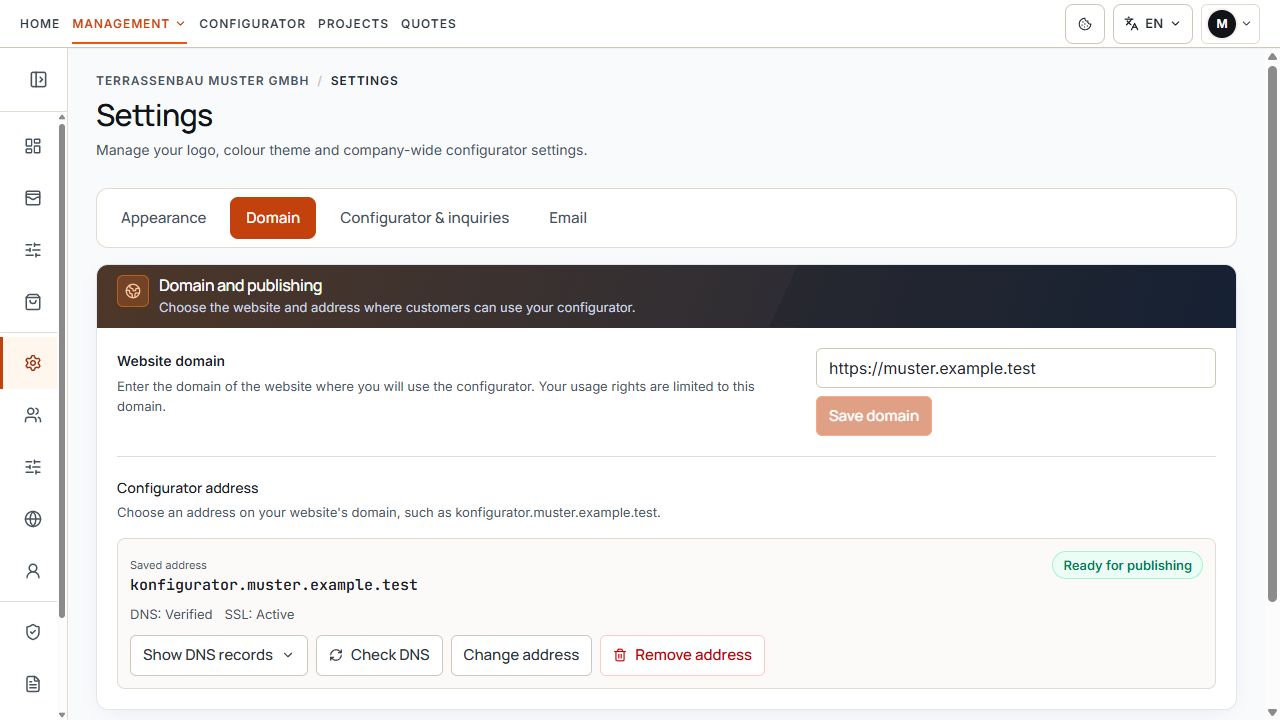
Domain and publication with configurator address
Hostname, DNS check, and SSL state describe the technical readiness of your own address. View with sample data.
Saving the address does not complete setup. DNS must be confirmed and a secure connection configured. The affected publication and its direct address route must also be active.
Enter CNAME and TXT with the domain provider
- Open Show DNS records.
- For the CNAME record, copy Name and Value from the portal.
- For the TXT record, also copy Name and Value from the portal.
- Create both records with your domain provider. Check whether its interface expects full names or automatically appends your domain.
- Save changes with the domain provider and then select Check DNS in the portal.
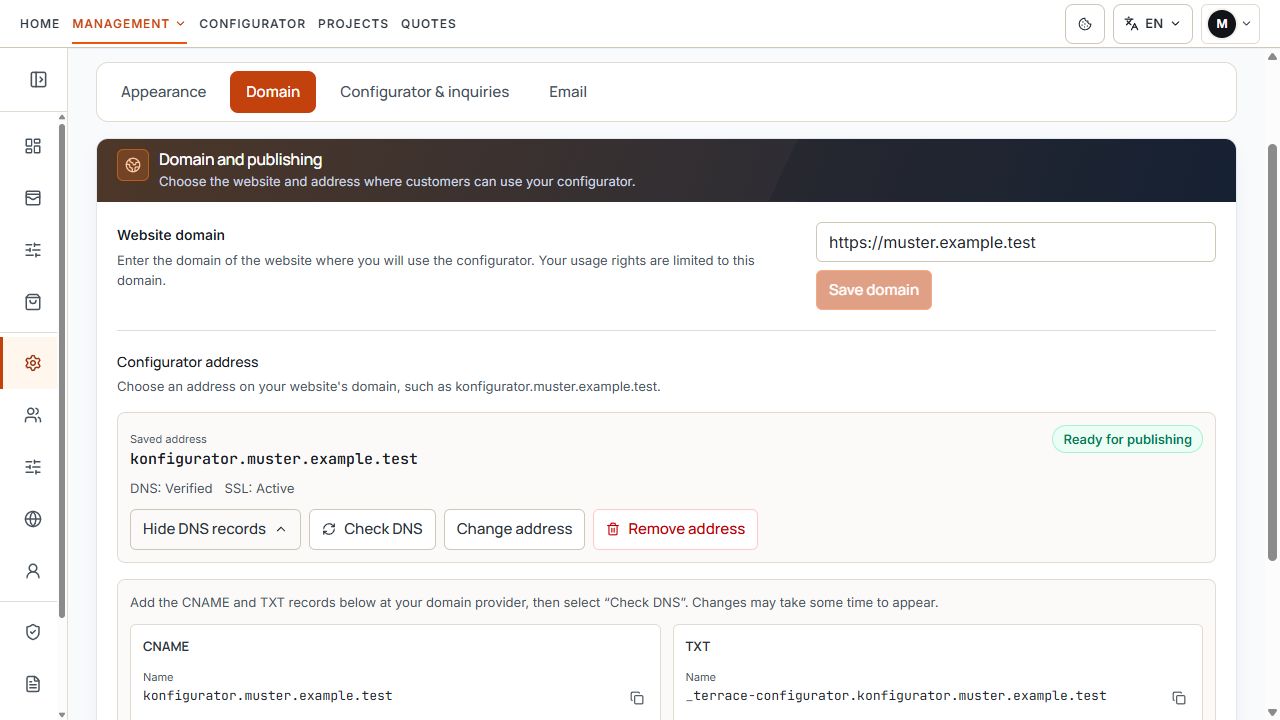
Current CNAME and TXT records with DNS check
The two fields show the specified CNAME and TXT values for the domain provider. Check DNS is available as a separate action. View with sample data.
Use only the names and values currently displayed for your address. The guide deliberately provides no general CNAME target or reusable TXT verification value.
Read DNS and SSL status correctly
- DNS check pending: required records are not yet confirmed or another check is needed. The Terrace3D link can already be used with an active publication.
- Not yet visible: DNS changes may be detected with a delay. Check again later and observe the individual results displayed.
- Value does not match: compare the affected CNAME or TXT record's name and value with the portal.
- Query error: the check temporarily could not be performed reliably. Try again; this is not a successful confirmation.
- Setting up SSL: DNS is confirmed. The SSL certificate is created automatically when the saved active publication address is first opened. The interface may offer Open during this phase already.
- Ready for publications or Active: then check the specific publication under its saved address.
- SSL setup failed or Check setup: check DNS data and domain status. If the error persists after reopening, contact Support with the address and error message.
Assign main address or custom link name
The additional web address and underlying publication have separate states. A configured subdomain alone does not activate a model. For publications with starter designs, use the link and address settings offered there.
- On the desired shared or individual publication, open Publication link and website embedding and select Use custom web address.
- Select Main address or Custom link name. A link name consists of lowercase letters, numbers, and hyphens; observe the displayed length and format validation.
- Check whether the main address or link name is already occupied by another active publication. Resolve a reported conflict first.
- Activate Publish under custom web address. For a changed previously saved link name, use Save address and wait for confirmation.
- Copy the saved link with Copy link and check it using Open. An address marked as not yet saved is not a reliable publication destination yet.
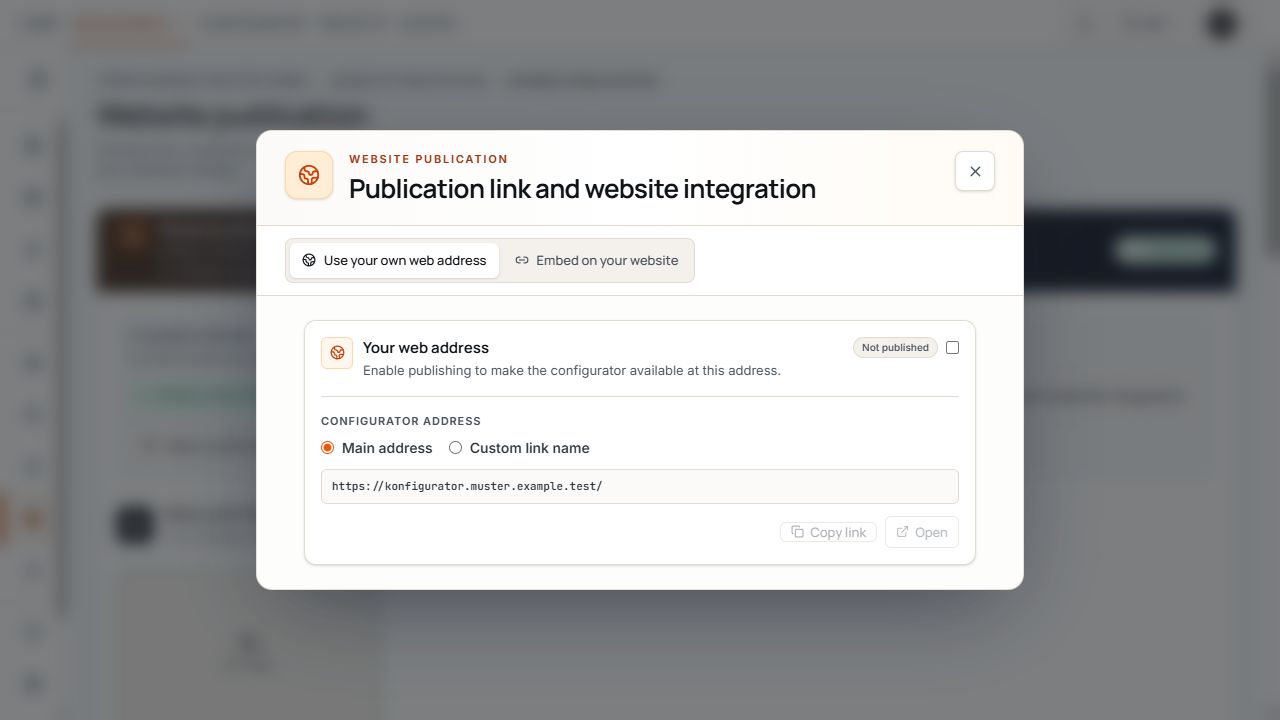
Custom web address with main address or link name
Main address or a custom link name assigns the configurator address to a publication. View with sample data.
Change addresses or pause publications
- If only the additional address route is deactivated, the active publication may remain accessible through its Terrace3D link and iframe embed.
- If the publication itself is deactivated, its Terrace3D link is unavailable; the link view then disables Copy and Open. For prepared publications, observe the respective published or unpublished status.
- After changing a custom link name, update shared direct addresses and website buttons.
- When changing the website domain, a previous configurator address may no longer match the saved domain. Observe the displayed confirmation, set up a suitable new address, and check its DNS again.
- Remove address affects the additional direct address route. Publications and drafts are retained. Then check and copy the respective currently offered Terrace3D links before continuing to use external links.
Check language, sales market, and pricing tariff
The company's active languages and default language apply to public configurators. Sales countries and associated display currencies are also set for the company. Check these settings before embedding.
To preselect a language, website managers can add lng with an active language to the copied link, for example lng=en. For an active sales country, country is possible, for example country=AT. Without an existing query, the addition starts with ?; with existing parameters, use &. In an HTML attribute, & must be written correctly as &.
Such parameters are a preselection and do not enable an unauthorized language, sales country, or pricing tariff. Test selection on the public start screen and after entering the model.
Price display and assigned pricing tariff are defined in the settings of the respective publication or included model. A prepared publication has its own settings. Identical model names therefore do not automatically mean the same public price display.
- The default language and offered language switching are correct.
- The selected sales country and its display currency are correct.
- Prices are shown only where intended and the pricing basis is usable.
- A missing or incalculable price is not treated as a free product.
Publish and test privacy policy and legal notice
The publication receives the legal links of documents actually published. An unpublished draft does not prove visitors see that text. For automatic texts, Show company details used shows the basis; corrections of official details are reported through Request correction.
- In the company portal, open Privacy policy & legal notice and select the desired document.
- Check the offered version: automatic text from company details, your own legal text, or an external page.
- Check content or external URL and open Preview. A preview alone does not replace publication.
- Release the intended version using Publish changes and check the published version or version history.
- In the publicly opened configurator, check the legal links offered on the start screen and in the inquiry workflow. For an external page, check its actual destination in the new tab.
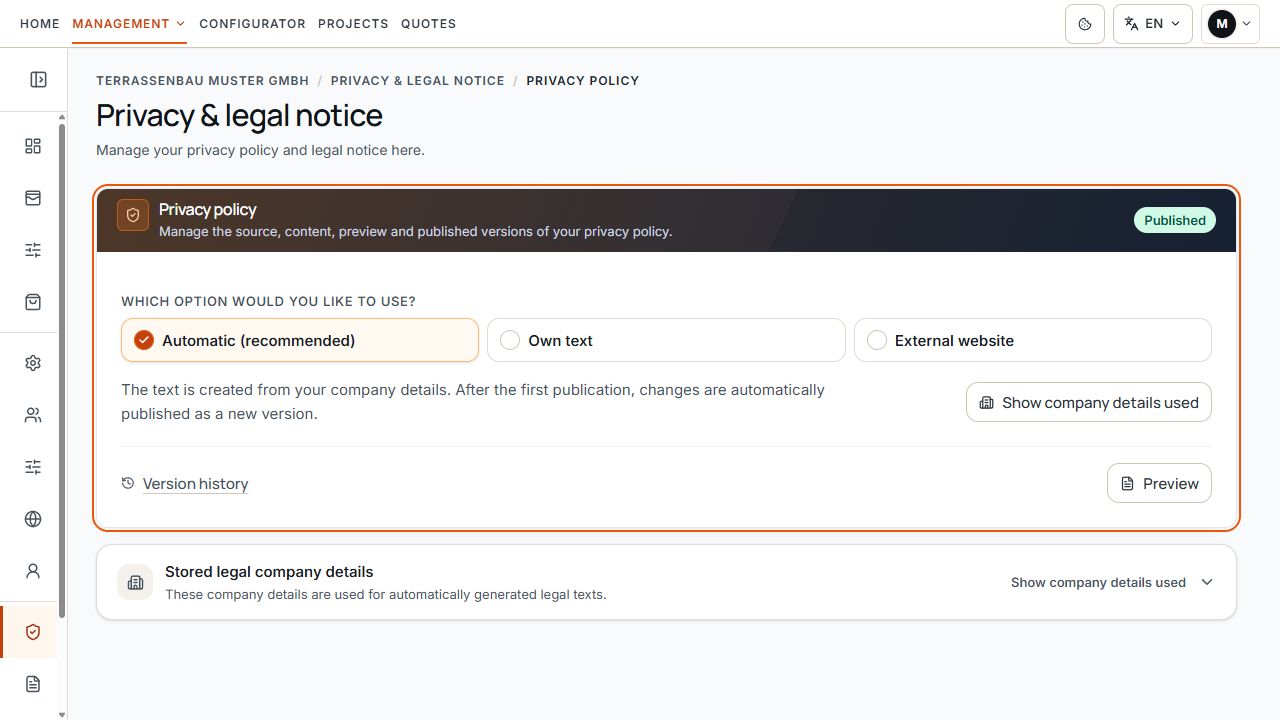
Published privacy settings
The view shows the published privacy version and selected automatic generation. View with sample data.
Check before going live
- Open the current Terrace3D link in a separate browser window and check the desired publication.
- Check iframe embedding on the saved company website on a computer and smartphone; check height, scrolling, and touch controls.
- When using a custom web address, check its DNS/SSL status and direct path actually saved.
- Shared model selection, individual model, or prepared starter design starts as intended.
- Model images, available products, dimensions, colors, price display, pricing tariff, language, sales country, and currency are correct.
- Published privacy policy and legal notice links open the desired document or external page.
- Check the complete inquiry workflow with designated test data and note the reference number.
- In the company portal, check that the web inquiry was created with the appropriate configuration and reference. Check incoming emails separately; a saved project does not prove email delivery.
Narrow down problems and use setup assistance
- Terrace3D link works, custom web address does not: check domain, DNS, SSL, and direct publication status.
- Direct Terrace3D link works, iframe does not: check the saved website domain, src address actually used, and embedding in the website system.
- Terrace3D link also does not work: check publication, company, activation, and currently displayed link address; do not investigate only DNS.
- Different language, currency, or prices: check company defaults, active parameters, and publication or model pricing tariff.
- If further clarification is needed, use Request setup assistance. State the affected address, publication type, browser, device, time, and specific message; do not share credentials or DNS verification values in public screenshots.
