Step 2: dimensions
The second Studio step is called Dimensions. Here you define the structure's dimensions and available post or support values. Observe the units shown by the inputs and your model variant's limits.
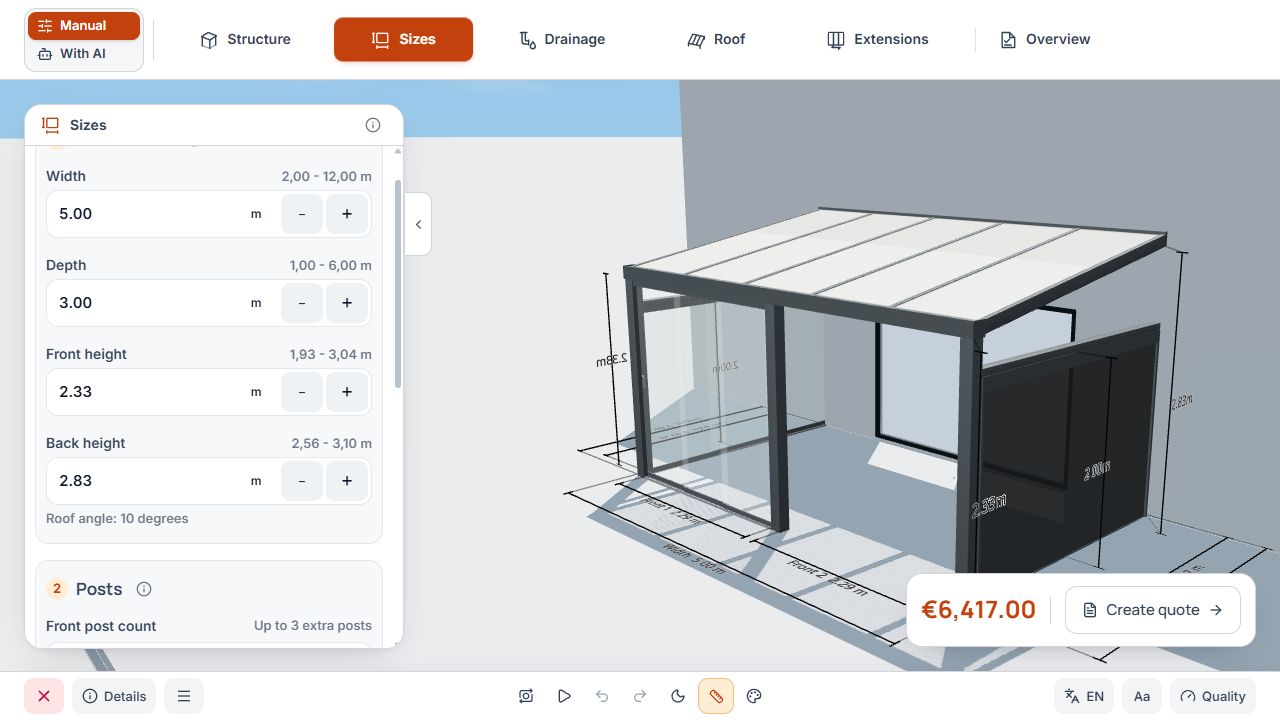
Main dimensions in Studio
Main dimensions and roof pitch are adjusted beside the 3D model. View with sample data.
Width, depth, heights, and roof pitch
- Set overall width and depth in the displayed units.
- Check front and rear height and roof pitch.
- After a change, check the related heights and opening dimensions again.
- Observe displayed minimum and maximum values and material-dependent limits.
Main dimensions in Studio
Main dimensions and roof pitch are adjusted beside the 3D model. View with sample data.
The roof pitch is calculated from the front height, rear height and depth. There is no separate angle control. The rear height is constrained to keep the pitch between 5° and 15°; additional model and material limits still apply.
Post lines and number of posts
Post arrangement follows dimensions, mounting type, and model rules. Where offered, you can add posts or make permitted adjustments to the automatic arrangement. A rear line depends, among other things, on the mounting type.
- Check the front, rear, and, where applicable, middle line separately.
- Moving the middle post row moves the entire row; the position of an individual post is edited separately.
- If already configured front or rear areas block a change in the number of posts, first check the displayed dependencies.
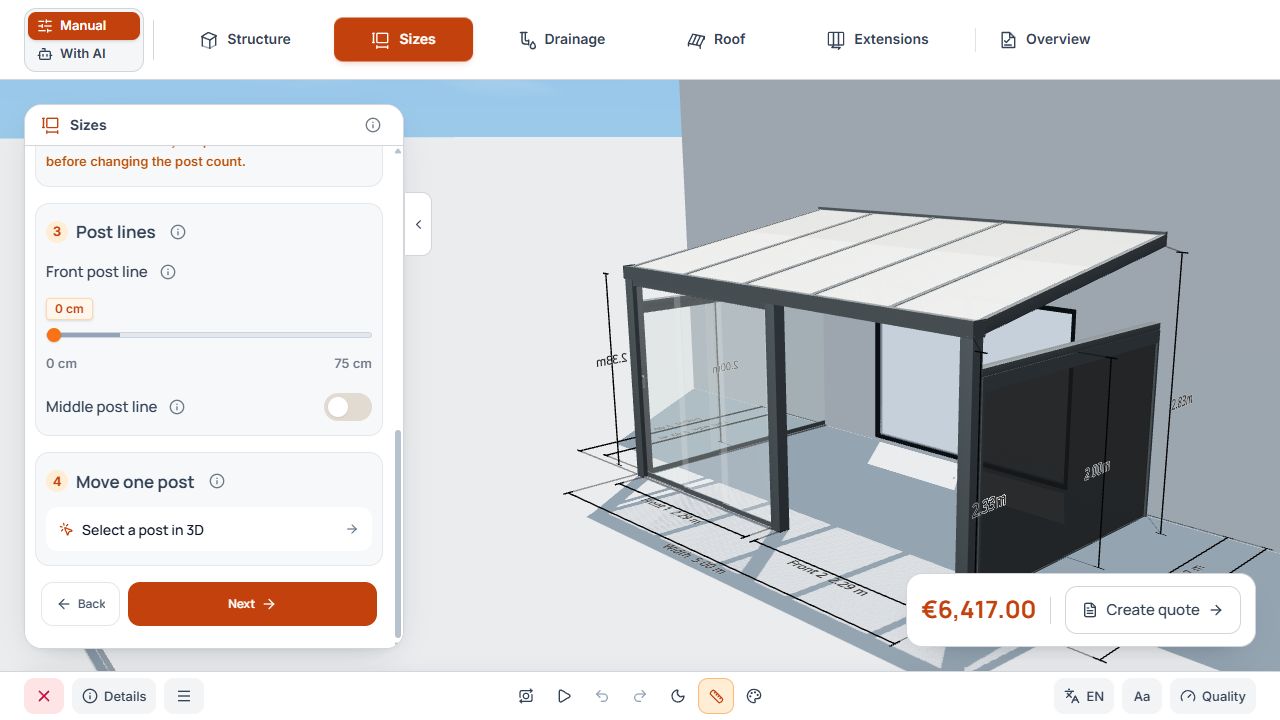
Post lines and position selection
The screenshot shows the front post line offset, the optional middle line and individual post selection in the 3D model. View with example data.
Position posts directly in the 3D model
- Under Dimensions, open Move individual post and select Select post in 3D model. Then tap or click the desired post in the scene.
- Open the selected post's offered position settings.
- Adjust the horizontal or inward values within the displayed limits.
- Check spacing and associated openings in the scene.
- Close the tool using the offered Back or Close action.
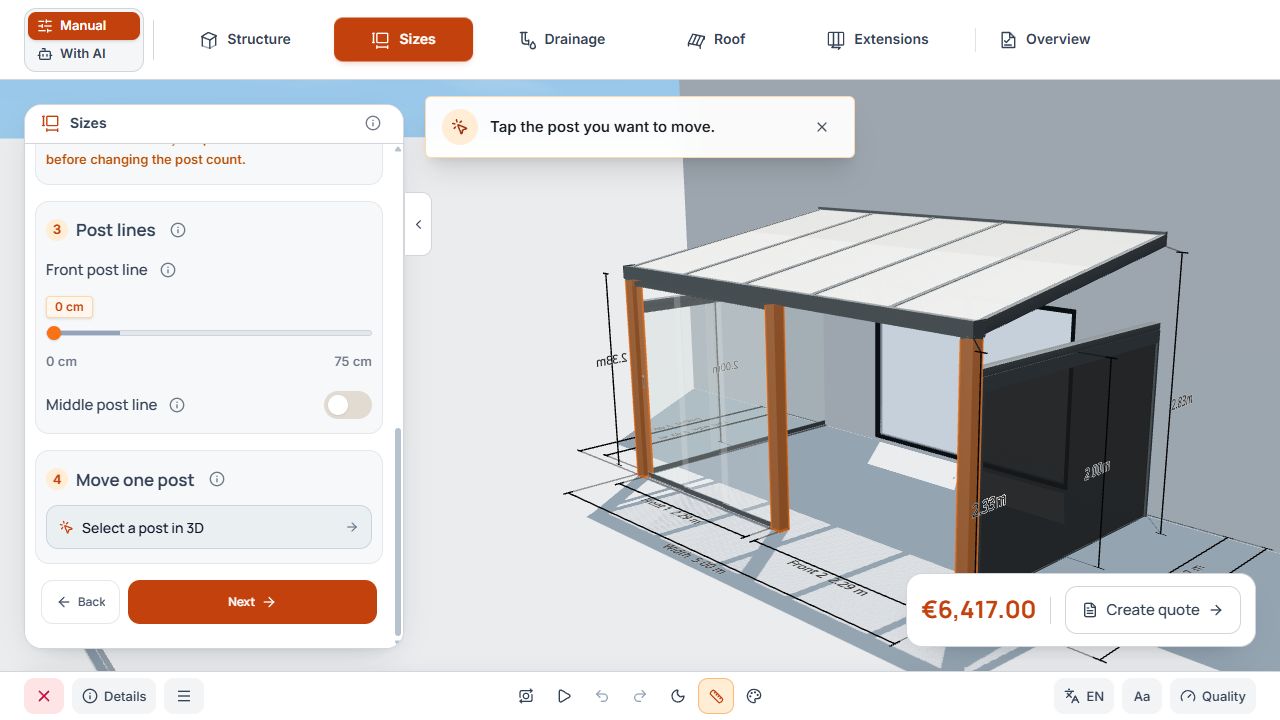
Select posts in the 3D model for editing
The orange posts and selection instructions guide selection in the 3D model. View with sample data.
Use dimension tools on mobile devices
On mobile devices, the scene and settings area are used together in the Studio view. Select the post deliberately in the scene and edit its values in the displayed tool. Use the offered split or navigation if an area needs more space.
Changing the camera position does not replace a dimension change. Check the displayed dimension values before leaving the step.
Check dimensions and move to drainage
- Main dimensions, heights, and roof pitch match the plan.
- Post lines, individual positions, and clear openings have been checked.
- Check dependent extension zones after dimension changes.
- In Studio, step 3 is Drainage; only then comes step 4, Roof.
