Roof accessories in the fourth Studio step
Roof extensions are the available accessory products in the main Roof step. They do not form an additional Studio step. Product permissions, model dimensions, and roof subdivision determine the settings offered.
Open or activate the desired product through its card. Studio shows the associated details in the settings area. After a change, check the visualization and close details using the offered Back or Close action.
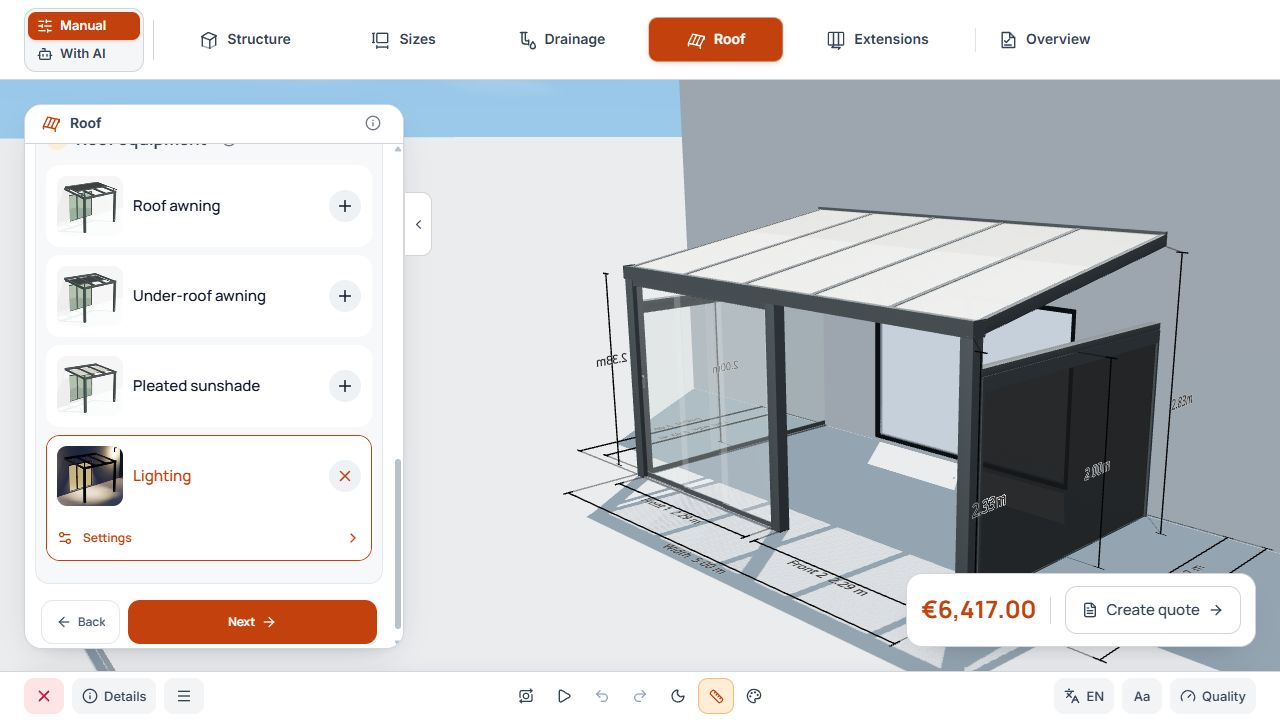
Roof accessories in Studio
The accessory entries open their respective settings. View with sample data.
In Studio, drainage belongs to the previous step 3. Downpipe color, position, height, and direction are set there and are not an optional shading or lighting product.
Configure an over-roof awning
- Activate the offered over-roof awning and open its settings.
- Check the offered coverage area and adjust its position or length within the limits.
- Select fabric color and other offered product or profile options.
- Check coverage and any offered opening preview in the 3D model.
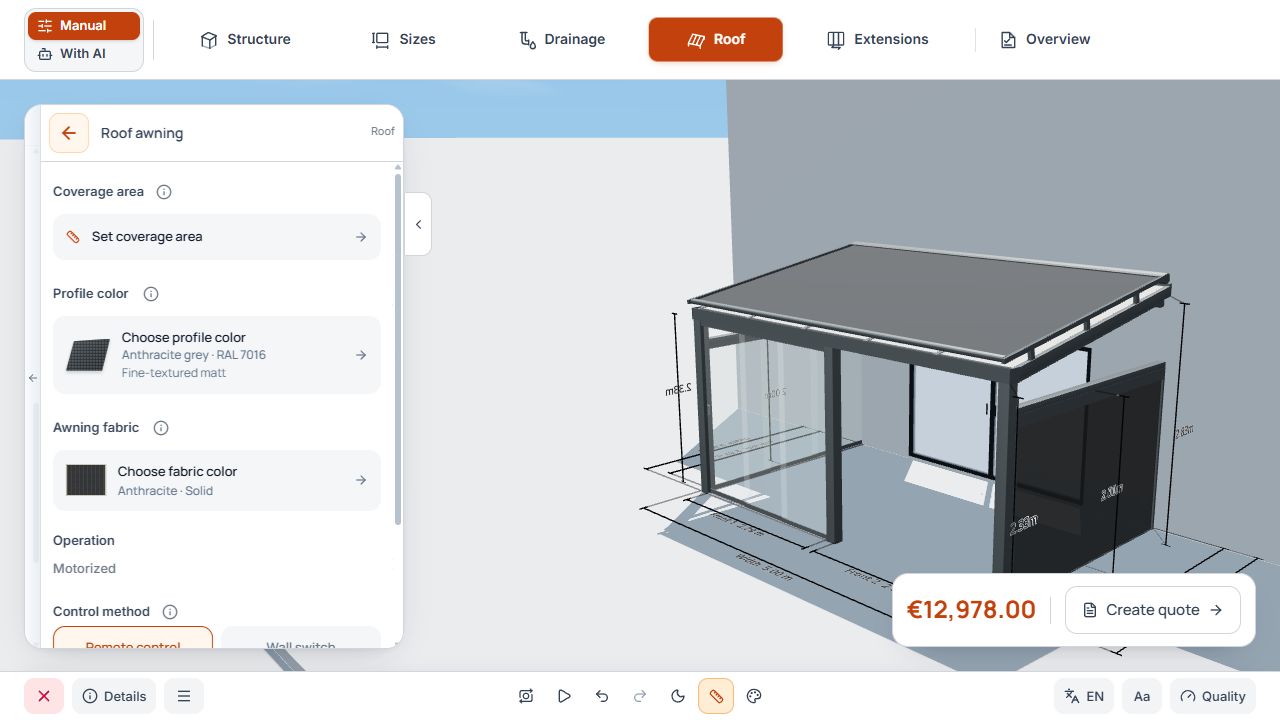
Over-roof awning with coverage and fabric color
Coverage area, profile color, and fabric belong to the over-roof awning. The drive type is motorized in the example shown. View with sample data.
Configure an under-roof awning
Activate the offered under-roof awning and set the available coverage, fabric color, and other offered properties. With a middle support, the front and rear sections can form separate areas.
Check each offered section and its length. The over-roof awning and under-roof awning are managed as separate products; choosing one variant does not replace checking the other.
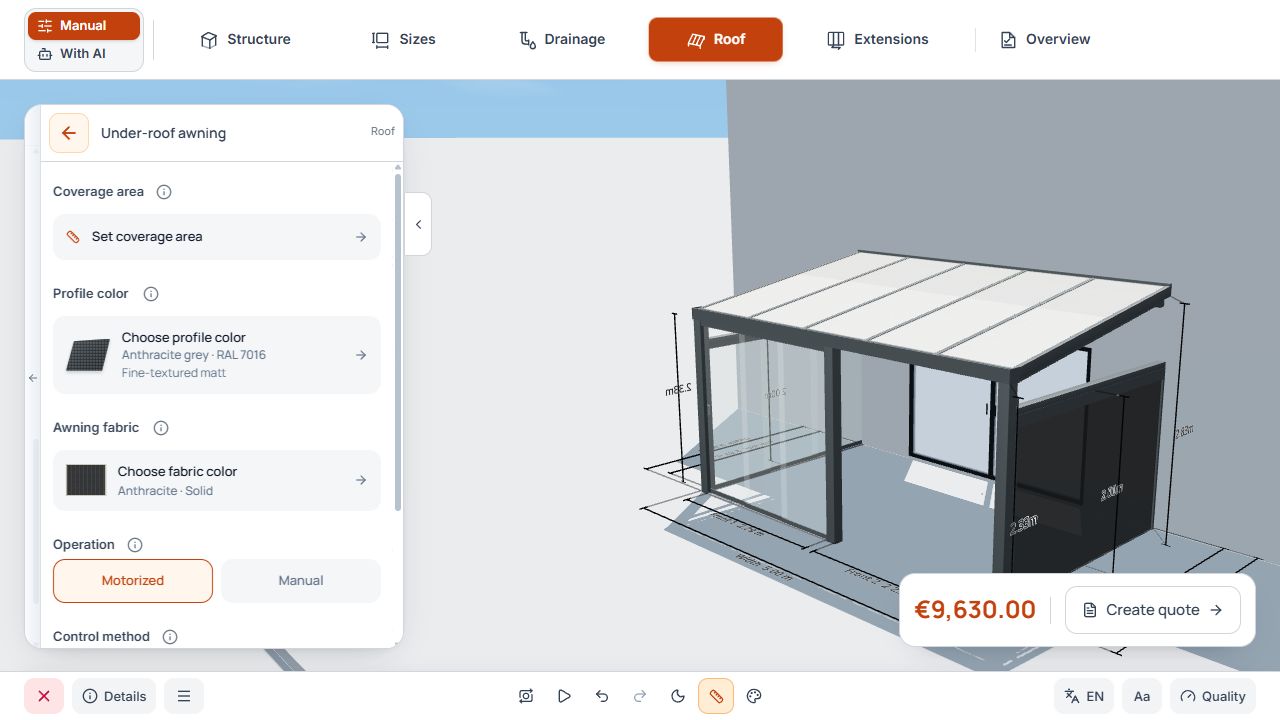
Under-roof awning and available coverage sections
Coverage area, colors, and drive belong to the under-roof awning settings. View with sample data.
Configure pleated sunshades and roof panels
- Activate Pleated sunshade if offered for the model variant.
- Open panel selection and select suitable roof panels.
- Check the selected panel count and area. If no panel is suitable, note the displayed notice.
- Select the offered profile and fabric color and check other available controls.
- Check coverage and the opening preview in the model.
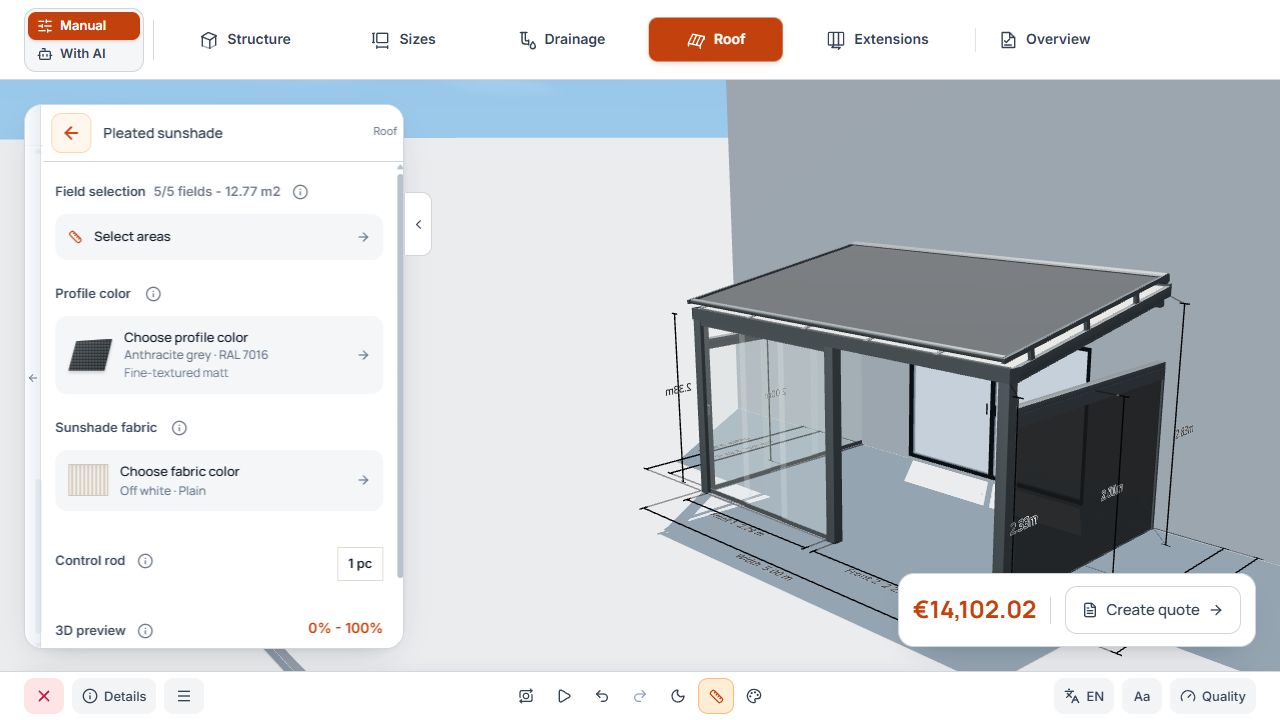
Roof pleated sunshade with coverage area
The display associates the coverage area with the roof panels; colors and operation are below. View with sample data.
Select lighting
- Activate lighting through the offered product card and open its settings.
- Choose an offered version, such as Cool white, Warm white, or dimmable Warm white.
- Check the available number of spotlights per profile and apply the desired selection.
- Check the updated arrangement and lighting effect in the scene.
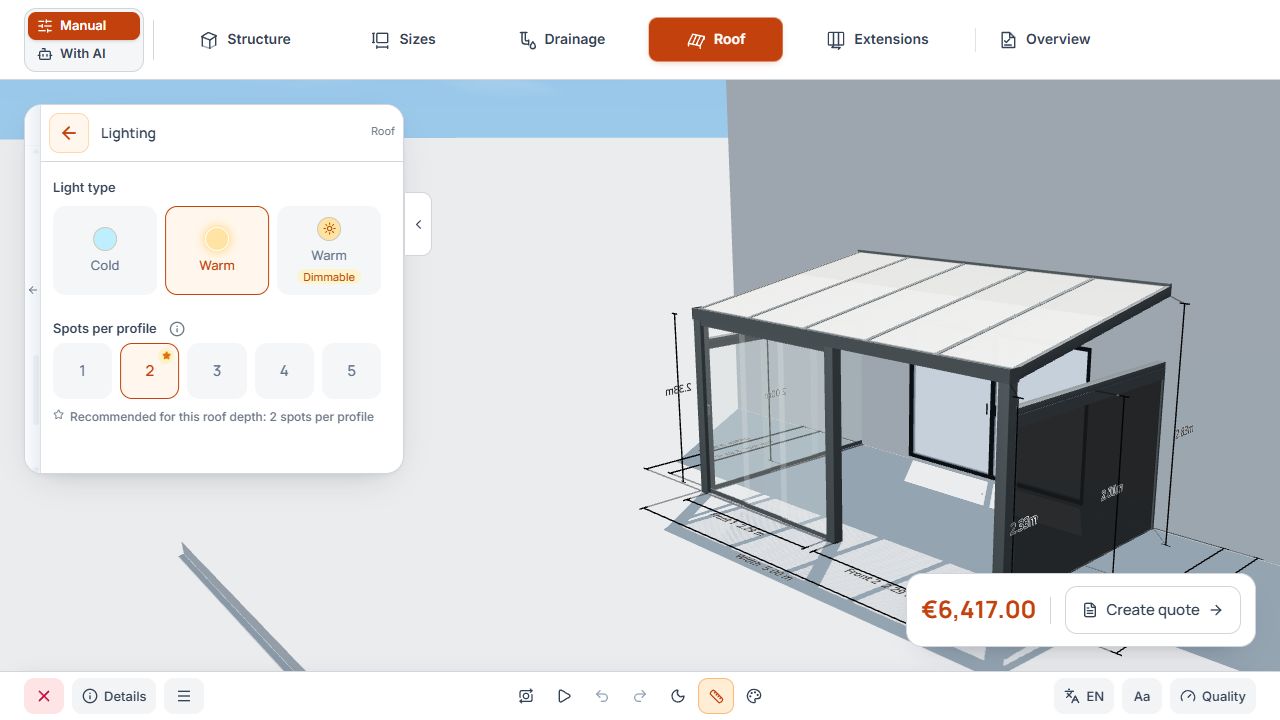
Lighting with light version and spotlights per profile
The lighting area shown sets the light type and spotlights per profile. View with example data.
Complete roof extensions
- Desired accessory products are activated and unneeded products removed.
- Coverage areas, roof panels, fabric colors, and profile colors have been checked.
- After dimension or rafter changes, check coverage again.
- Resolve product and pricing notices, then move to Studio step 5, Extensions.
