Open payment history in the company portal
Open Invoices and payments in the company portal. Authorized users see the company's payment transactions and existing invoice documents there. The area is unavailable to restricted users.
The view shows payments requiring action, payment history, and available actions. Refresh reloads the current status.
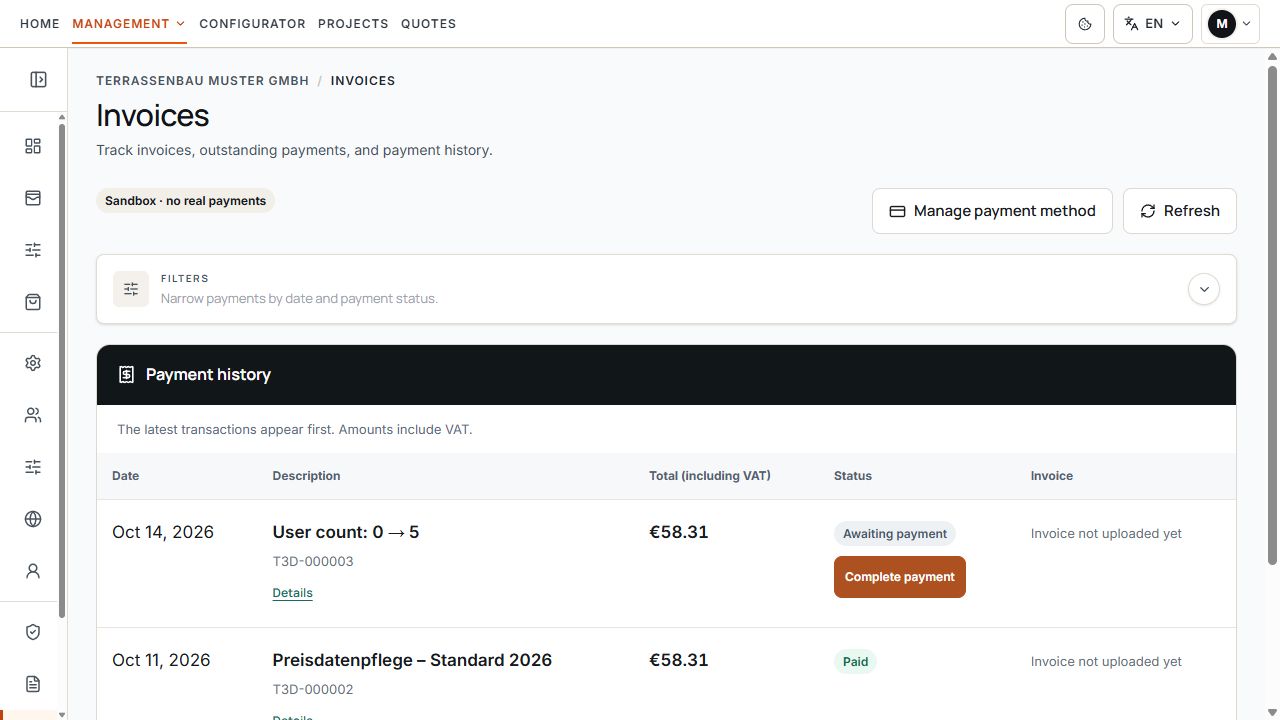
Invoices and payments at a glance
Payment status and invoice availability are in separate columns. Complete payment is available for the pending transaction. View with sample data.
Read payment status correctly
- Paid: receipt of payment has been confirmed.
- Payment pending: the transaction has not yet been paid; an available payment action belongs to this existing order.
- Processing: the bank is processing the payment. You do not need to pay again.
- Confirmation required: the bank needs further confirmation through the existing payment link.
- Failed or Overdue: the payment or its deadline needs to be checked.
- Refunded or Partially refunded: a confirmed refund amount is shown on the transaction.
- Expired or Canceled: the transaction is closed; contact Support if the next steps are unclear.
Payment status and an order's processing status differ. A paid service may still await manual setup or processing.
Complete payments requiring action
- Open the affected transaction under Payments requiring action or in payment history.
- Check the reference, amount, status, and, where applicable, next payment attempt.
- Use Complete payment if this action is offered for the existing transaction.
- Follow the instructions on the payment page, such as bank confirmation.
- Return and check the updated status after processing.
Existing payment requiring action
Payment status and invoice availability are in separate columns. Complete payment is available for the pending transaction. View with sample data.
Do not create a new package or service order for the same outstanding payment. If the payment action is missing or status remains unclear, use Contact Support about this payment.
SEPA and payments being processed
For a SEPA direct debit, bank confirmation can take several working days. While payment appears as Processing, wait for confirmation and check the same transaction again.
Status displays may update with a short delay even after bank confirmation. Use Refresh. If status remains unclear for longer, give Support the transaction reference and displayed state.
Manage payment method
- Open Invoices and payments.
- Select Manage payment method if the action is available for your assigned customer account.
- Change or check payment details on the Stripe page that opens.
- Return to the company portal and check any payment still pending.
A changed payment method does not automatically prove that an earlier outstanding payment has been paid. Check its own status.
Check details and service period
Details on the payment transaction opens payment details. It shows the saved information for that transaction, not automatically today's package price.
- Compare the order and payment date and the transaction reference.
- Read the service period where recorded for the transaction. A missing period is explicitly indicated.
- Check line items, quantities, net amount, VAT, and gross total.
- Compare the paid and any refunded amount with the payment status.
- Match the available invoice number and due date to the associated document.
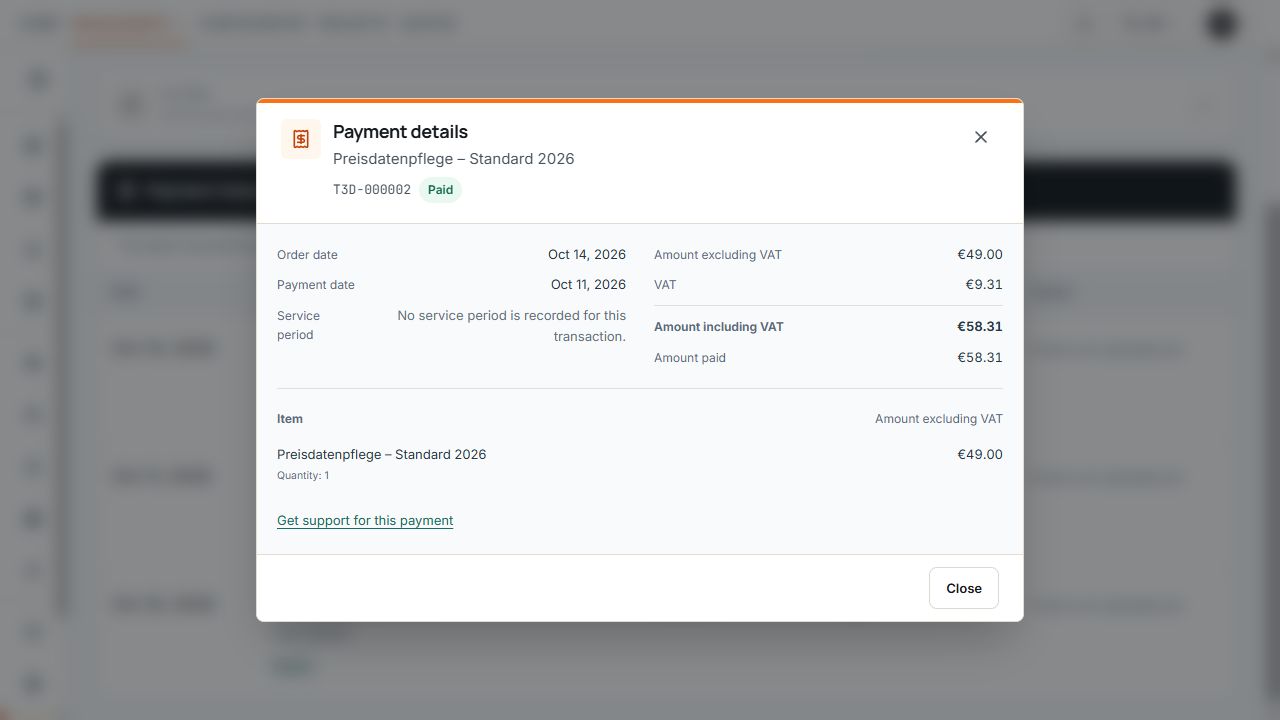
Payment details and line item
The details associate the date, net and tax amounts, and saved line item with the payment transaction. View with sample data.
Download invoice PDF
- Find the payment transaction in payment history.
- Check the reference and any displayed invoice number.
- Click Download invoice if a document is stored.
- Compare the document with the amount and transaction in the list.
Invoice status in payment history
The invoice column makes the current availability of the invoice document visible. View with sample data.
Invoice not yet uploaded means no invoice document is available for this entry yet. This is not proof of a failed payment or a reason to pay again.
Filter payments and load more entries
- Open Show filters.
- Narrow the period using From and To and select a payment status if needed.
- Apply the selection with Apply filters.
- Use Reset filters to search again without this restriction.
- Load older transactions using Show more if the action is offered.
Existing manual invoices and installments
Earlier manual invoices, separate quotes, and setup installments retain their agreed terms. A bank transfer specified there is made using the bank details and payment reference of that specific document.
If your existing contract includes a payment schedule, compare installment sequence, amount, and date with Contract & access. This does not imply an additional setup installment for new online subscriptions. Do not also pay an online payment already in progress there by bank transfer.
Contact Support about a payment
Use the Contact Support about this payment link on the relevant transaction. This allows the question to be associated with the payment and an existing invoice.
- Check the transaction reference and existing invoice number.
- State the displayed amount, status, and time.
- For a manual transfer, provide the date and payment reference used.
- Do not send passwords, full card details, or confidential bank login details.
