Project basis before starting
These guides describe the Mono-pitch Roof Configurator in the Studio interface. A company may instead be assigned the standard view. Other enabled configurators have their own product rules and may use different controls.
- Sales country: check the intended market and associated currency.
- Configurator and model variant: use only active models available to your account.
- Pricing tariff: select an offered pricing tariff suitable for the model variant if price calculation and pricing tariffs are available.
- Existing project: to continue working, open the saved project and check its model and project basis.
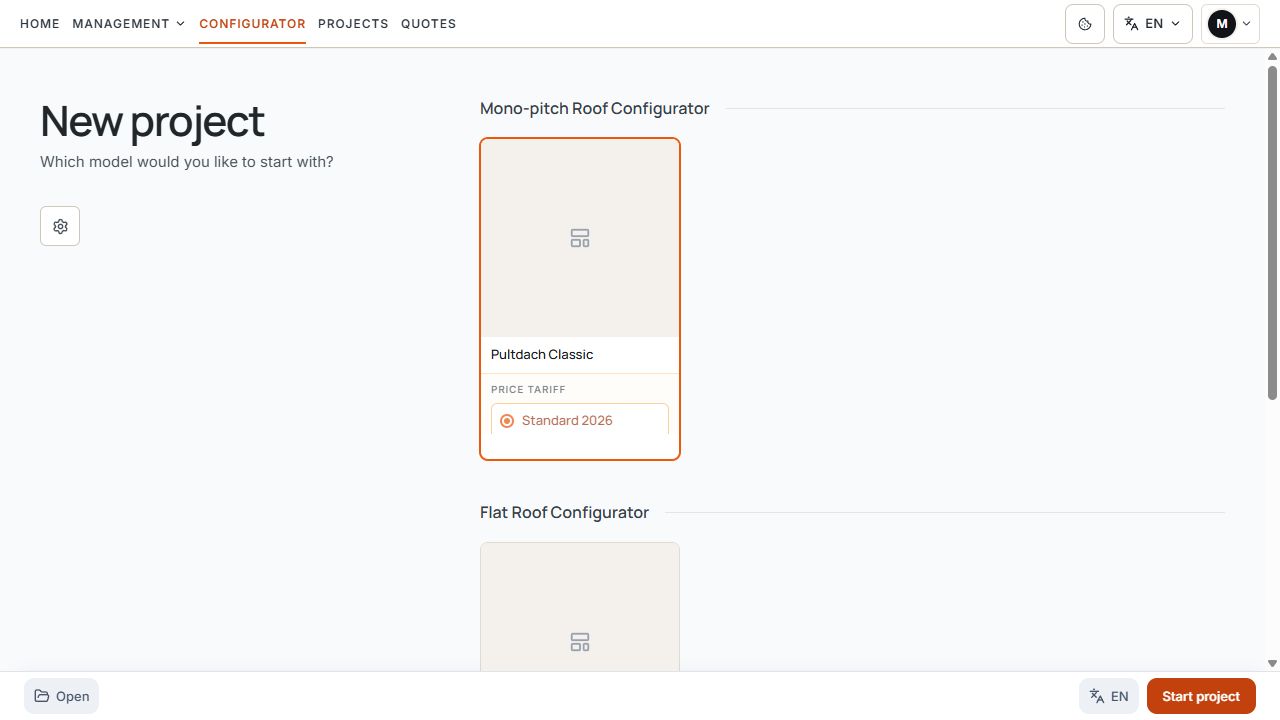
Internal project start with model variant
The model variant and pricing tariff are assigned before starting an internal project. View with sample data.
A missing pricing tariff does not generally prevent starting the model. Without an available or complete pricing basis, however, a reliable calculated price is not promised.
Start configurator
- Open Configurator or the preparation for a new project.
- Check the sales country and select the appropriate model variant of the Mono-pitch Roof Configurator.
- Check the offered pricing tariff if price calculation is available for your account.
- Start the project and check the loaded model in the 3D scene.
Internal project start with model variant
The model variant and pricing tariff are assigned before starting an internal project. View with sample data.
Studio: six steps in order
- Structure: check the model, mounting type, gutter profile, and frame color wherever that selection is offered.
- Dimensions: set width, depth, heights, roof pitch, and posts.
- Drainage: select downpipe color, position, height, and, where applicable, direction.
- Roof: configure roofing, additional rafters, and available roof accessories.
- Extensions: choose, subdivide, and equip the sides, front, and available rear areas of a freestanding structure.
- Overview: check configuration, installation option, and price status; then use the action offered for your access.
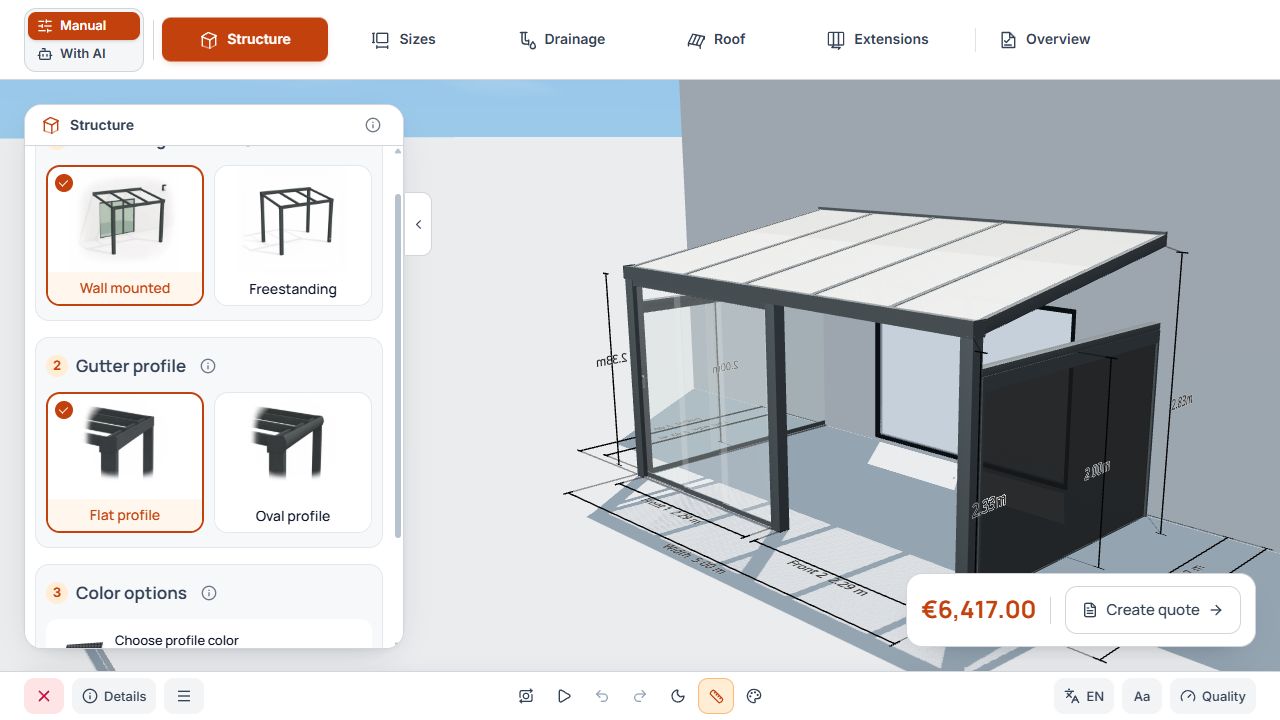
Studio Structure step
Structure is the first manual step. Mounting type and gutter profile are selected beside the 3D model. View with sample data.
The alternative standard view has four main steps: Structure, Dimensions, Roof, and Extensions. Drainage is in the Roof area there; a separate sixth Studio step is not shown. The following step numbers refer to the manual Studio workflow. The final step is called Overview on desktop; in mobile step navigation it is named Summary & quote.
Configure manually or with AI
If the AI assistant is available for the configurator and your access, you can switch between manual configuration and the offered AI controls. The AI selection is not automatically available to every account or publication.
In AI mode, Studio shows a separate workflow with AI assistant and Overview. Describe the desired configuration, check applied changes in the model, and move to the overview. Offered detail actions can open the associated manual settings.
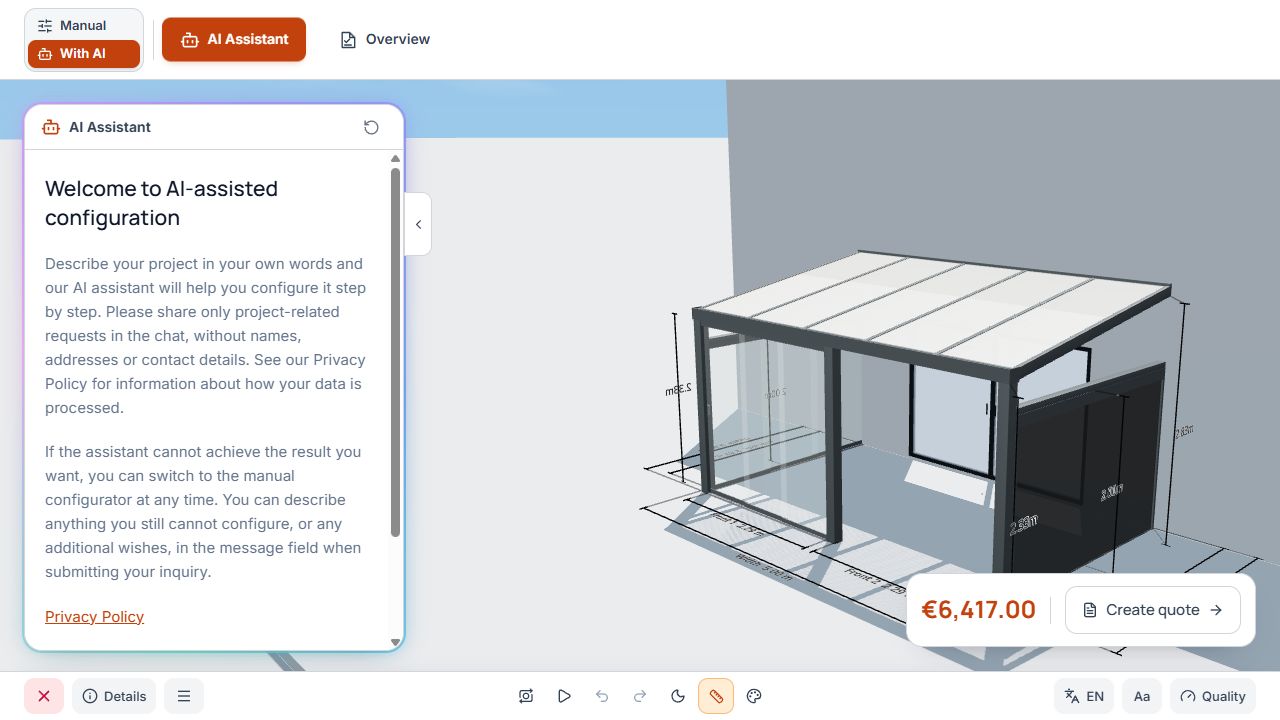
AI assistant and moving to the overview
AI mode has its own entry point and leads to the design overview. View with sample data.
An AI configuration must also be checked for suitable dimensions, products, colors, and pricing bases. Moving to the overview does not yet save a project or send a customer inquiry.
Structure of the workspace
- Workflow navigation: on desktop, switch using the Studio steps; on mobile devices, use the step navigation offered for this.
- Settings area: product cards open the associated details. Close a detail view using the offered Back or Close action to return to the selection.
- 3D scene: check changes to the model and currently selected components.
- Project and file actions: available to logged-in company users according to permissions; website visitors instead have the published configurator and its inquiry actions.
- Price and summary: displayed depending on the package, permission, pricing tariff, and calculation status. An available Studio price button leads to the overview.
Operate the 3D scene and tools
- Rotate, pan, and zoom the scene using the offered mouse or touch gestures.
- Deliberately select a post or extension area before editing its values.
- Enable available dimension groups to check heights, posts, and roof.
- Choose an enabled environment or adjust offered display and quality settings.
- Open AR when the action is available for your access. On a supported mobile device, the AR view can start directly; on desktop, scan the displayed QR code or copy the link.
- An unchanged saved project can use its saved viewer link. A new or modified design may generate a temporary link. Check the validity shown in the dialog; an AR link does not save the project.
3D scene and toolbar
The tools below the scene support viewing and displaying the 3D model. View with sample data.
Check and save changes
- After changing mounting type, model variant, or dimensions, check subsequent areas again.
- Check drainage, roof material, roof accessories, and all occupied extension zones.
- Resolve notices about product limits or missing pricing bases.
- In the company account, save the project version using the offered save action.
- On a website, submit the inquiry only after checking the form and wait for confirmation.
