What a prepared publication is
A publication with a starter design opens a particular configurator and model variant with prepared dimensions and options. Visitors start with this design and can continue configuring within the enabled model rules.
The starter design belongs to the publication. Saving it creates neither a customer inquiry nor a quote; a public inquiry arises only when a visitor successfully submits the inquiry form.
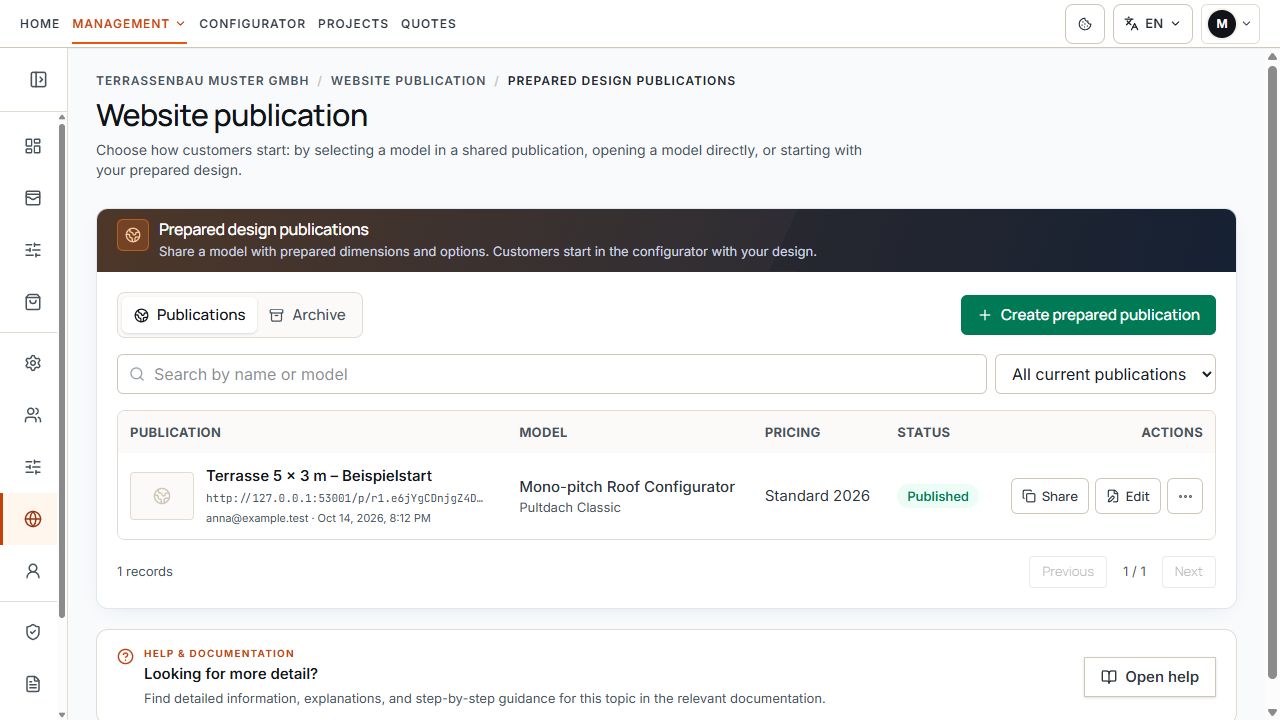
Publications with starter designs
The list associates starting templates with publication status. View with sample data.
Check permissions and access
- The company needs active access and permissions for Website publication and prepared publications.
- Managing and editing requires full company-wide access. A visible area or test link does not replace this permission.
- Configurator and model variant must be active and available for the company. Visible prices require a suitable active, complete pricing tariff.
- Demo accounts cannot regularly manage prepared publications.
- If a required company or feature permission is deactivated, public links may be closed despite an entry still existing.
A custom company subdomain is not required for an active prepared publication's permanent Terrace3D link. This link can also be used while custom web address setup is pending.
Create publication
- Open Website publication and Publications with starter designs.
- Select Create prepared publication and enter a unique internal name.
- Select the configurator and appropriate model variant.
- Leave prices hidden or activate Show prices and select a suitable pricing tariff.
- Select Set starting design. The entry is created as a draft and opened in the associated configurator.
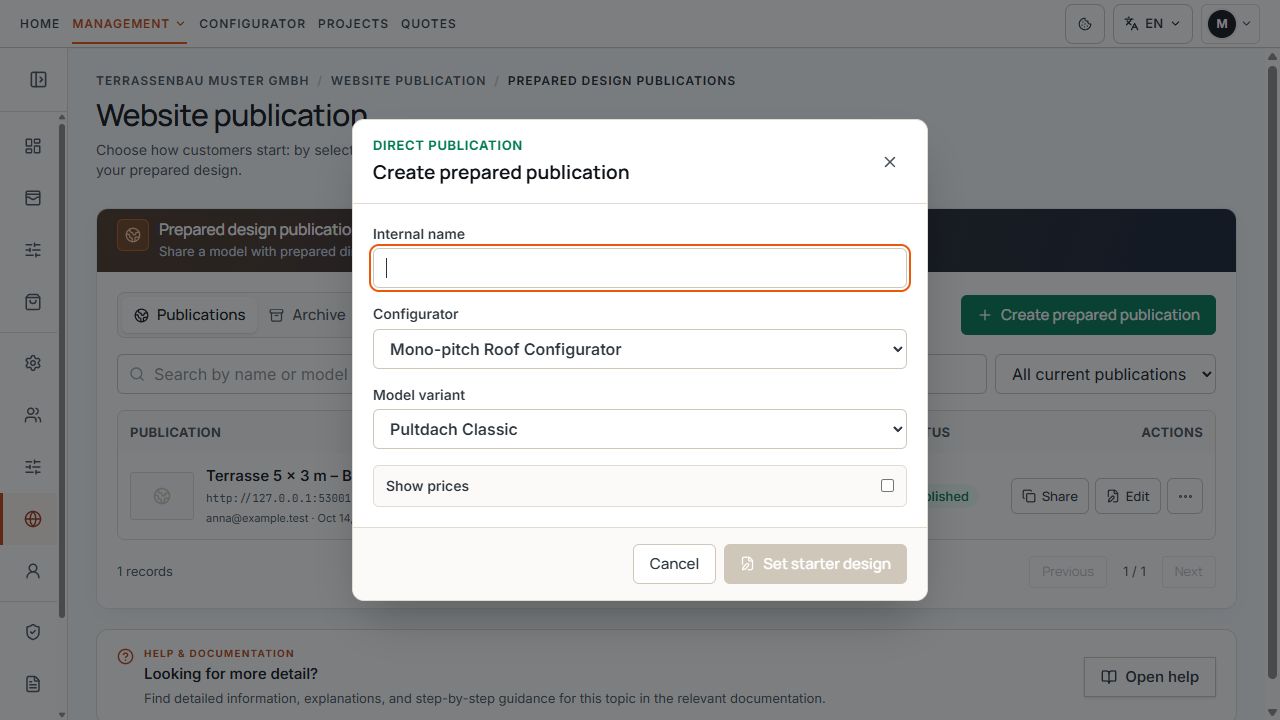
Create a publication with configurator, model, and price option
Name, model, and price option are selected before defining the starter design. View with sample data.
Edit and save starting design
In the starting design editor, assemble the offered dimensions, materials, colors, and extensions. Available settings depend on the selected product and its model rules.
For the Mono-pitch Roof Configurator, the view follows the layout chosen for the company: Studio guides you through six manual steps, Standard through four. Other products use their respective configurator workflow. This editor prepares a public entry point; it does not replace project or quote creation in the company portal.
- Check model, dimensions, and available products in the 3D view.
- Save the starter design using the offered starting design action.
- Wait for confirmation and return to the publication list.
- Then explicitly check and publish the entry.
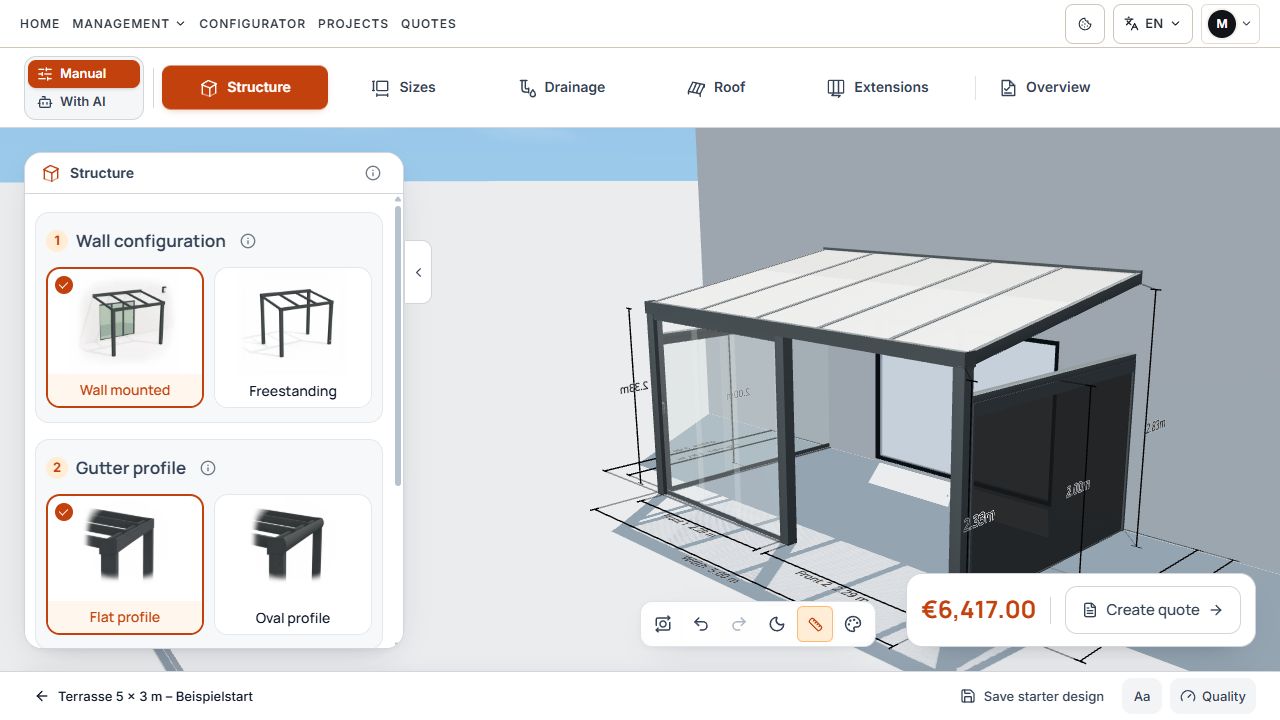
Save starter design in the configurator
The starter design is edited in the configurator and saved using the action intended for this. View with sample data.
Saving the starting design of an already published variant immediately returns it to Draft. The public link is closed until you publish again.
Publish and share the link
If the custom web address is available for your company and fully configured, the Share dialog additionally offers this publication route. Check domain status and direct address separately. A DNS or SSL problem with your own address does not automatically mean the Terrace3D link is also closed.
The permanent link is retained during editing and republication. Offline, draft, or archive status blocks its public use, however.
- Check starter design, model, and pricing setting in the list.
- Select Publish and wait for confirmed Published status.
- Open Share or Publication link and website embedding.
- Copy or open the offered permanent Terrace3D link and test the actual starting state.
- Use the link directly, as a website button destination, or as an iframe source according to the embedding guide.
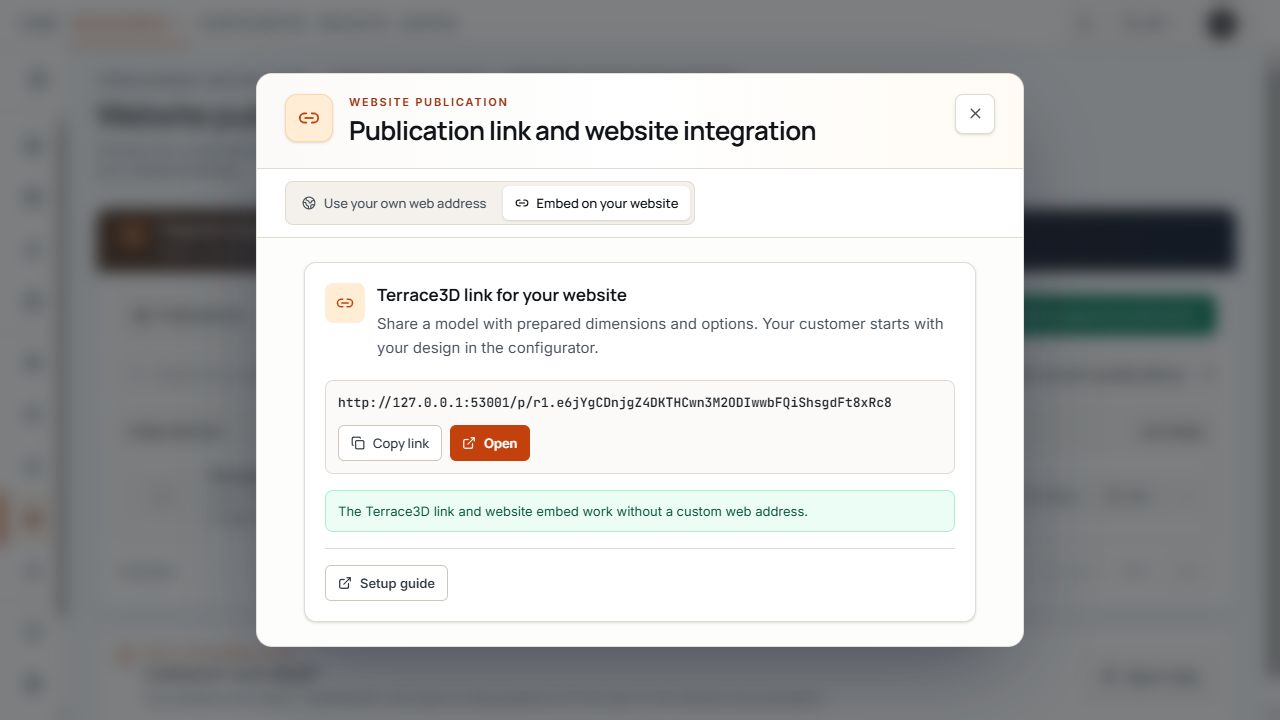
Share the permanent link of a published starting template
The permanent link belongs to this prepared starting template. View with sample data.
Changes to an active publication
- Changing only the internal name can retain Published status.
- Changes to configurator, model variant, assigned pricing tariff, or price display return an active publication to Draft.
- Saving a changed starting design also stops the active publication.
- After such a change, check the starting design and prerequisites, publish again, and test the same link.
- Changing the public starting point does not automatically replace already saved customer projects or their finalized quotes.
Plan changes to starting design or publication settings so you can promptly republish the checked draft.
Apply current model settings
When publishing, a version of the model rules is saved for this publication. Later changes to these saved model rules are applied through Apply current model settings or republication. Current company and product permissions and permitted customer environments continue to be considered when opening and using it.
For a published variant, Edit settings may offer Apply current model settings. It applies the current rules of the saved model while the dimensions and selection of the published starter design are intended to remain.
The publication remains online in the process. This action does not make your own unfinished unpublished draft changes the new public starting design.
- First check whether you really want to apply model rules or change the actual starting design.
- Open Edit settings. Resolve pending form changes there before using the update action.
- Select Apply current model settings and wait for confirmation.
- Reopen the public link and check the updated configuration and its limits.
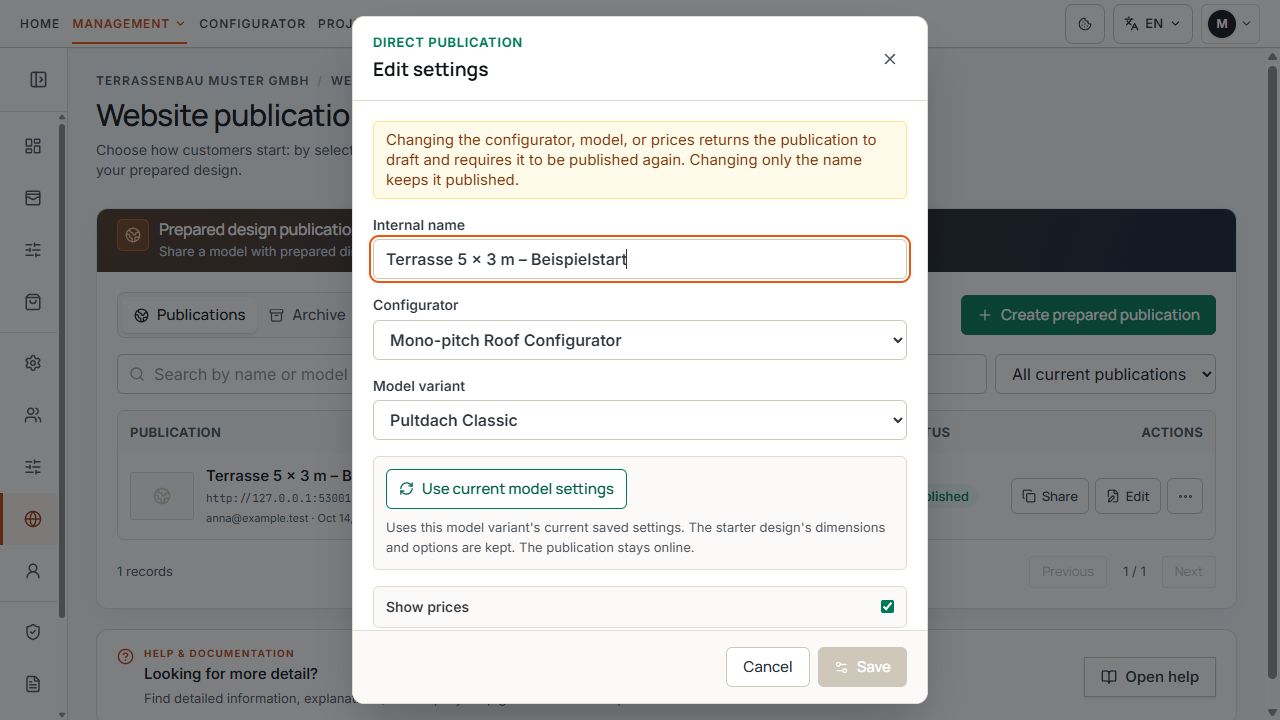
Update model settings of a published starting template
The separate action applies current model settings to the prepared publication. View with sample data.
Not every older configuration fits new model rules. For an error message, check the affected starter design. After a successful update, already open visitor sessions must be reloaded before visitors can submit an inquiry with the updated rules.
Take offline, archive, and restore
- Draft: editable entry whose public link is still closed.
- Published: active publication; required company and product permissions must also exist.
- Deactivated: entry stopped using Take offline; the draft can be published again later.
- Archived: the public link is closed and the entry is kept in the archive. It is protected against normal changes there.
- Restore as draft opens an archived entry for editing. Restoration does not yet publish it.
- Permanently delete is offered only for a never-published draft without inquiries. Previously published entries or entries associated with inquiries are archived instead.
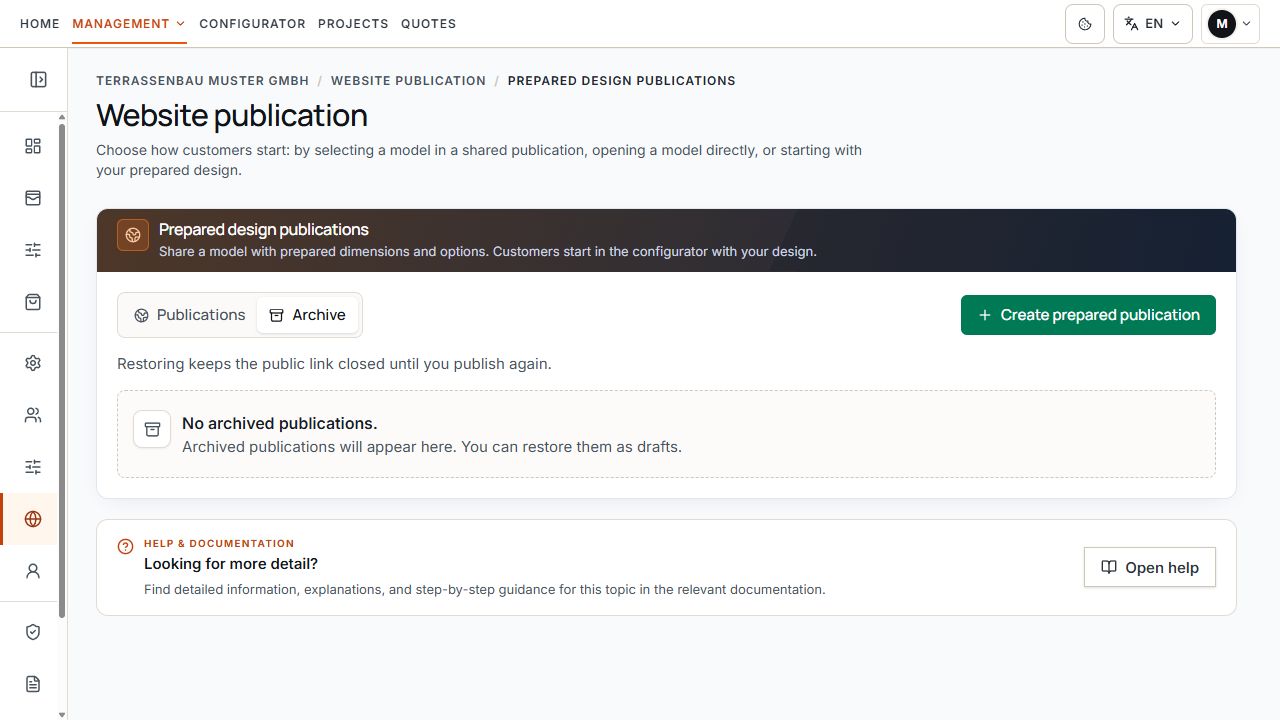
Prepared publications archive
The archive area belongs to prepared publications. The example shows an empty archive. View with sample data.
Check before sharing
- Configurator and model variant match the desired product.
- Starting dimensions, materials, colors, extensions, and model limits have been checked.
- Visible prices use the correct available pricing tariff; sales country and currency have been checked.
- Status is Published and the permanent link opens the intended starting state.
- Desktop and smartphone controls and legal links work.
- The inquiry process is accessible and shows the additional features enabled for the company.
- If a custom web address is used, that exact address has also been checked separately.
