Open User management and check permissions
Open User management in the company portal. Manage your company's users, invitations, and Trash there. Company-wide access is required; a restricted account does not receive team management here.
User management assigns company access. It does not create a platform administrator role or override package or module limits. If a platform admin is visible as a member, their role is maintained in platform management.
Demo users are managed separately in the Demo Center. A demo account does not gain additional team members or regular company licenses through this User management area.
User seats and status areas
User seats shows the currently assigned user limit, occupied seats, and available remainder. Active users and pending invitations each occupy a seat. The invitation does not have to have been accepted yet.
The Active, Invitations, and Trash tabs separate activated accounts, incomplete invitations or inactive entries, and removed users. An entry under Invitations alone does not prove successful email sending.
- Add user and Restore and invite require an available user seat.
- An invitation created with a failed email may already occupy a seat. Check the existing entry before adding the person again.
- Users in Trash do not occupy an active user seat. Removing an account does not, however, cancel an ordered additional user license or automatically change the agreed contract scope.
- If more seats are needed, compare Contract & access with the currently technically assigned limit. Additional users can be ordered through Additional services where offered.
- A paid order and technical activation are separate. Do not reorder paid additional seats still awaiting manual processing; first check the order status and current assignment.
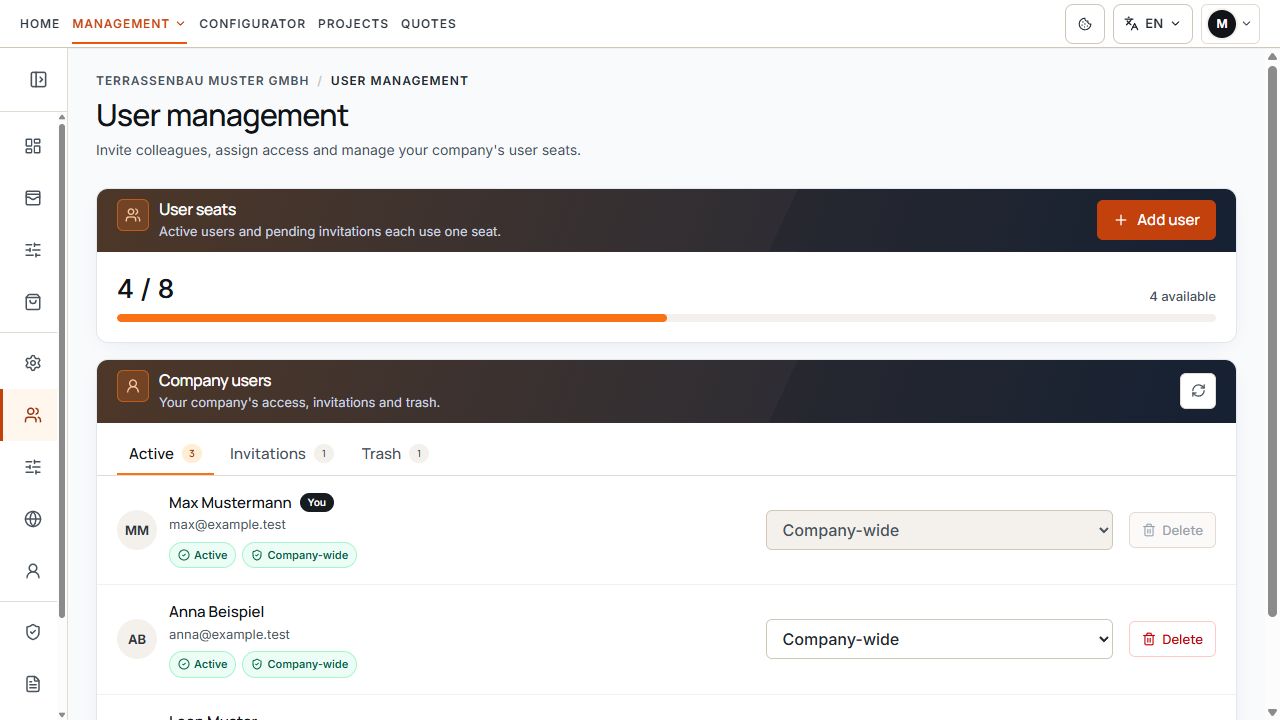
User seats and lifecycle at a glance
Active users, Invitations, and Trash are separate areas. The seat display shows company-wide occupancy. View with sample data.
Add user
The invitation can be sent in German, English, Turkish, Dutch, or Russian. It contains a one-time setup link valid for 24 hours. A link already used or replaced by a new invitation cannot be used again.
- Select Add user and enter the colleague's personal email address.
- Add the first and last name and select the desired invitation language.
- Deliberately set Restricted or Company-wide access; Restricted is preselected in the new dialog.
- Select Send invitation and read the confirmation or error message.
- Under Invitations, check the existing entry, its access rights, and, where applicable, email delivery status.
- The colleague opens the account invitation and uses the one-time link to set their own password.
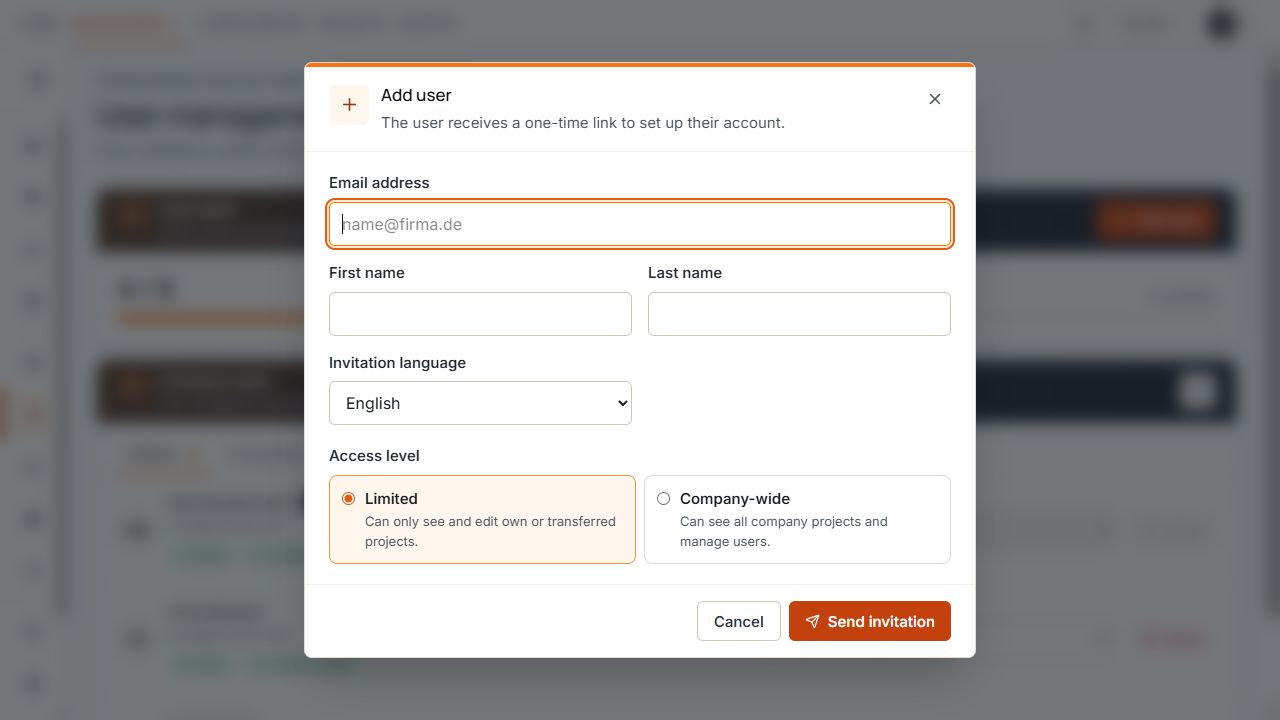
Prepare an invitation with suitable access rights
Details and access rights are selected before sending the invitation. View with sample data.
If the message says that the user was created but the email could not be sent, the user entry remains. First check the existing entry and resend its invitation.
Distinguish invitation from email delivery
An open invitation may also show a delivery status. It describes the email and is separate from the account setup status.
- Sending accepted: the sending service has accepted the email; final delivery is not yet confirmed.
- Email delivered: successful delivery information is available for the message. This does not yet confirm that the user has set up their password.
- Delivery delayed: delivery has not yet been definitively completed.
- Email not delivered or Reported as spam: check the address and mailbox; involve Support for repeated problems.
- Delivery status unknown or no notice: no clear tracked delivery information is available. Infer neither successful activation nor a definitive sending failure from this.
Invitation pending and Email delivered can both be correct: the message has arrived while account setup is still pending.
Company-wide or restricted
- Company-wide: can view company projects and manage users and central company areas, provided the associated features are enabled.
- Restricted: sees and edits their own or transferred projects. Access to associated quotes also depends on project responsibility and the active quotes module.
- The access type does not enable additional user seats, configurators, or quote features. Protected project versions remain protected after a change in rights.
- Change another manageable user's access rights directly in their row. The change is saved without sending a new invitation.
- A change in access rights ends the affected user's existing sessions. They then log in again with the current access; this rights change alone does not invalidate an invitation still pending.
- You cannot change your own access or delete your own account here. At least one active user with company-wide access must remain.
Resend an invitation or restore a user
Resend invitation is available for a still-pending, manageable account. This prepares a new account invitation; old pending setup links become invalid. The recipient then uses the new link in the new message.
This feature is intended for pending account setups. It is not a general password change for already set-up active accounts. A deactivated legacy account without an open invitation cannot be reactivated simply by resending.
- Open the Invitations tab and check the email address.
- For a pending account, select Resend invitation.
- Check the success message or sending error notice and refresh the list.
- If the same person is in Trash, use Restore and invite instead.
- For deactivated legacy accounts without a suitable action, contact Terrace3D Support.
Even if resending fails, old invitation links may already be invalid. Resolve the existing entry and new delivery instead of continuing to use the old link.
Resolve conflicts with an existing email address
If a conflict dialog offers restoration or resending, the existing account is used. The name or access details entered in the new invitation form are not automatically applied as changes to the old account. Check the saved details after the action.
- Invitation already pending: use the existing user entry and select Resend invitation if needed.
- User in Trash: recover the existing access with Restore and invite, provided a seat is available.
- User already belongs to your company: check the existing active entry; do not create a second account with the same address.
- Deactivated legacy account: use the indicated support clarification instead of trying to bypass the account through an invitation.
- Email address already in use: its assignment must be clarified before a new invitation. User management does not move an account from another company to yours.
Delete users and transfer projects
Delete moves the selected user to Trash, deactivates access, and ends existing sessions. Pending setup links become invalid. The person can no longer log in afterward.
Deleting a user does not delete projects and quotes. Before confirmation, the dialog shows the affected projects and, where visible, their quotes. If this check fails, confirmation is blocked.
- Select the correct user by name and email and open Delete.
- Wait for the check of affected projects and quotes to complete.
- Under Transfer projects (optional), either select another active company user or leave Do not transfer – retain previous assignment.
- Check the recipient and effects, and only then confirm Delete.
- Check the user in Trash and the project responsibility.
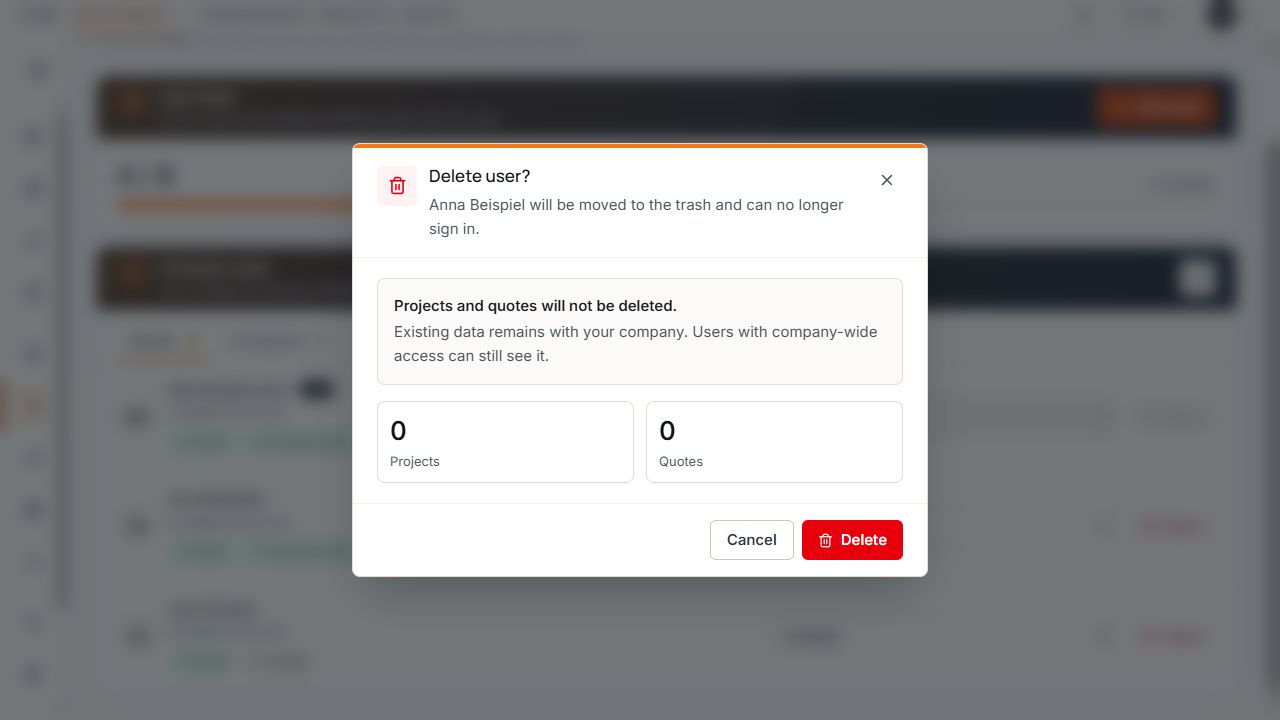
Deleting a user before confirmation
The dialog explains access removal and retention of projects and quotes. The record counters help with checking before deletion. View with sample data.
Understand the effects of a project transfer
A transfer changes the current responsibility for all affected projects and their saved versions. The recipient must be another active company user of the same company. An account from another company or a user who is no longer active is not a valid target.
The original creation information and previous quote sender details are not rewritten to the new person. Quotes remain linked to their respective project versions; access follows project responsibility and existing module rights.
- Without a transfer, the previous responsibility remains. Users with company-wide access can still view the data; another restricted user does not automatically gain access.
- A transfer also assigns saved earlier versions of the same project. Already deleted projects or versions are not restored from Trash in the process.
- The transfer does not create a project copy or remove any quote or version lock.
- The change in responsibility remains traceable in project workflow. Later restoration of the removed user does not automatically reverse this handover.
Before confirming, decide who should continue working on the open projects. Without handover, data is retained but may remain inaccessible to other restricted colleagues.
Restore users from Trash
Restoration uses the same user and prepares a new one-time account invitation. The former password and old invitation links do not become valid again. The restored account occupies a user seat again.
An unsent invitation email does not automatically mean restoration was reversed. Check the existing entry and, if available, resend its new invitation.
User management in the company portal offers restoration here. A person previously permanently anonymized elsewhere is not a recoverable Trash entry.
- In the Trash tab, open the correct user entry or check its email address.
- Ensure a user seat is available.
- Select Restore and invite and check the saved feedback.
- Under Invitations, check the new invitation and retained access rights.
- The person sets up their password using the new invitation link. Then separately check the desired project responsibility.
