Step 5: extensions
Extensions are edited in the fifth main Studio step. First choose the desired area, then its subdivision or zone, and then a suitable product. A product selection applies to the selected area and not universally to the entire structure.
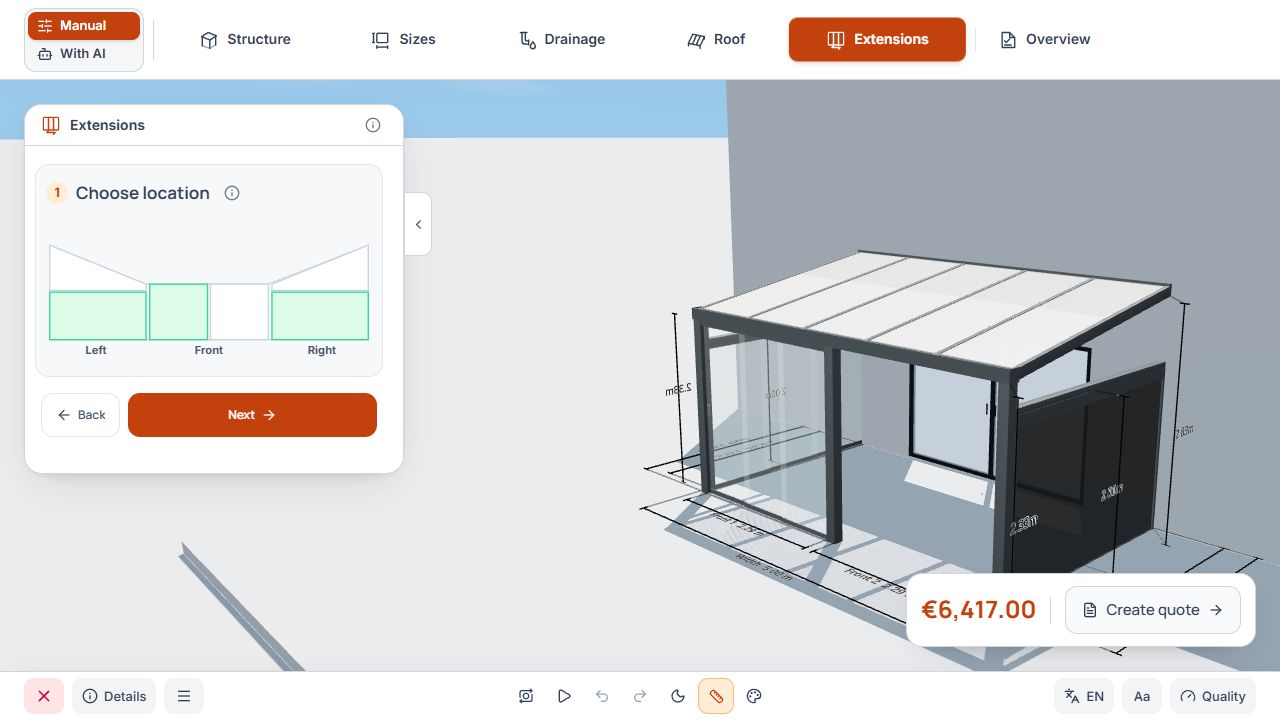
Studio step 5: extensions
First select the area; the subdivision then belongs to the selected surface. View with sample data.
Select a side, front, or rear area
- Select the left or right side or the intended front section.
- Rear areas may also be offered for a freestanding structure.
- A middle support, posts, and side subdivisions can create several separate areas.
- Check the currently highlighted surface and its label before each change.
Area selection with sides, front, and available rear areas
First select the area; the subdivision then belongs to the selected surface. View with sample data.
Divide the surface into zones
Depending on the available height, choose an undivided surface or two or three areas. Lower, middle, and upper zones are selected separately and can receive different suitable products.
Adjust offered subdivision heights through the associated settings. If three areas are unavailable, note the notice about required height or product limits.
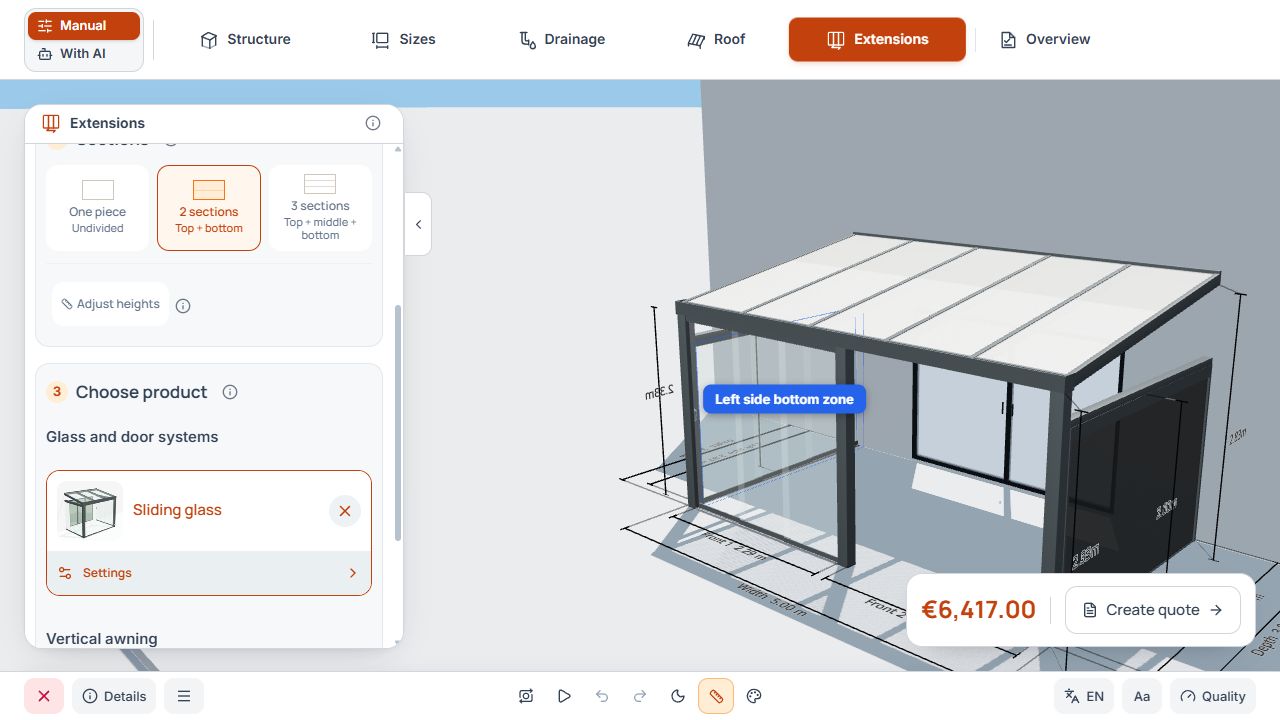
Surface subdivision and active extension zone
The active zone determines which part of the surface the following settings affect. View with sample data.
After changing subdivision, check every zone again. The lower zone's product does not automatically equip the other zones.
Select an extension product
- Glass and door systems including guillotine glass, where enabled for the model variant and selected opening.
- Aluminum, sandwich, or polycarbonate products according to availability.
- Vertical awnings and any additionally offered external shading.
- Open surface as a deliberate selection for an unenclosed area.
The product list does not promise that every product fits every zone. Company permissions, model rules, and specific opening dimensions limit the selection.
Configure glass, door, and panel systems
- Set the product type and offered opening or subdivision options.
- Check the glass or panel version and available profile colors.
- Observe product-specific limits and any disabled options.
- Use an offered opening preview and then check all occupied zones.
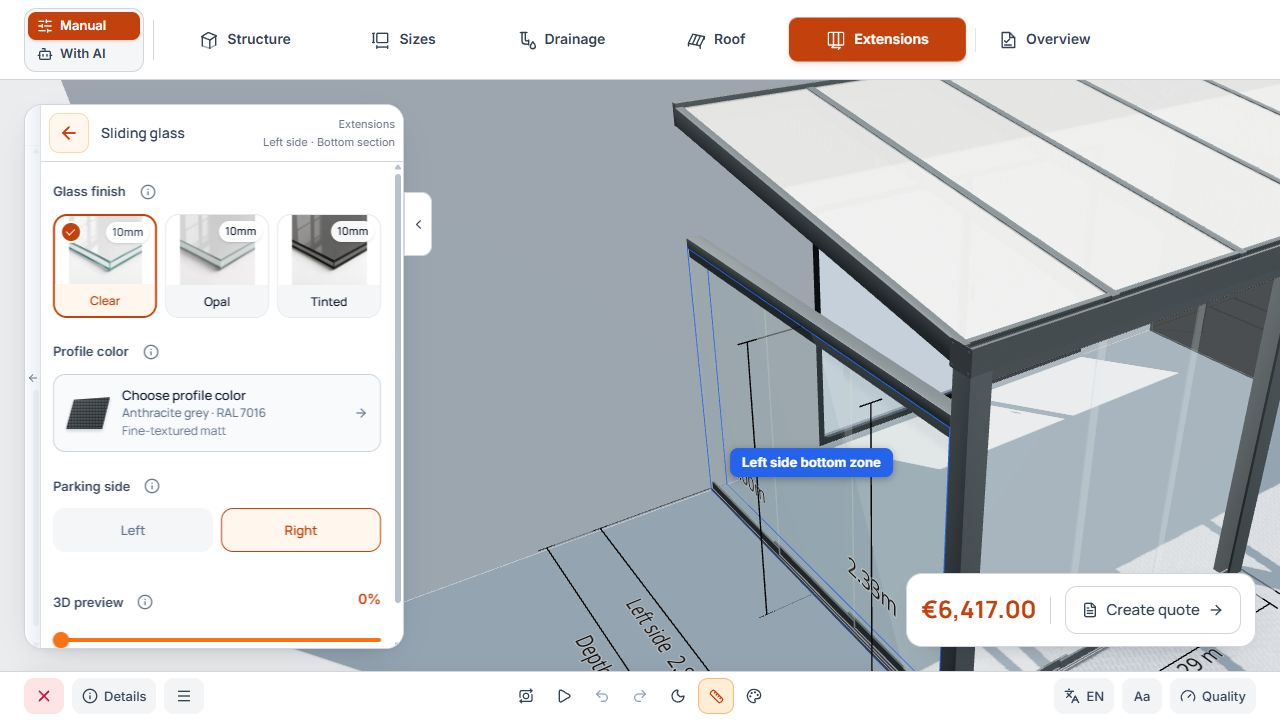
Configure a sliding glass wall
The visible options belong to the sliding glass wall in the active extension zone. View with sample data.
Configure guillotine glass
- Select Guillotine glass for a suitable enabled area.
- Choose an offered opening direction, number of glass elements, and drive.
- Observe unavailable element counts and notices on opening width, height, and dimensions per glass element.
- Select glass type and available profile color.
- Check movement using the 3D opening preview.
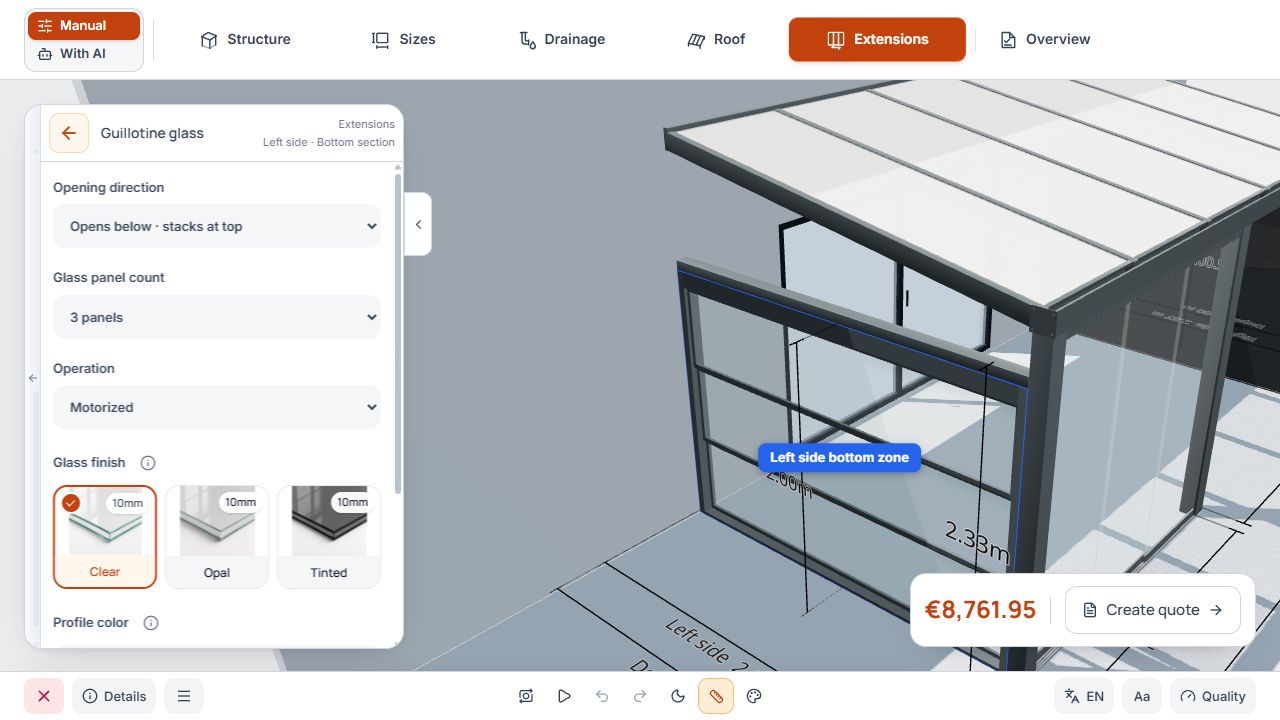
Guillotine glass with elements and glass type
Element count and glass type belong to the active zone's guillotine glass. The image shows the settings beside the 3D model. View with sample data.
The opening preview shows movement and does not change the price. Opening directions, drives, element count, and dimension limits come from the active model variant's rules.
Vertical awning and fabric color
- Select a suitable area and the offered vertical awning.
- Set the available fabric and profile color.
- If additional external shading is offered, check its assignment and settings separately.
- Check any offered opening preview.
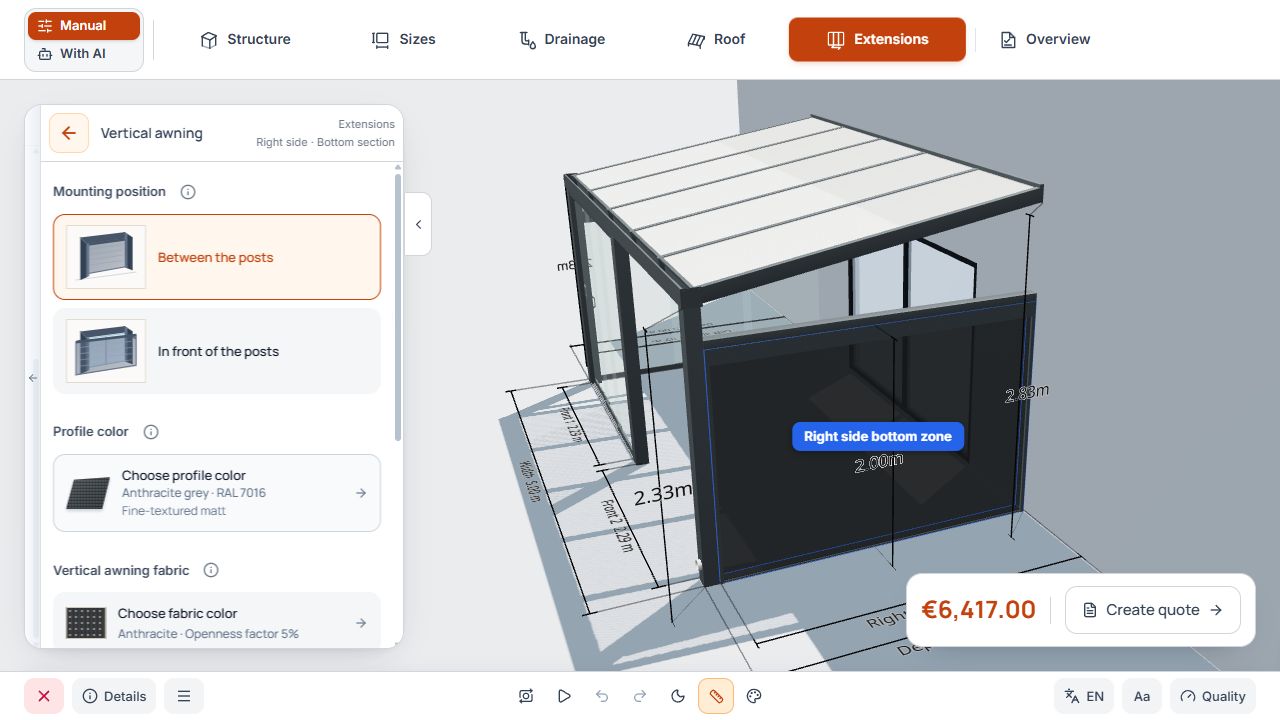
Vertical awning with fabric and profile color
Mounting type positions the awning between the posts or in front of the surface. View with sample data.
Complete extensions
- Check all intended side, front, and available rear areas and their zones.
- Check subdivisions, openings, product variants, glass or panel versions, and colors.
- Resolve dimension conflicts and other notices.
- Next may initially lead to the next area or zone. After Extensions comes Studio step 6, Overview.
