Open My account
Open My account for the logged-in user. There you see personal profile information and the Password area. The view is also available to company users with restricted access for their own account.
Check the company address and contracting party details under Contract & access. The company logo, domain, and email sending are managed under Settings.
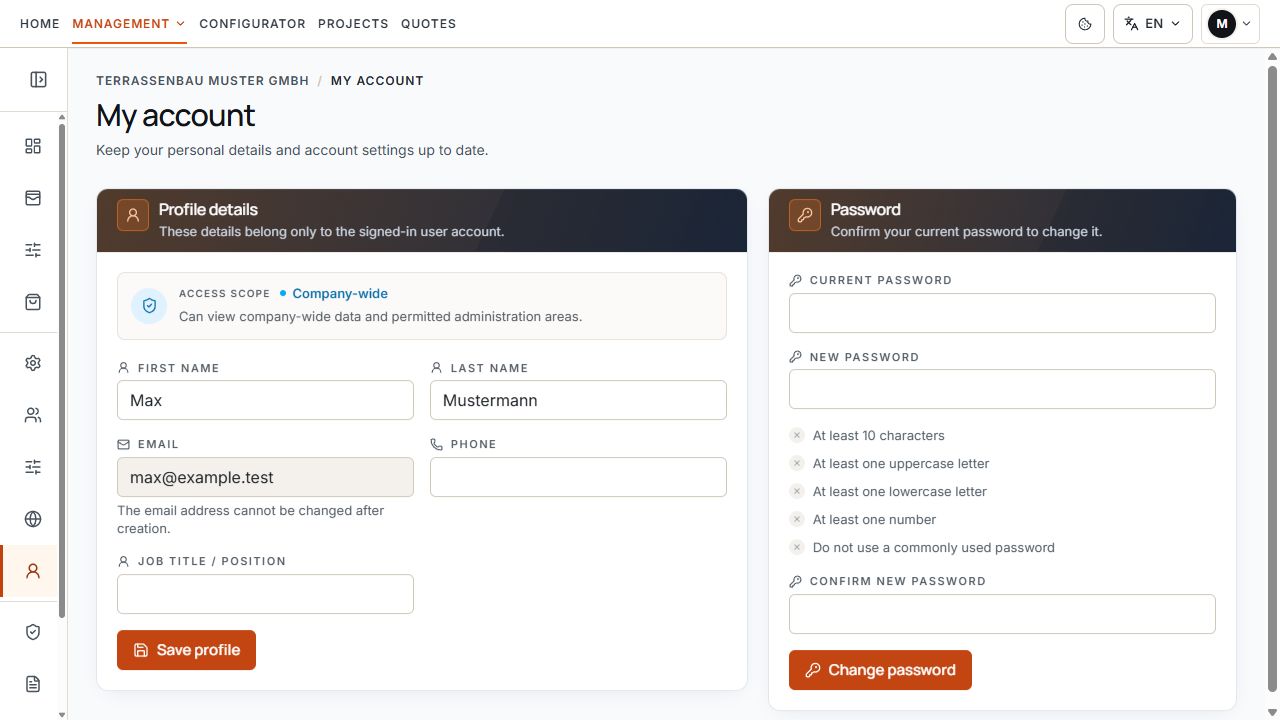
Personal details and password
Personal details are on the left, password change fields on the right. The login email is shown as separate account information. View with sample data.
Edit personal details
- Check your first and last name.
- Update your personal phone number if needed.
- Add or change your job title.
- Select Save profile and wait for confirmation.
These changes affect your user account. They change neither the company address nor the contracting party's central contact person. The password is changed using a separate action.
Check email and access type
The displayed email address is used for login and assignment of your account. The email address cannot be changed after account creation; the field is read-only.
The access display distinguishes, for example, Company-wide, Restricted, or Platform admin. It is informational. Under My account, you cannot change your own role or company access.
For an incorrect email or company assignment, contact Support or the responsible company user. A new company contact email does not change your login address.
Change password
- Open My account and the Password area.
- Enter your current password.
- Enter a different new password and follow the displayed rules.
- Repeat the new password in the confirmation field.
- Select Change password and wait for confirmation.
- Then update the saved entry in the browser or password manager.
Password rules
- Use at least 10 characters.
- Use at least one uppercase letter from A to Z and one lowercase letter from a to z.
- Use at least one number.
- Do not choose a password identified as commonly used.
- Choose a password different from the current one or a temporary password still in use.
- The new password and confirmation must match exactly.
If saving or login fails
- Current password incorrect: the password change is saved only with the correct previous password.
- Passwords do not match: check the new password and repetition again.
- Requirements not met: satisfy all displayed password rules.
- Saving failed: check the error message and try the affected area again; profile and password are saved separately.
- Current password forgotten: use the password reset route on the login page.
- Unexpected access type or company assignment: clarify with the responsible company user or Support.
Do not share passwords or password reset links in support tickets or with other people.
