Step 6: overview
The sixth manual Studio step is called Overview on desktop and Summary & quote in mobile step navigation. It brings together final checking and the actions available for your access. Reach it through step navigation or an offered price or overview button.
Company users and website visitors see different actions. Moving to this step does not yet save, create a quote, or submit an inquiry.
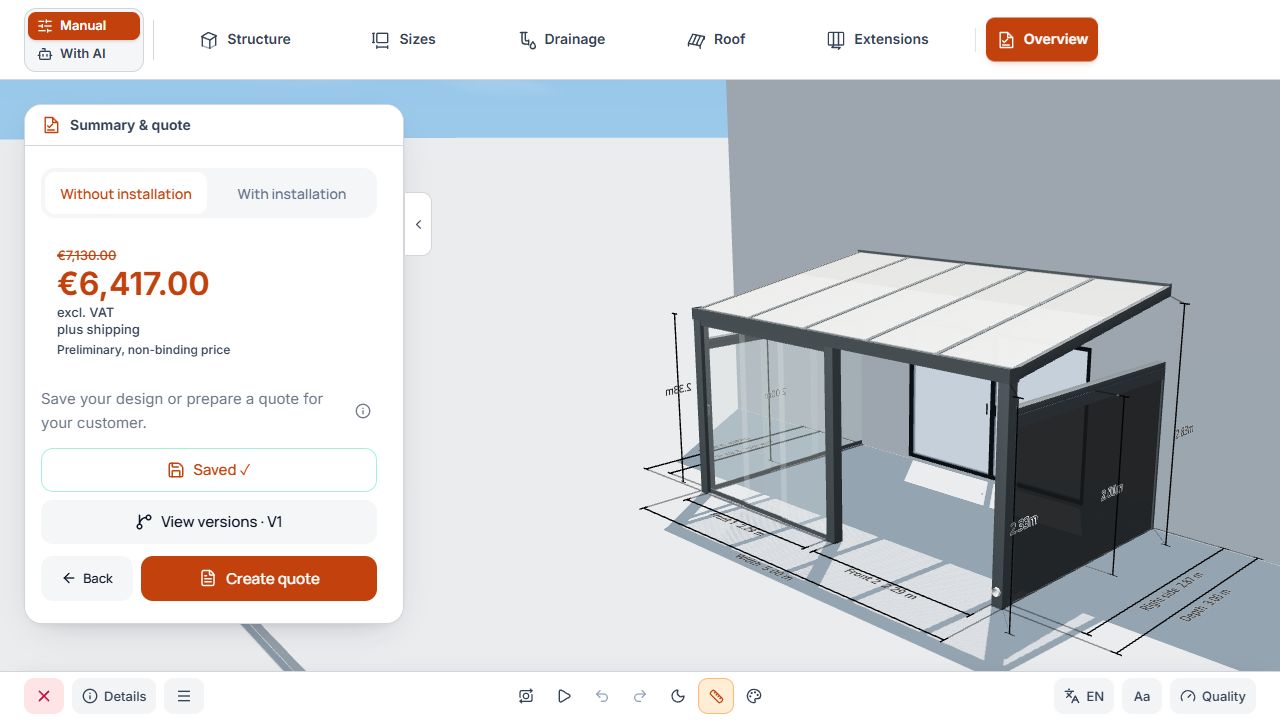
Studio Overview step
The overview brings together design state and internal project actions. View with sample data.
Check price status and installation
If price calculation is available, the overview shows the current price or a notice about the still-missing pricing basis. A missing pricing tariff, incomplete price list, or incalculable combination is not a price of zero.
Check the offered selection with or without installation and the resulting price status. On a website, a displayed price is provisional; use the inquiry for further agreement.
File actions in the configurator
- New project: start a new internal design.
- Open: load an existing project within your permitted access.
- Save: save a new or editable existing project version.
- Save as: create a separate design and check its name and details before completion.
- History, Information, and Versions: open the respective offered project information and saved states.
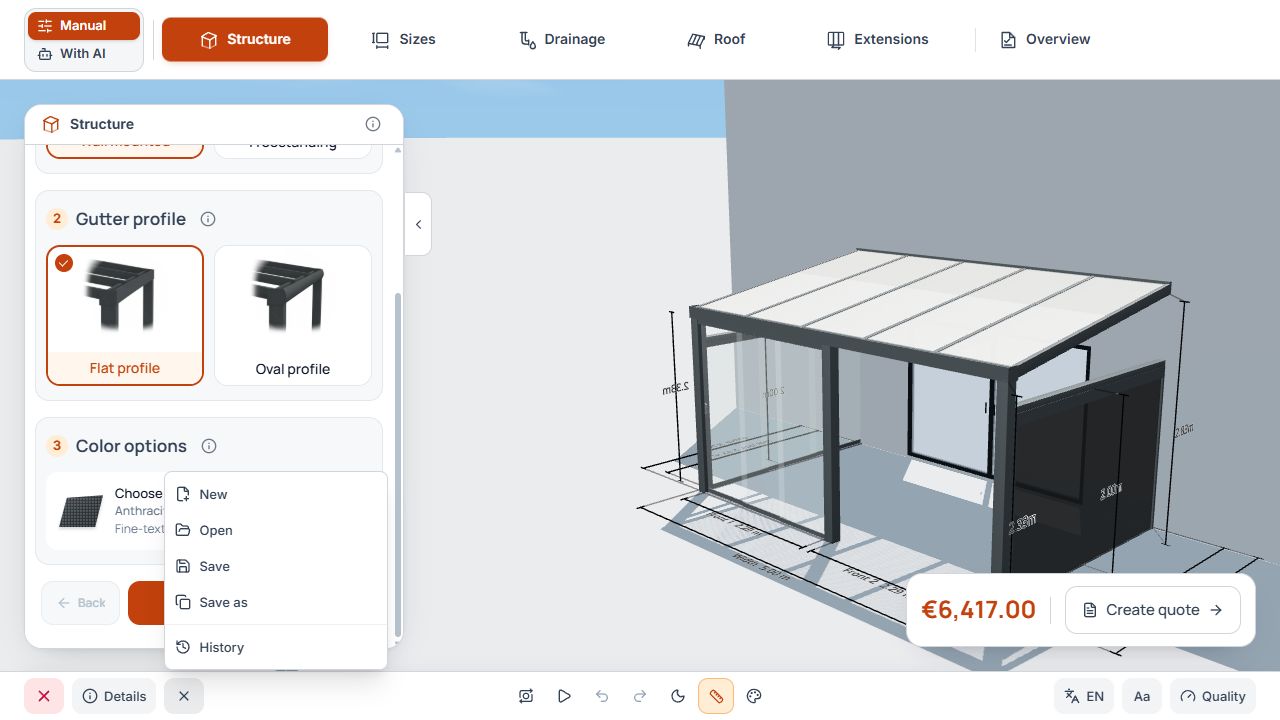
Internal project and file actions
The file menu groups internal project actions. View with sample data.
These project actions require the appropriate logged-in access. Visitors to a published configurator use the inquiry route offered there.
Save, update, or create a variant
- Check the current project status and unsaved changes.
- Use Save for a new or editable existing design and add the required project details.
- Use Save as for a separate design.
- If the version is protected by a quote, use the offered route to a new version or copy.
- Wait for saving confirmation and check the open project version.
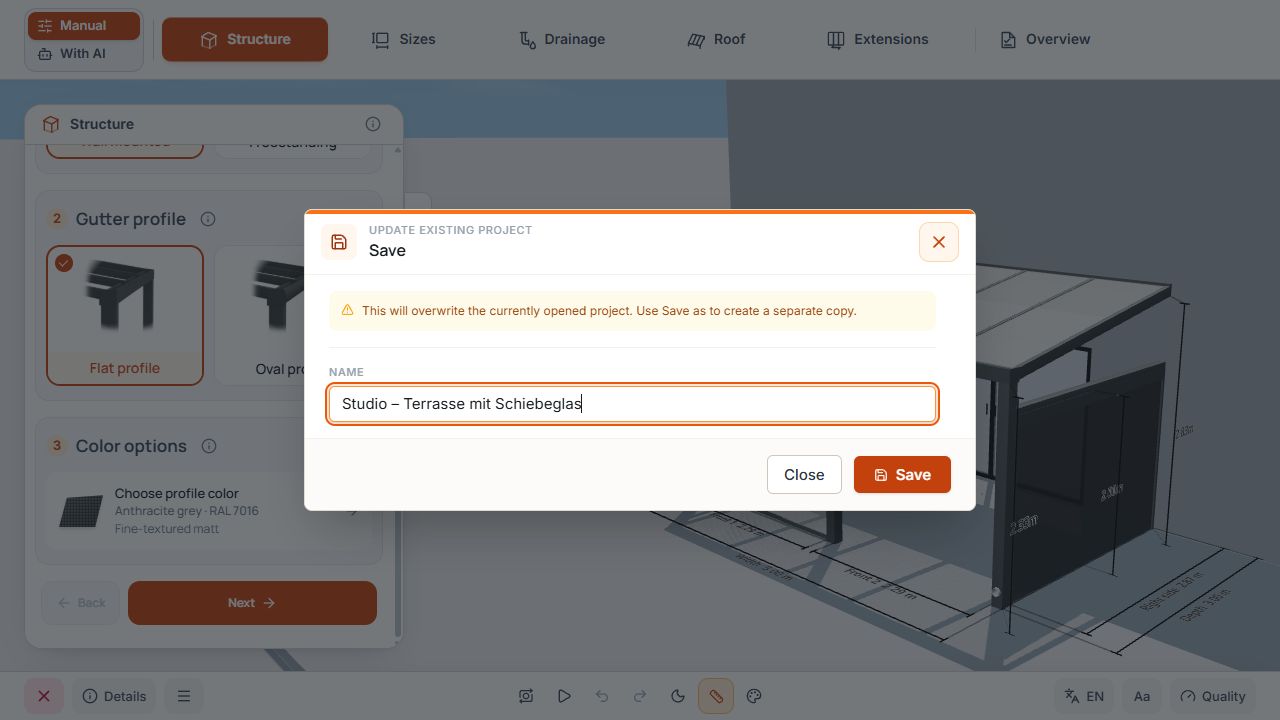
Save the open project
The screenshot shows an update to the open project. Choose Save as to create a separate copy. View with example data.
History, information, and versions
In the offered project information, check project and customer details. History and versions help associate saved states and related quotes.
A version already linked to a quote may be read-only. For changes, use the offered new project version or a separate design. An existing quote and its saved details are not automatically overwritten as a whole.
Continue in the company portal
Saved projects are continued under Projects. Check data, versions, and offered follow-up actions there. Quote creation and quote PDFs are available only with the corresponding package and access.
Create quote checks required project and customer details and the offered confirmations. An existing draft quote can be continued through the offered action; a completed quote remains its own documented version.
Basic does not include price calculation, quote creation, or quote PDFs. Detailed editing of projects and quotes is described in the linked dedicated guides.
Website visitors: send an inquiry
- Check configuration, offered installation option, and any displayed provisional price.
- Open the offered inquiry action and add required contact and project details.
- Check the displayed notices and required consents.
- Send the inquiry and wait for confirmation.
- Keep the displayed inquiry reference for follow-up questions.
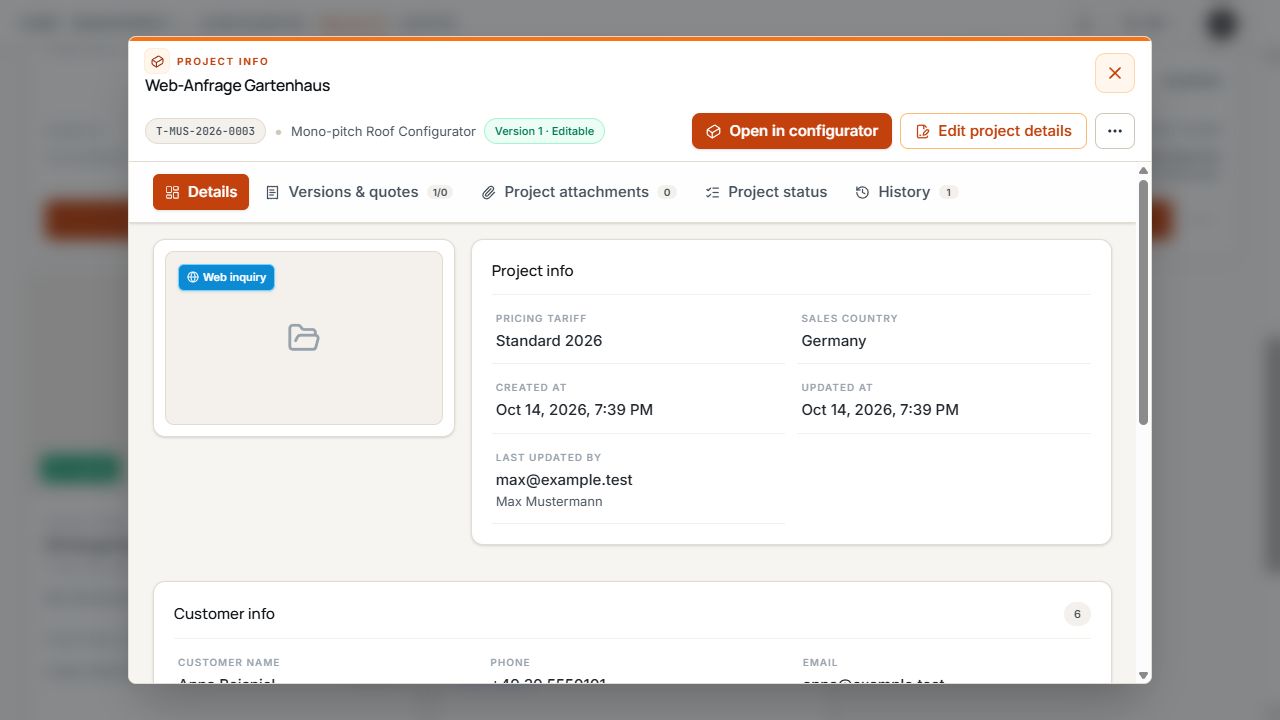
Web inquiry in the company portal
The WEB label identifies the saved project version as a website inquiry. Project information brings together the associated details. View with sample data.
A website inquiry to the company is neither an internal quote PDF download nor the purchase of a Terrace3D package. Inquiry sent confirms the submitted transaction.
Move from AI mode to the overview
In the offered AI workflow, switch from AI assistant to Overview. Check the applied model and price status; use the offered manual details for corrections if needed.
The same access-dependent save, quote, or inquiry actions then apply. An AI result is not sent solely by moving to the overview.
