Purpose of the overview
The overview is the daily starting point for the company workspace. It offers quick access, required next actions, compact project analysis, possible system notices, and a summary of quotas.
Handle detailed transactions in the responsible area. Website publications and the list of recent web inquiries are not managed directly in this overview; open new inquiries through Projects or the task link provided.
Use workspace navigation
- Configurator, Projects, and, where applicable, Quotes lead to the actual sales processes.
- Project analysis and Usage & quotas open their own detailed views.
- Settings, User management, Configurator management, and Website publication depend on company permissions and user access.
- Authorized users find official company details under Contract & access; the logo and appearance belong under Settings.
- Privacy policy & legal notice, Invoices, and Additional services are separate areas where available.
- Support indicates visible new messages. My account contains personal account details.
- On smaller screens, open mobile navigation; the available scope remains subject to the same rights.
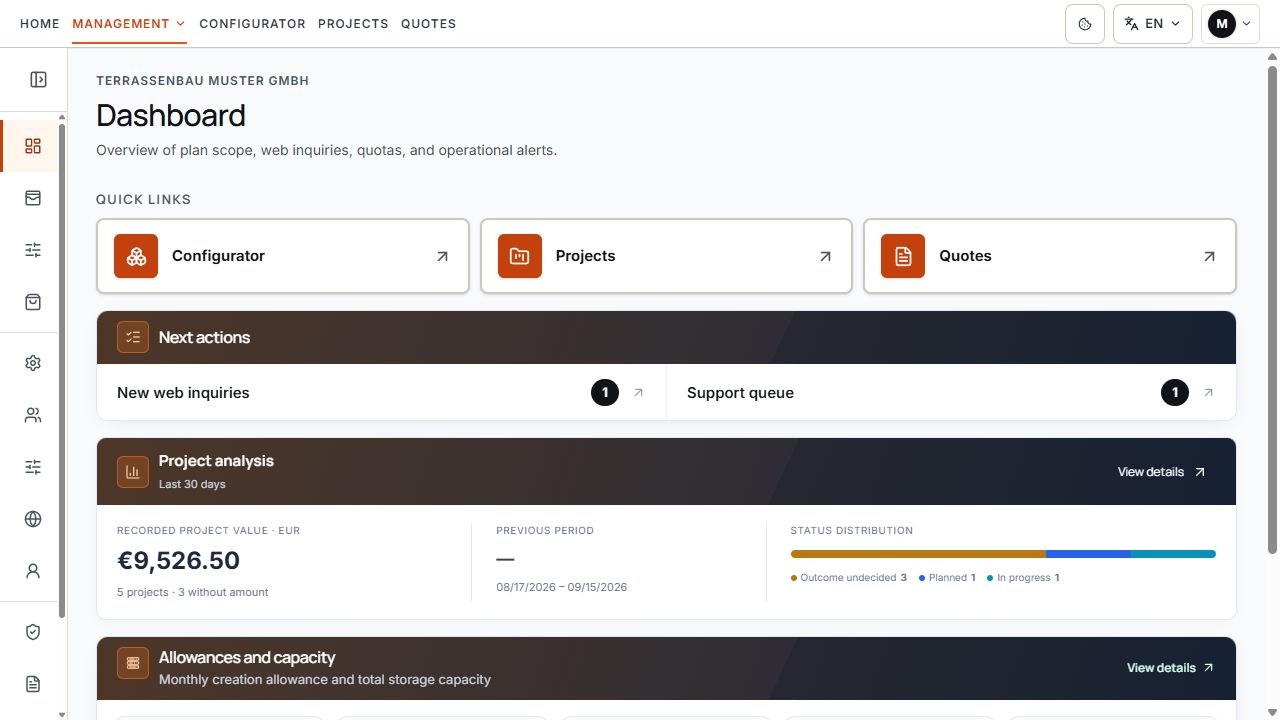
Dashboard with workspace navigation
Quick access links lead to the configurator, projects, and quotes. Next actions complement project analysis. View with sample data.
Quick access and next actions
Quick access links lead to the main work areas. Next actions appears only when relevant open tasks exist. An absent task card does not fully confirm that every customer project is complete.
- New web inquiries opens the project list filtered to new arrivals, provided the user is permitted to see those inquiries.
- Support queue leads to visible unread messages or open tickets.
- A notice about failed quotes leads to quote management. Check the actual state and error message there.
- Opening a task does not answer an inquiry, send a quote, or change a project status.
Read project analysis correctly
Compact project analysis compares the recorded project value for the last 30 days with the previous period. View details or Project analysis opens the more extensive analysis.
Each customer project counts once. Only the explicitly selected basis contributes to the project value; new project versions or additional quotes do not automatically replace this selection. The amounts are not incoming payments.
- Date basis: select Project created, Last status change, or Completion date.
- Period: use the offered timeframes, the entire period, or your own From/To dates.
- Currency: amounts are analyzed separately; the count may also include projects without a recorded amount or with another currency.
- Status distribution: narrow the analysis by a project status and reset the filter when needed.
- Without amount and without known date: distinguish these notices from a value of zero or a result set that is actually empty.
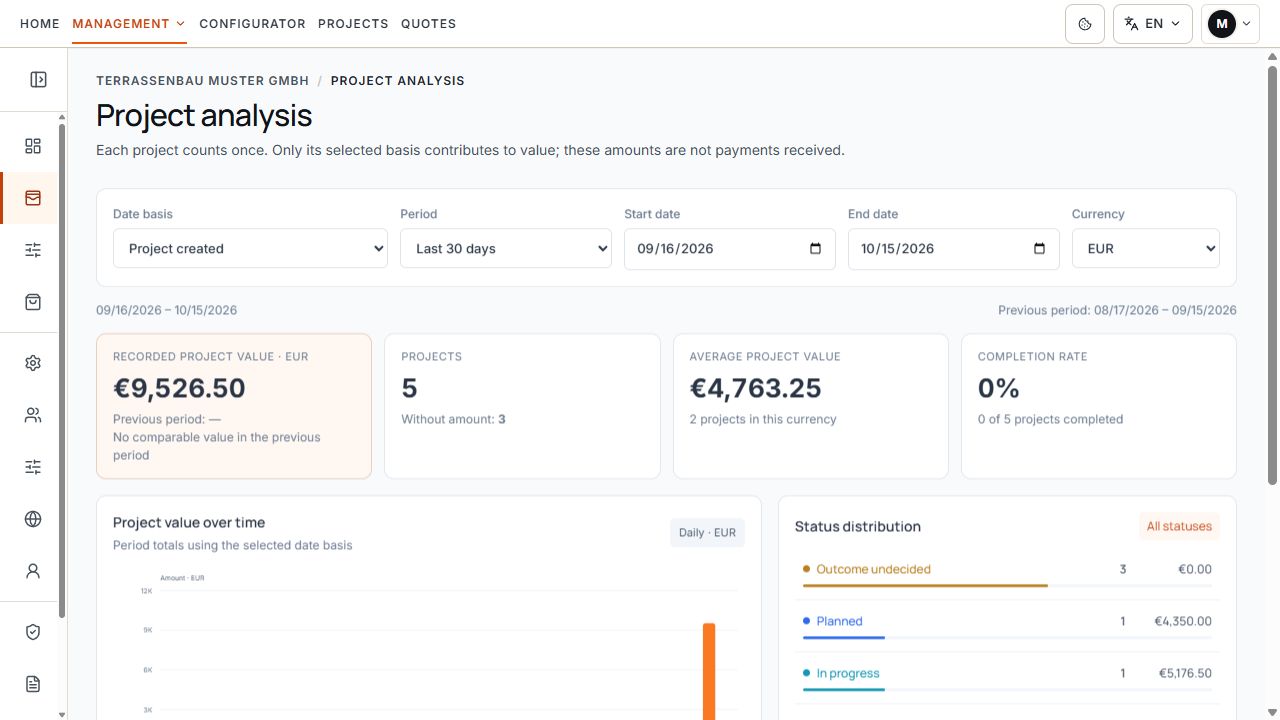
Project analysis with period, basis, and currency
The filters set the basis, period, and currency for the displayed project metrics. View with sample data.
Distinguish usage and quotas
Depending on the available features, the quota summary shows projects and quotes this month, stored projects and quotes, AR creations today, and monthly AI tokens. View details or a quota opens Usage & quotas.
The values are shared within the company. An unknown AI limit or one not yet defined is not a promise of unlimited use. The detailed view shows the respective available information and reset dates.
- Monthly creation quota: new projects or quote documents in the company's calendar month. The counter renews at the displayed month change and does not automatically follow the individual invoice date.
- Total storage capacity: permanently stored records, which do not automatically reset at the month change.
- Trash: recoverable entries still occupy storage. Permanent deletion does not restore an already used monthly creation quota.
- Project versions: further versions of the same project do not occupy an additional project slot. Duplication and new web inquiries, by contrast, create separate projects.
- AR creations today: a separate daily quota for newly prepared AR models; opening the viewer link does not itself constitute a new AR creation.
- User seats: the detailed view shows active users and available seats. Changes are made through User management where authorized.
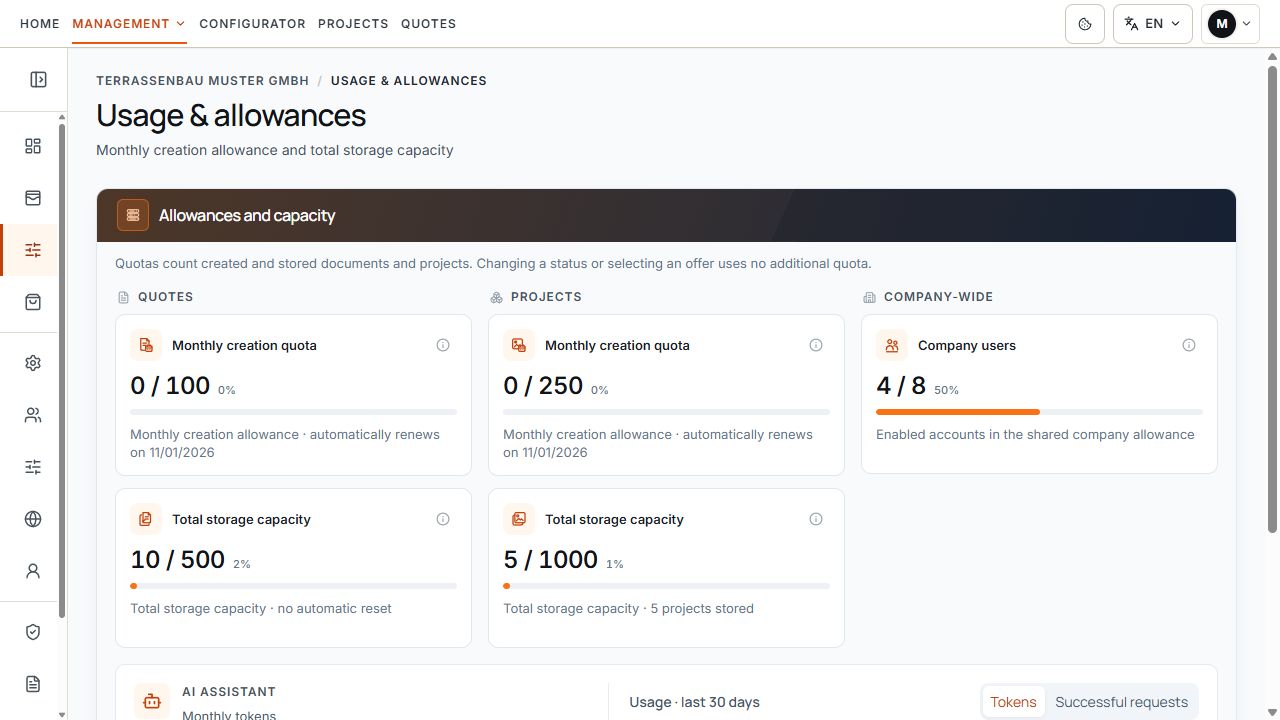
Monthly creation, total storage, and company quotas
Monthly creation, occupied storage, and company-wide user seats are displayed separately. View with sample data.
AI usage and request limits
Under Usage & quotas, AI assistant shows monthly token consumption, the existing token limit, remaining tokens, and the displayed renewal date. Request limits also apply to company users and website visitors.
Token consumption and the number of successful requests measure different things. In the history for the last 30 days, you can switch between tokens and successful requests and open daily details including failed operations.
- Terrace3D sets the monthly token quota.
- Authorized users set the requests per company user or website visitor and the associated time window under Settings → Configurator & inquiries.
- 0 visitor requests hides the AI assistant for new website visitors; it does not increase another quota.
- A failed AI request must be distinguished from a saved customer project and its creation counter.
System status and warnings
System status appears when the dashboard identifies a relevant notice. Possible topics include subscription, contract state, user seats, or a quota limit reached or nearly reached.
Open the named area, check the current message, and resolve the specific cause. Simply hiding a warning would not correct the contract, access, or usage.
- The affected company, feature, and counter have been clearly identified.
- For contract notices, Contract & access or Invoices has been checked.
- For user limits, active users and seats have been checked in User management.
- For unclear messages, the time, reference, and visible text have been recorded for a support ticket.
Next actions in the dashboard
In the example, Next actions draws attention to a support case. View with sample data.
Visibility by user access
Restricted users work within the permitted scope with their own data or data explicitly made accessible to them. An overview therefore does not automatically constitute a company-wide list of all inquiries or tickets.
Management areas, contracts, and invoices may be hidden or locked. If an expected action is missing, check your own access and company permissions; quotas may still apply company-wide.
Daily workflow
- Check Next actions for new inquiries, unread support messages, and reported errors.
- Under Projects, deliberately maintain the arrival state, project status, and selected basis.
- Analyze project analysis with suitable date and currency filters.
- Before creating new records, check monthly creation and total storage separately.
- Save required changes in the responsible management area and check their results afterward.
