Who may change company-wide configuration
Only authorized users with company-wide access or platform administrators in the correct company context can change model variants. Other users may view offered settings according to access but cannot save them.
Before each change, check the company, configurator, and model variant. A project setting affects the current design; a model change determines the offered rules for that variant. Already saved projects may use their historical settings.
Select configurator and model variant
- In the company portal, open Configurator management and model variants.
- Select the Mono-pitch Roof Configurator.
- Open the desired model variant.
- Choose the appropriate settings card, such as Model image, available products, Environment settings, Dimensions, Colors, or Prices.
- Check the open settings dialog and save changes using its offered action.
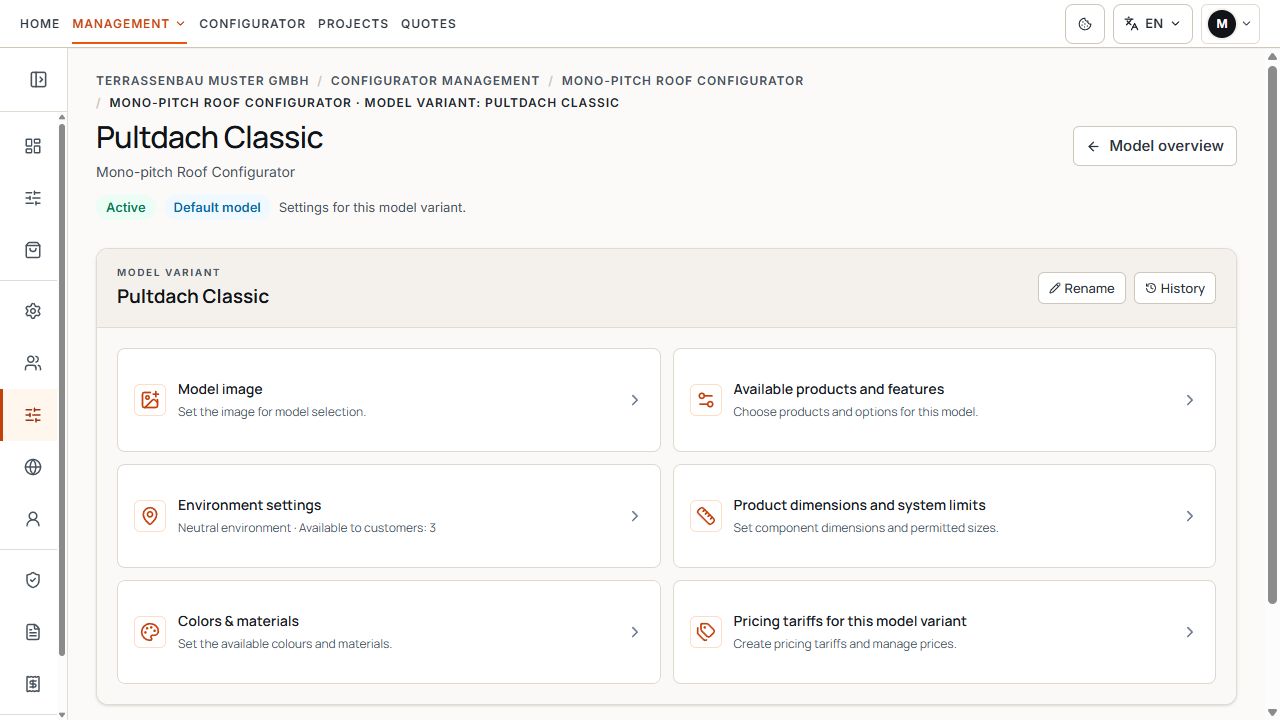
Model variant settings cards
The settings cards group company-wide defaults for the selected model variant. View with sample data.
Create and manage model variants
- Create a new variant or copy an existing one where free model slots are available.
- Use a unique name and check active or default status.
- Store variants no longer needed using the offered archive action.
- Archived variants and their prices are retained but cannot be selected for new projects and publications.
- Restoration requires an available model slot. Check the displayed limits and any change history.
Prepare a model image
The model image belongs to the model variant. Open the Model image card, use the offered image or template feature, and check the crop and preview before saving.
The saved model image is used wherever this model variant is displayed, such as in model selection. The image management of a website publication links to the model variant for this.
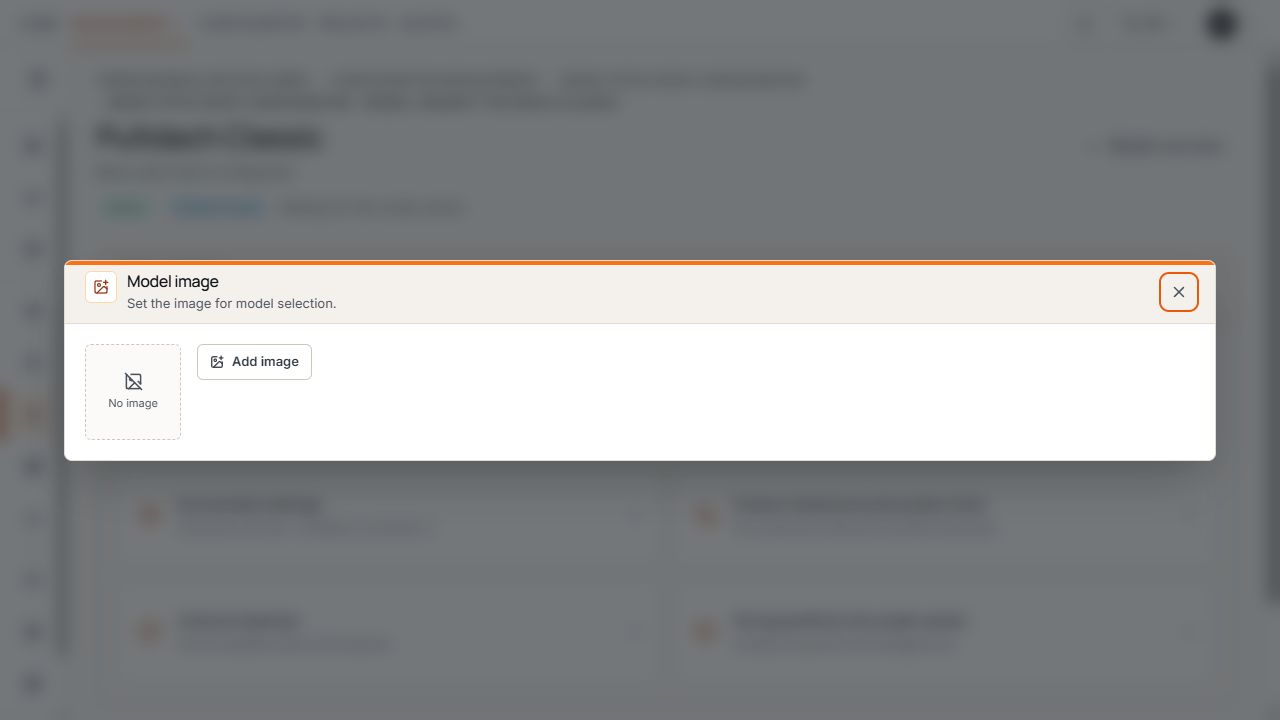
Add model image
Add image leads to image selection for the selected model variant. View with sample data.
Define available products and features
Permissions apply to the selected model variant within the options allowed for the company. Activate only products actually offered and needed; a model setting does not independently expand higher-level company permissions.
- Check roofing, roof accessories, and glass, door, guillotine, panel, and shading products according to availability.
- Define gutter profiles such as Flat profile or Oval profile. Keep at least one offered shape active.
- With only one available gutter shape, its selection is omitted in the configurator; subsequent sections are renumbered.
- Check any special permission for price calculation without roofing separately from normal material selection.
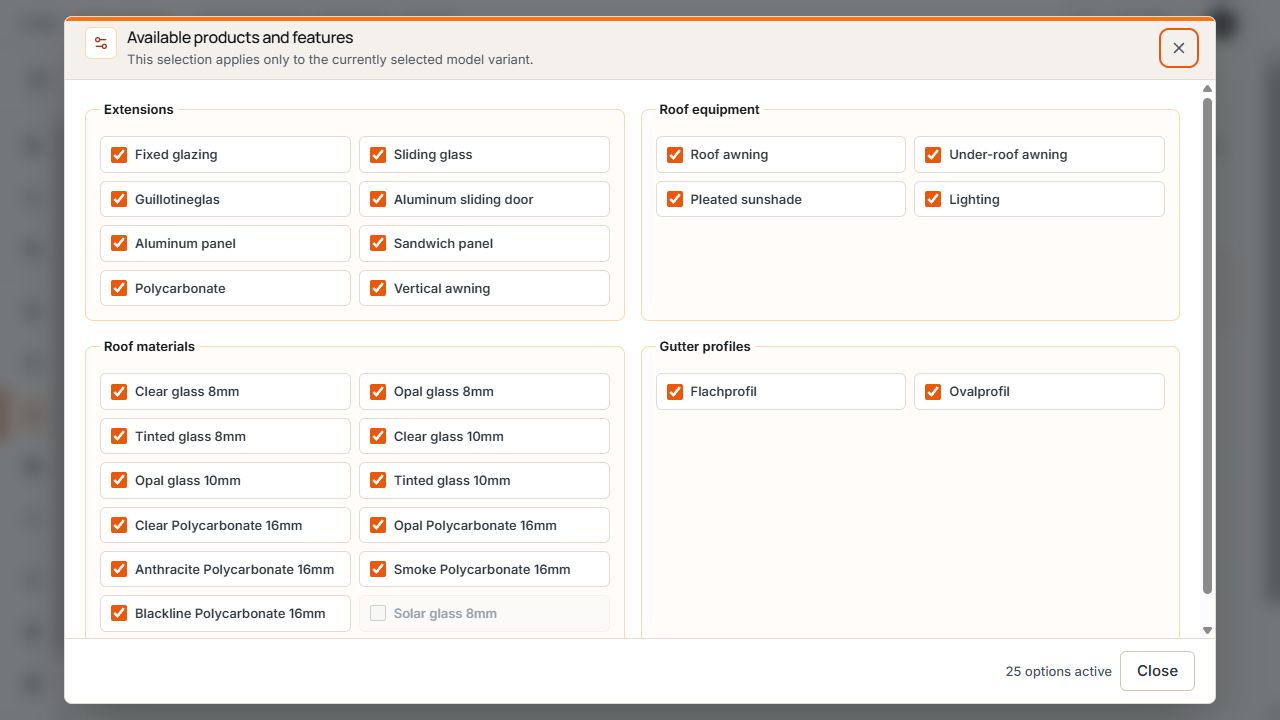
Enabled products and gutter profiles
The selection fields determine which products and versions are enabled for the model variant. View with sample data.
Configure colors, profiles, and technical limits
- Define offered frame, profile, and fabric colors for the model variant.
- Check profile dimensions and structural specifications in the associated settings area.
- Edit product-specific minimum and maximum values in the respective displayed units.
- For guillotine glass, check permitted opening directions, element counts, drives, and dimension limits per glass element.
- Retain at least one permitted option in every required selection group and correct input errors before saving.
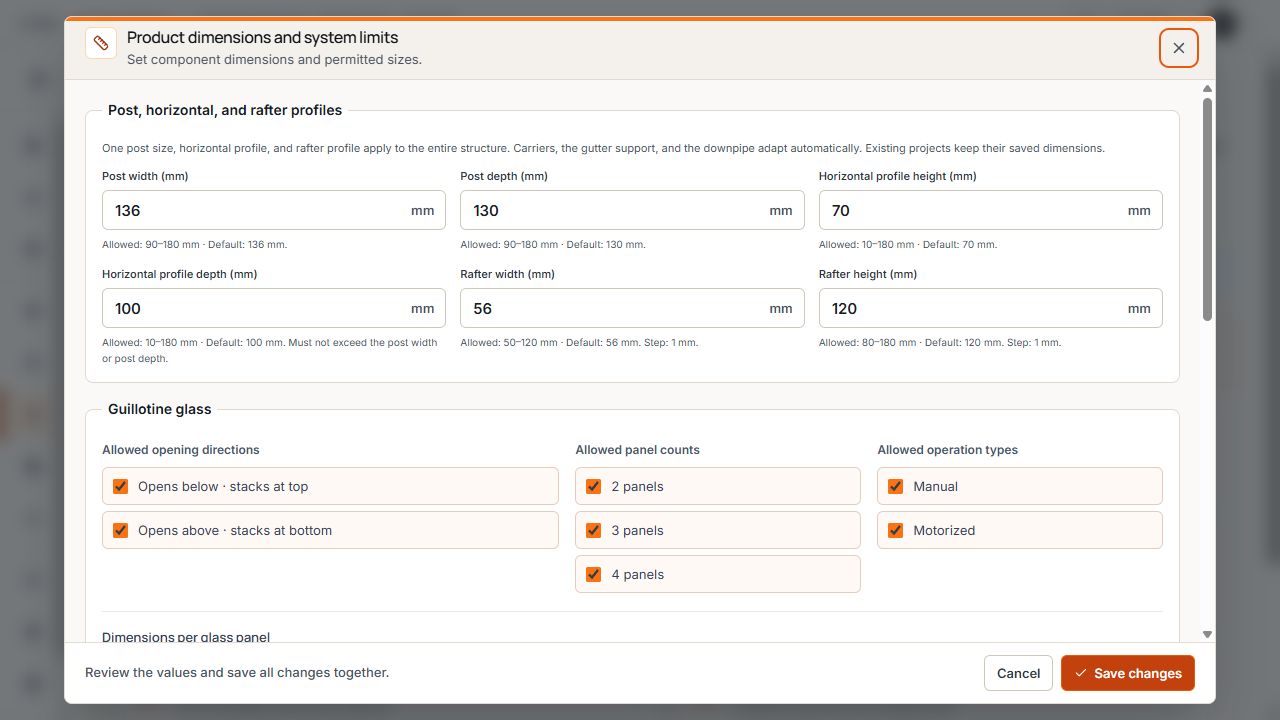
Profile dimensions and guillotine glass rules
The screenshot shows profile dimensions and the allowed opening directions, panel counts and operating modes for guillotine glass. View with example data.
Limits must suit your actual products. Then check changes in a new test project and the affected openings, instead of only checking successful saving confirmation.
Starting environment and customer environments
If environments are enabled for the company, open the model variant's Environment settings. Starting environment and Customer environments are managed separately there.
- Under Customer environments, mark environments available for this model from the company selection.
- Under Starting environment, choose one of the environments activated for the model or Neutral environment.
- Use search, Activate all, or Deactivate all as needed.
- Save the selection and check a new design in the app or website publication.
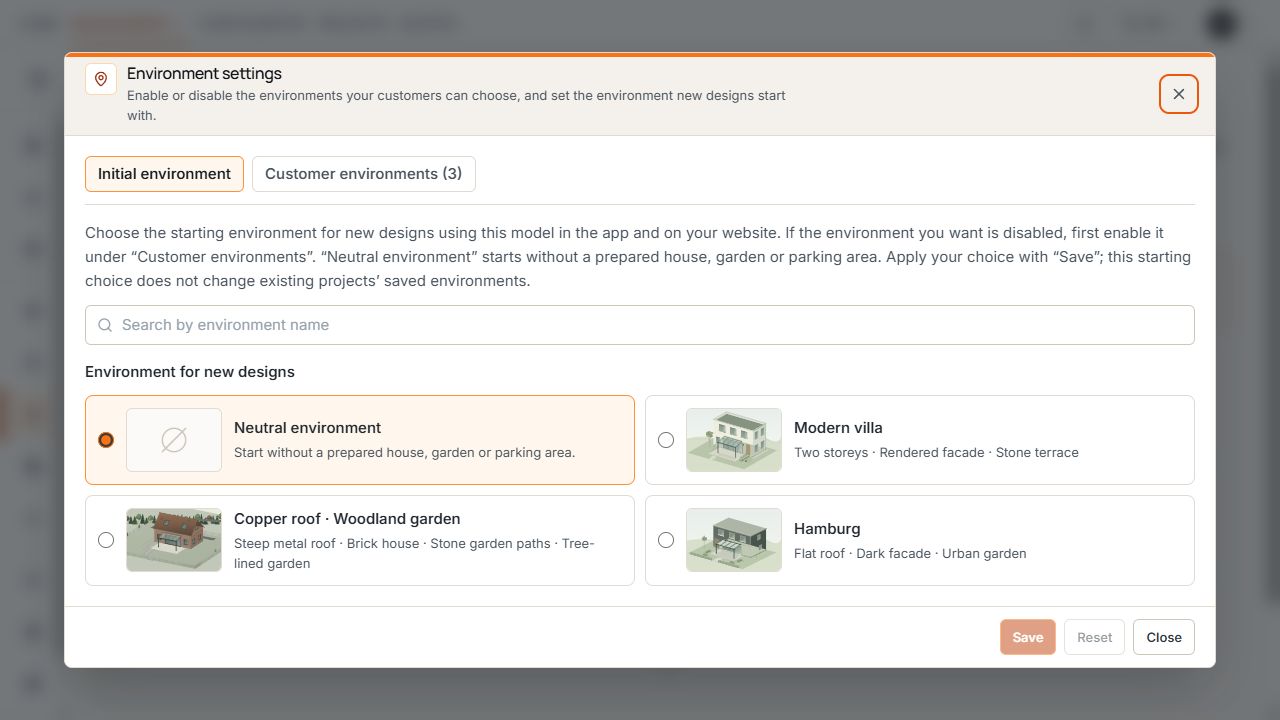
Starting environment and customer environments
Starting environment and Customer environments are separate tabs. In the example, the neutral environment is selected as the starting environment. View with sample data.
A disabled environment cannot be selected as a prepared starting environment. If all prepared environments are disabled, the model uses the neutral environment. The new starting selection does not change the saved environment of existing projects.
Assign pricing tariffs and publications
Model variant, pricing tariff, and website publication are used together but remain separate management areas. After changing product permissions, also check the required prices and selection in the publication.
- Assign the appropriate pricing tariff to the intended use and resolve missing product prices.
- For a publication, check model, image, market, language, and desired price display.
- Check configuration with a new internal test project and a published preview.
- Distinguish historical project states from settings applying to new projects.
