When an individual publication fits
An individual publication starts directly with a particular model variant. It suits a dedicated product page or a link where visitors should not go through a shared model selection.
Open Website publication and Individual publications. Models are organized by configurator. Their individual publication status is independent of whether they also appear in the shared model selection.
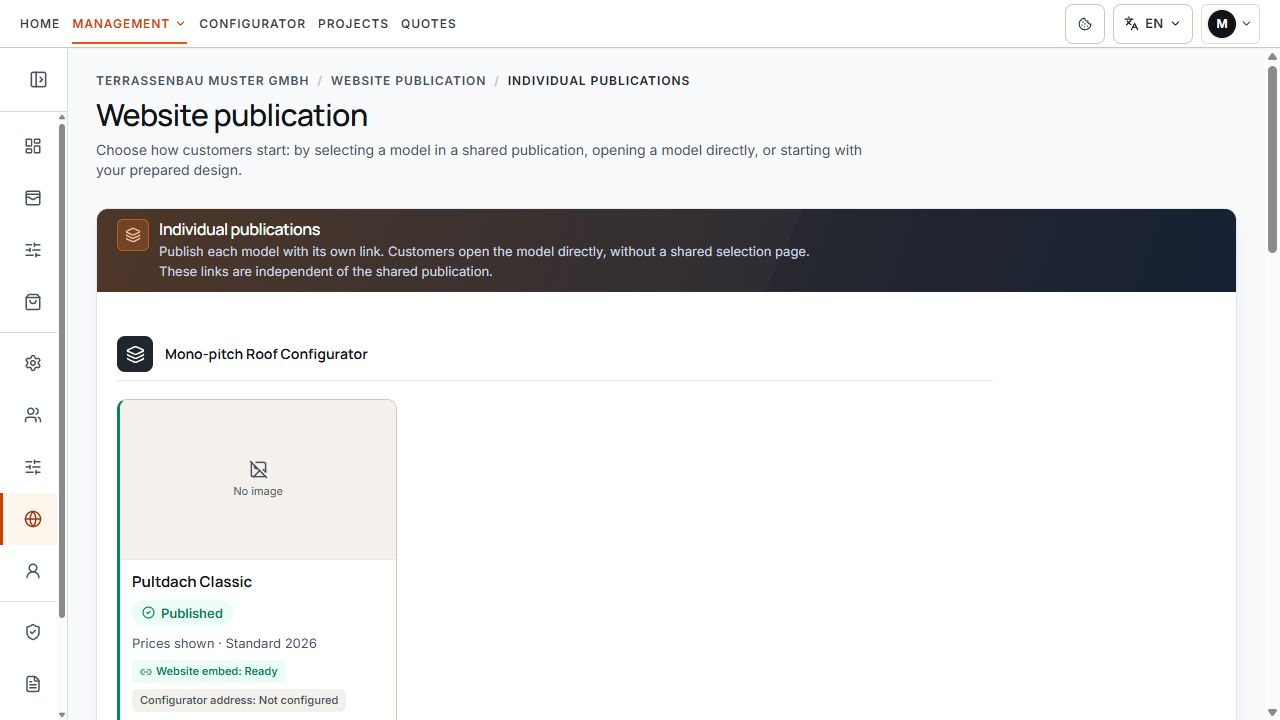
Publish a model variant specifically
An individual publication takes visitors directly to the selected model variant. View with sample data.
Prepare model variant and permissions
The preview image on the publication card comes from the centrally saved model image. No separate publication image is uploaded here.
New publication is locked for inactive models. Demo access may offer an individual preview during its term; this does not authorize your own website.
- Check company-wide access and an active website module.
- Select the correct enabled configurator and an active, unarchived model variant.
- Check dimensions, materials, colors, available options, and the model image in configurator settings.
- For visible prices, provide the active pricing module and a suitable active, complete pricing tariff for the model variant.
- For the additional custom web address, check its separate permission and setup.
Create a website publication
The switch saves publication immediately; an additional final Save button for the whole page is unnecessary. For an error, first check the confirmed state before repeating the operation.
If several separate publications appear for a model variant, distinguish the individual entries and their links. Always change pricing settings on the entry whose link will actually be used.
- Find the desired model in its configurator group.
- Enable Individual publication active.
- Wait for confirmation and check Published status.
- Check the now-available settings for prices and pricing tariff.
- Select Open preview and ensure the intended model variant starts directly.
Manage price display and pricing tariff
- Settings apply to this individual publication entry. Shared model selection has its own price display and pricing tariff assignment.
- Pricing tariff selection can be changed only when price display is on. If the pricing module or usable pricing tariff is missing, price display cannot be activated.
- Only suitable active and complete pricing tariffs are offered. A saved reference to a now-unusable pricing tariff does not promise visible prices.
- A model variant can remain published for inquiries without prices. A withdrawn or incomplete pricing tariff may suppress price display without closing the model entirely.
- Open Settings on the published model variant.
- Activate Show prices if visitors should see prices.
- Select this publication's intended pricing tariff.
- Wait for confirmation after each change and open the preview again.
- For a publication without price display, turn off the switch and check the inquiry workflow.
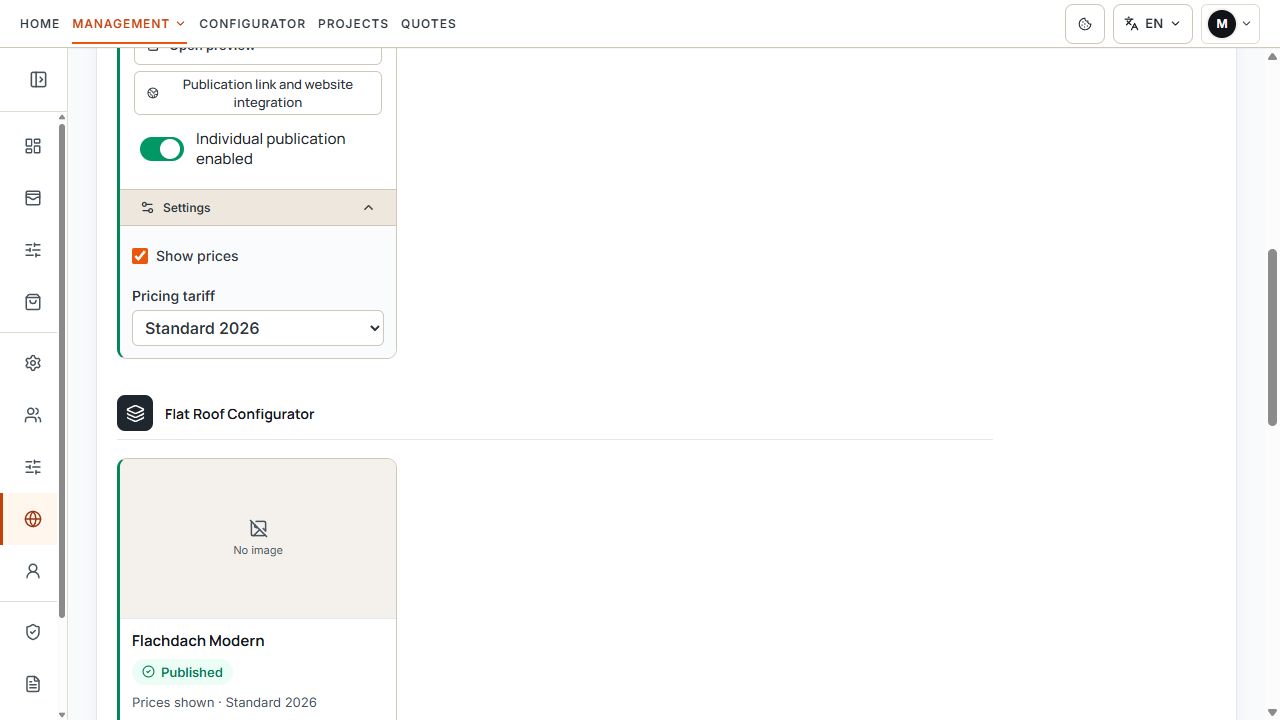
Pricing settings for the specific individual publication
The price option and pricing tariff belong to this specific individual publication. View with sample data.
Check model permissions and public presentation
Products, materials, dimensions, and additional options are adopted from the published model variant and company permissions. The price switch determines price display; it does not enable further products or features.
Changes to the model image and model variant settings may also affect publications using this model. After such changes, check the public configuration and selected pricing tariff's completeness again.
- Model name and image must fit the offered product.
- Test permitted materials, limits, and options in a typical customer workflow.
- For price checks, consider the intended sales country, currency, and selected pricing tariff.
- Check preview, saved publication, and the address actually embedded on the website together.
Share a Terrace3D link or embed it in a website
Open Publication link and website embedding and then Embed in website. The area shows the permanent Terrace3D link for this exact individual publication. Copy link copies the saved address; Open tests the direct model start.
The link can be shared directly or used as an iframe address on your existing website. Direct sharing does not require a fully configured custom web address. Iframe embedding additionally follows the registered website address and its permissions.
- Copy the current link and open it in a new tab.
- Check model, language, options, and any prices.
- For website embedding, use the copied address as the iframe address.
- Test embedding on the intended registered website on desktop and smartphone.
- Submit a test inquiry and check its arrival in the company portal.
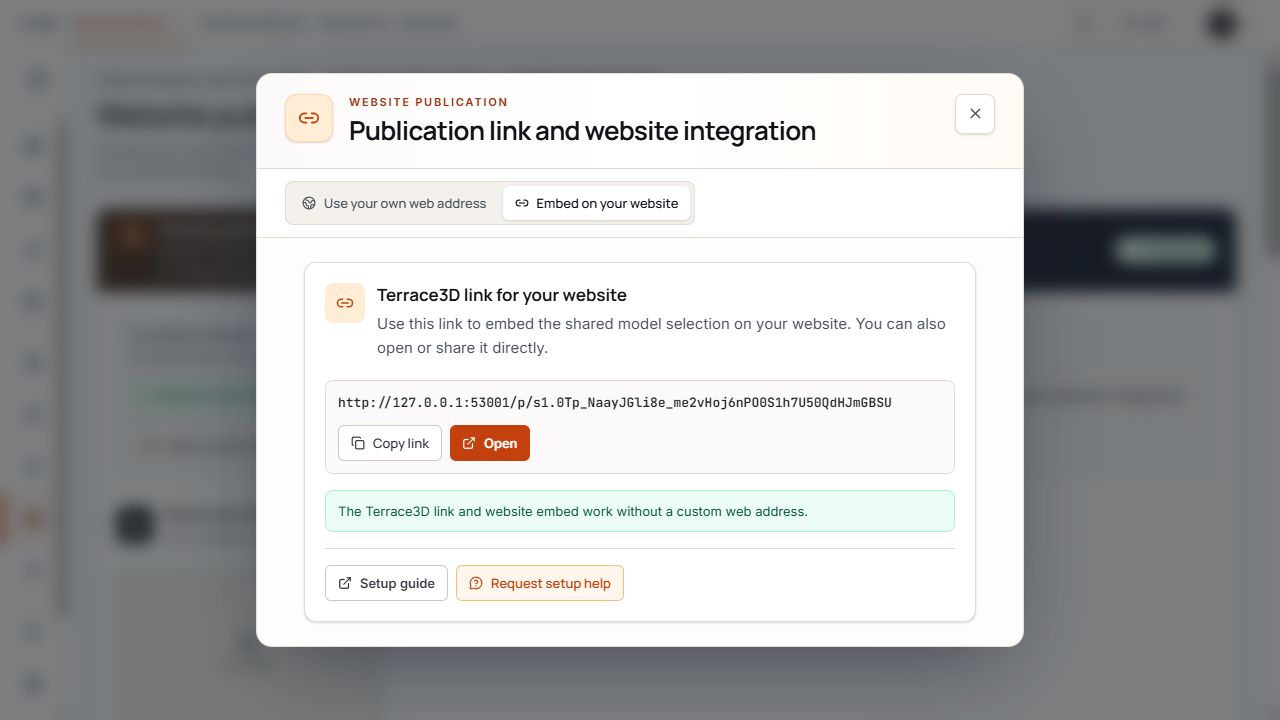
Example: sharing a publication link
The Share dialog example shows the permanent link and the Copy and Open actions. View with sample data.
Additionally assign a custom web address
If this route is enabled for your company, Use custom web address is additionally available under Publication link and website embedding. Select the home page or a custom path on the configured company subdomain and save the assignment.
The saved assignment, its activation, and DNS/SSL status are separate from model publication status. Pending setup of this web address does not automatically prevent using the available Terrace3D link.
- Check the address saved in the portal and displayed status before sharing it.
- Do not reassign a path already occupied by another active publication.
- After a path change, copy and test the new address actually saved.
- If a custom web address is missing or setup is pending, check and use the Terrace3D link separately.
Deliberately deactivate an individual publication
Turn off Individual publication active on the affected entry and check the confirmation dialog. After deactivation, this publication content is immediately inaccessible through its Terrace3D link, website embed, or custom web address.
The model variant itself is not deleted. Other separate publications and shared model selection are managed independently.
Later reactivation may generate a new Terrace3D link. Therefore reopen Publication link and website embedding, copy the current address, and replace old iframe addresses or shared links if needed. Also check a previously deactivated custom web address assignment separately and activate it if needed.
Before deactivation, check exactly where this link is used. An active model and saved custom web address alone do not mean the relevant individual publication is reachable.
